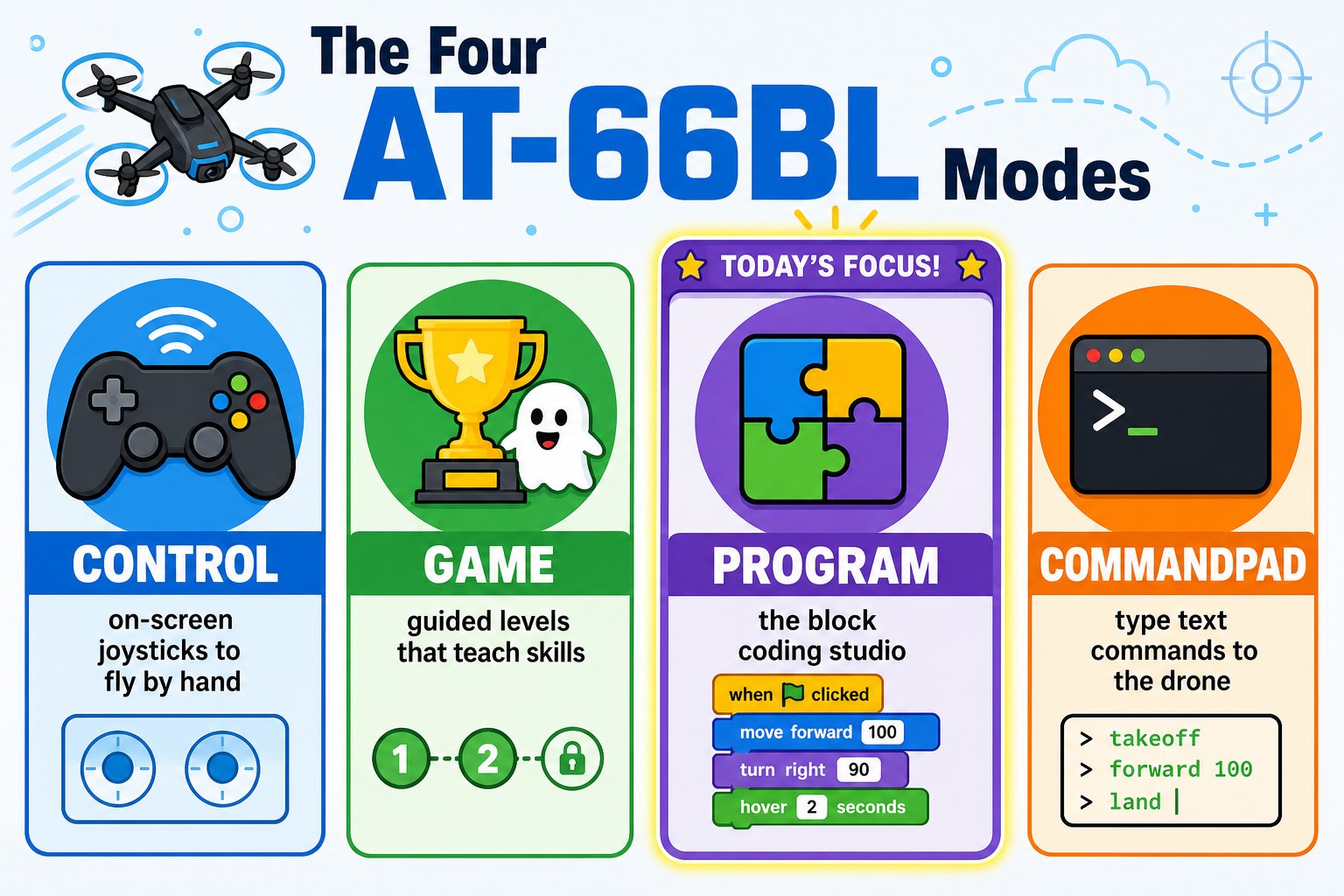
Step up to the AT-66BL app - a full Scratch-style coding studio with pairing over Bluetooth, guided levels, live control, and a powerful block workspace.
You’ve written your first programs on echo.pitsco.com. Today you graduate to the AT-66BL app - a full, Scratch-style coding studio for the Echo drone. It has more block categories, real variables and lists, custom blocks, message broadcasting, and math operators. This is where you build the programs for your capstone.
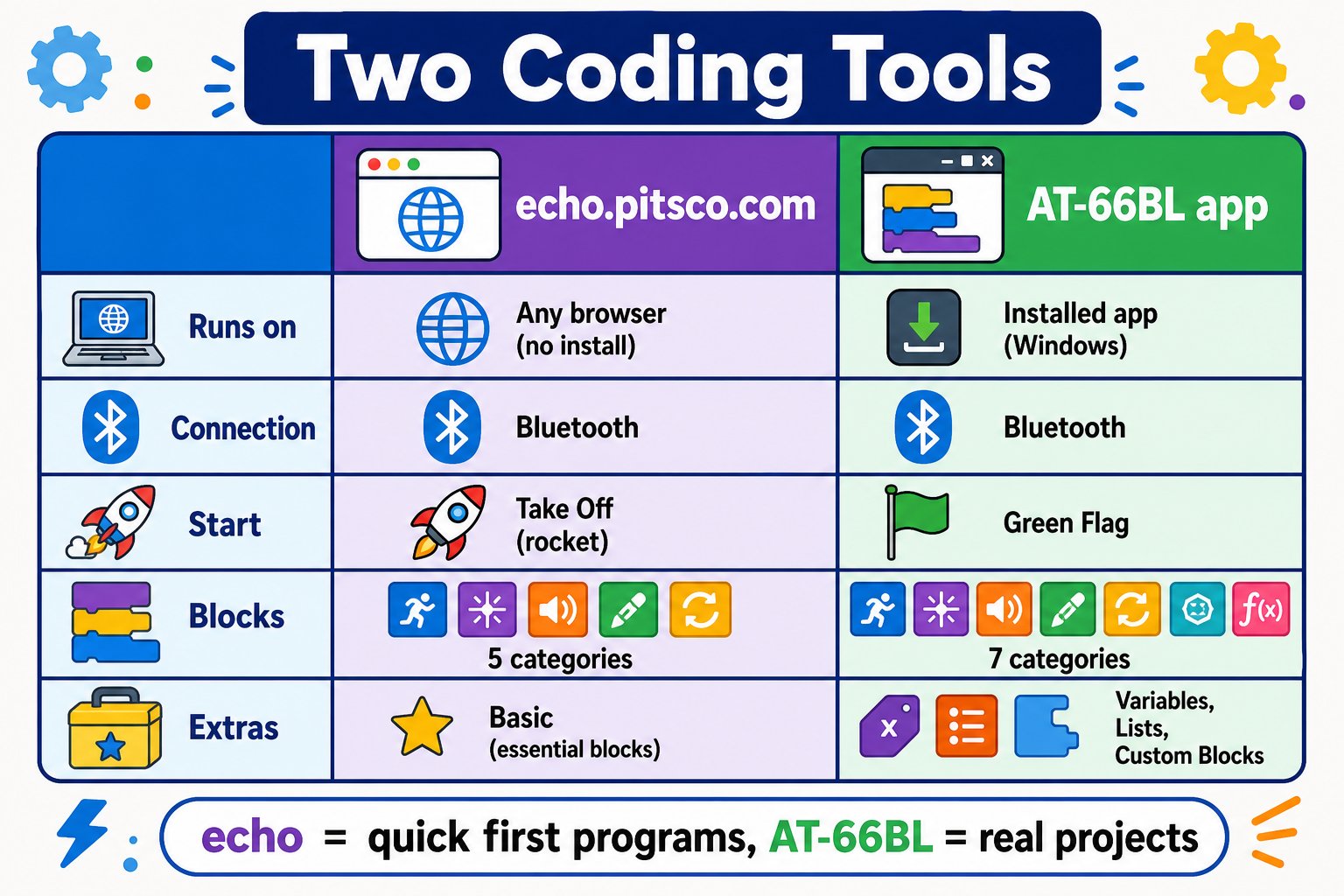
AT-66BL vs echo.pitsco.com - Same drone, same Bluetooth idea, but AT-66BL is a much bigger toolbox. echo.pitsco.com is great for quick first programs; AT-66BL is where you build real projects.
echo.pitsco.com
AT-66BL app
Runs on
Any browser
Installed app (PC / Chromebook)
Connection
Web Bluetooth
Bluetooth
Start block
Program starts at take off
when 🏳 clicked (green flag)
Blocks
Flight, Control, Loops, Variables, Functions
Fly, Events, Control, Sensing, Operators, Variables, My Blocks
Variables & lists
Basic
Full (set/change/show/hide + lists)
Custom blocks
Functions
Make a Block
Modes
Coding only
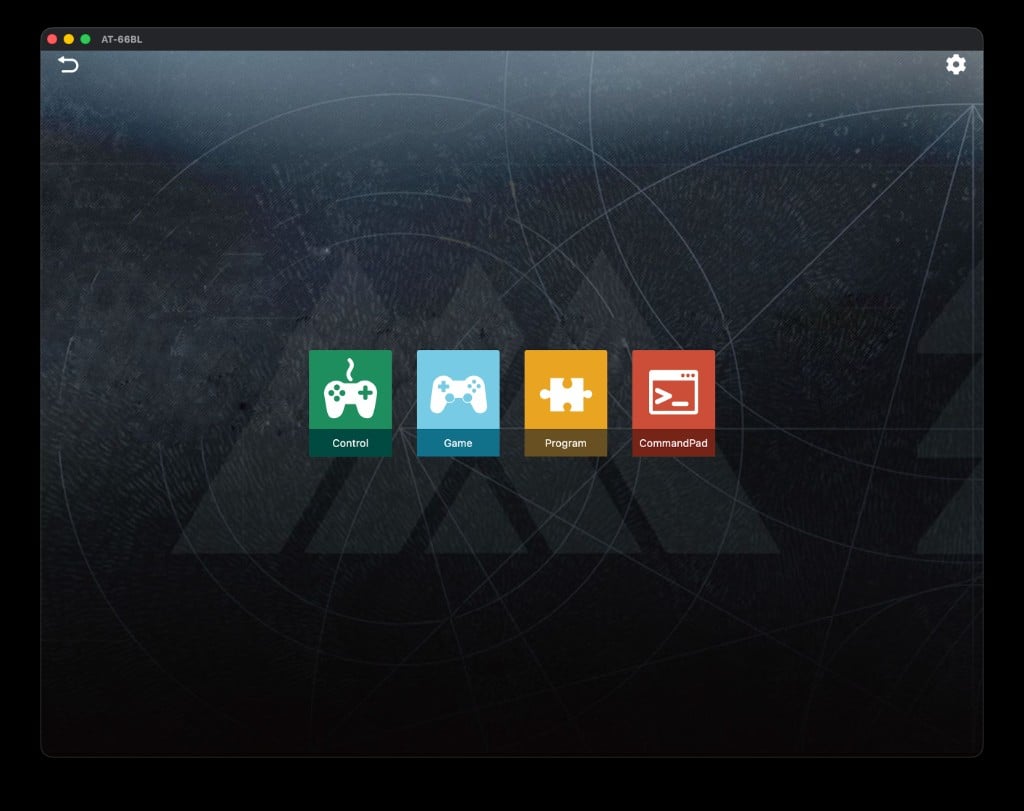
Control, Game, Program, CommandPad
From the quick-start web tool to the full studio - what you gain by moving up
Instructor: install the app on every machine before camp starts. On school-managed devices you may need IT to approve the install. Do a test pair with one drone the day before so you know the classroom’s Bluetooth works.
Before you can run code or fly, the app has to find your drone.
Turn on the drone
Power on the Echo and set it on a flat surface. Make sure Bluetooth is on for your computer.
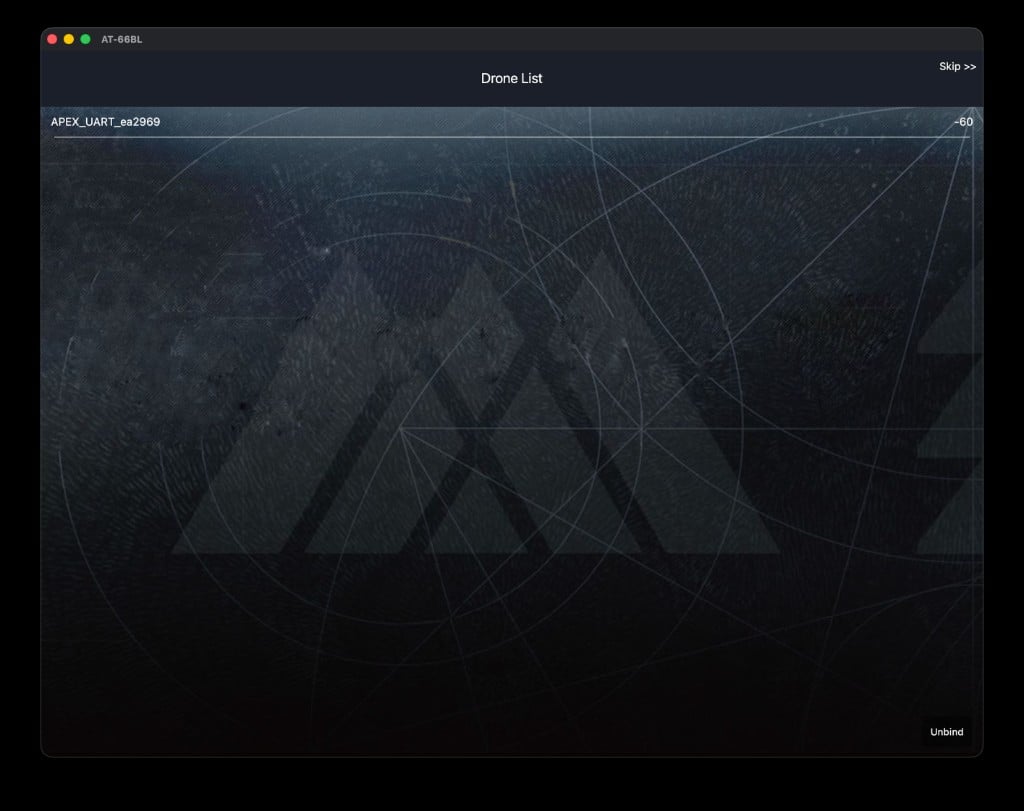
Open the Drone List
The app scans for nearby drones. Your Echo shows up as APEX_UART_xxxxxx with a signal strength number (like -60). A smaller number closer to 0 means a stronger signal.
Tap your drone (APEX_UART_...) to bind it to the app
Tap to bind
Tap your drone’s name to connect. The Bluetooth icon at the top of the screen turns solid when you’re paired. Use Unbind later to disconnect.
If two drones show up, check the last characters (like ea2969) against the sticker on your drone so you don’t fly a classmate’s. In a room full of drones, only power on the one you’re pairing.
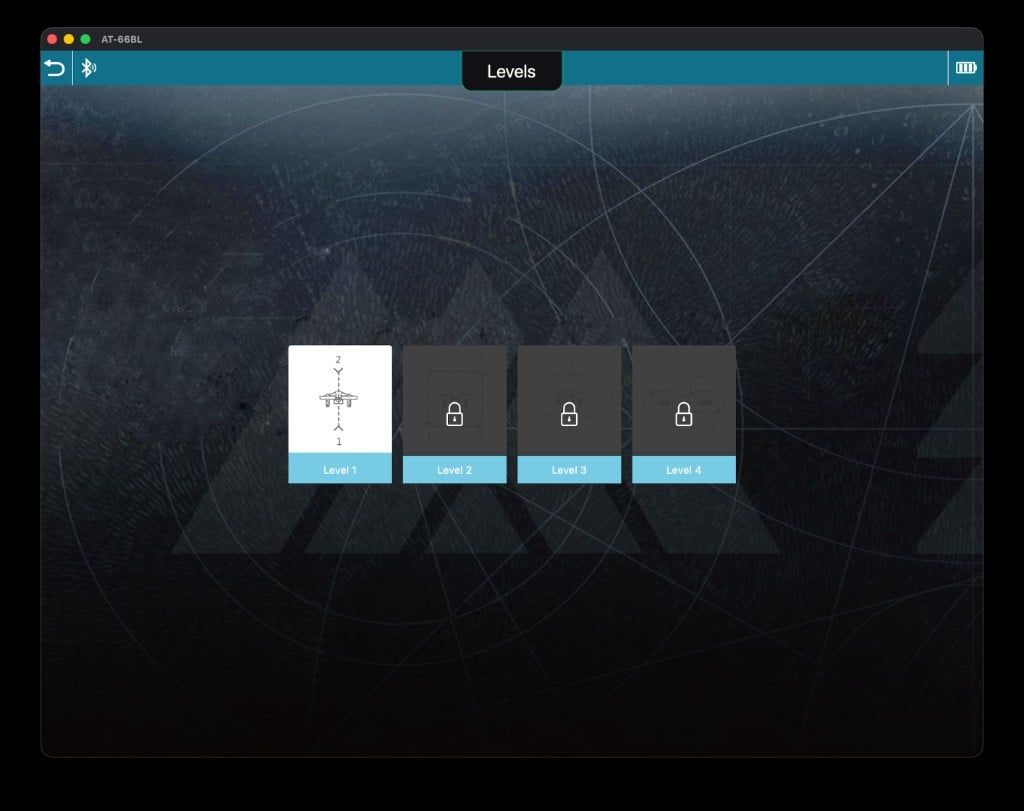
Game mode is a great warm-up. It unlocks flight challenges one at a time - Level 1 teaches straight take off and landing, and each new level adds a skill. Students who finish early can push into higher levels.
Game mode Levels - complete one to unlock the next
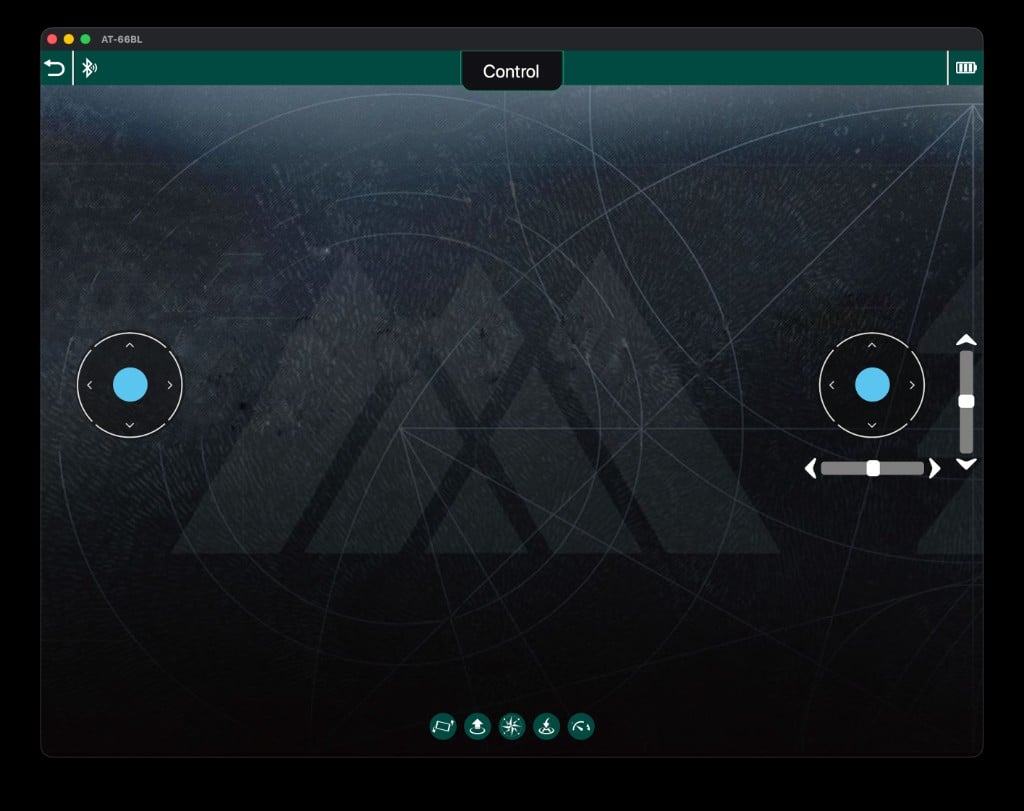
Control mode gives you two on-screen joysticks, just like the Day 2 controller. The left stick handles throttle and yaw (up/down, turn), the right stick handles pitch and roll (forward/back, left/right). The buttons along the bottom trigger take off, land, and flips.
Control mode: dual on-screen joysticks plus flip and take off/land buttons
Instructor: use Control mode as a quick “does everyone’s drone fly?” check before diving into code. If a drone flies fine here but not in a program, the problem is the code, not the hardware.
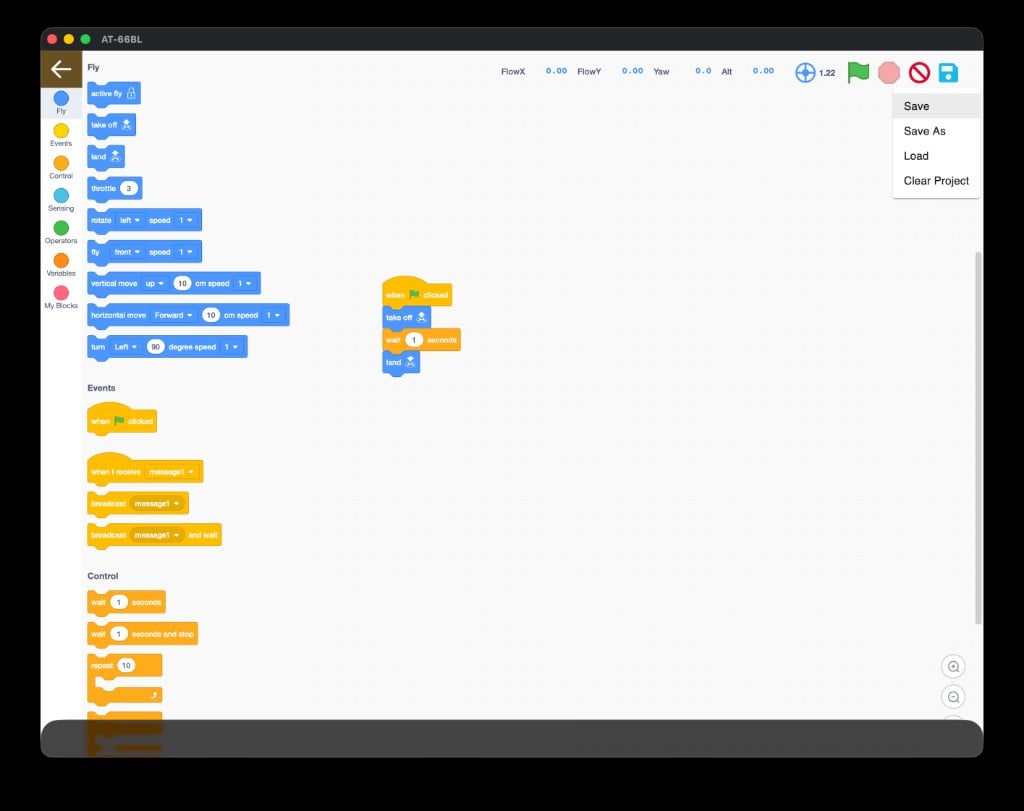
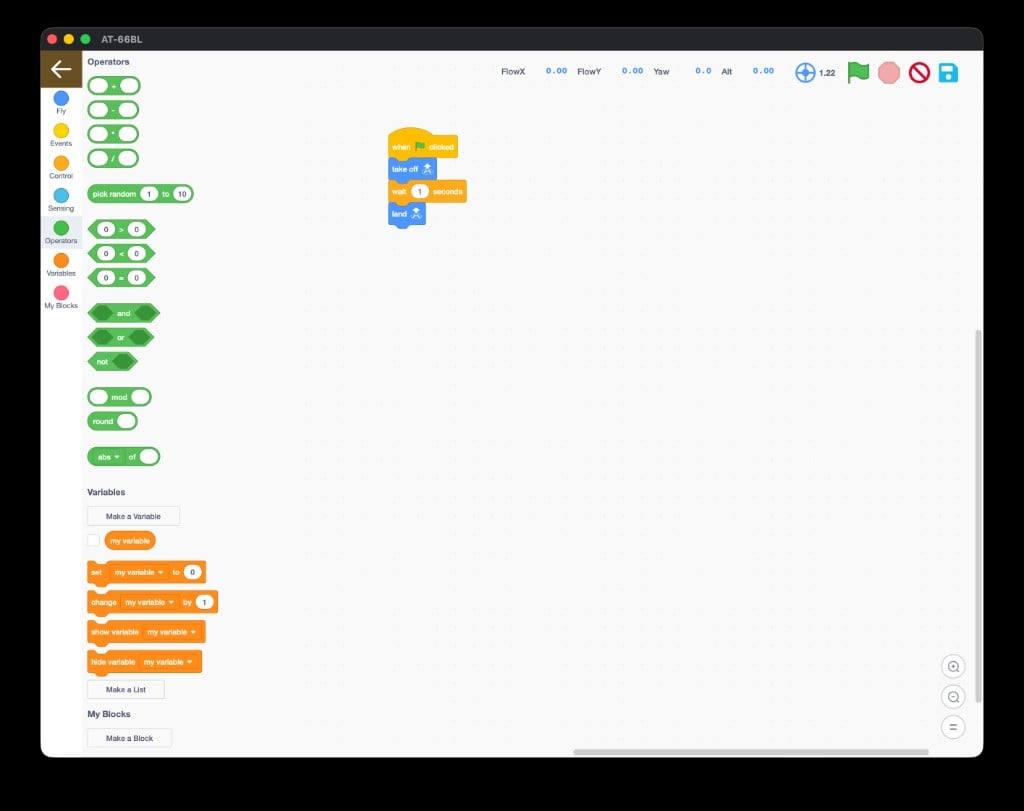
Tap Program to open the coding studio. This is a Scratch-style workspace: block categories run down the left, you drag blocks into the middle, and the run controls live in the top-right.
The Program workspace - drag blocks from the left into the canvas, run with the green flag
Know where the red stop and no-entry buttons are before you run anything. If the drone does something unexpected, hitting stop is your fastest way to end the flight safely.
Click the save icon to open the file menu: Save, Save As, Load, and Clear Project. Save early and often so a crash never costs you your work.
The file menu: Save, Save As, Load, and Clear Project
Have students name their saves clearly (like square_flight or alex_capstone) so they can find the right project fast during demos.
The AT-66BL app is installed, your drone is paired over Bluetooth (Bluetooth icon solid), and you can open Program mode and find all seven block categories.
Next: tour the blocks
See exactly what every block does before you start building.