

From commands to missions
You can already take off, move, and land. Now you’ll combine blocks into smart, flexible programs using the ideas real programmers use every day: loops, variables, decisions, operators, broadcasts, and custom blocks. Work through these programs in order. Each one adds exactly one new idea, and each ends with a challenge to make it your own. That’s four-plus hours of building - pick up wherever your class is.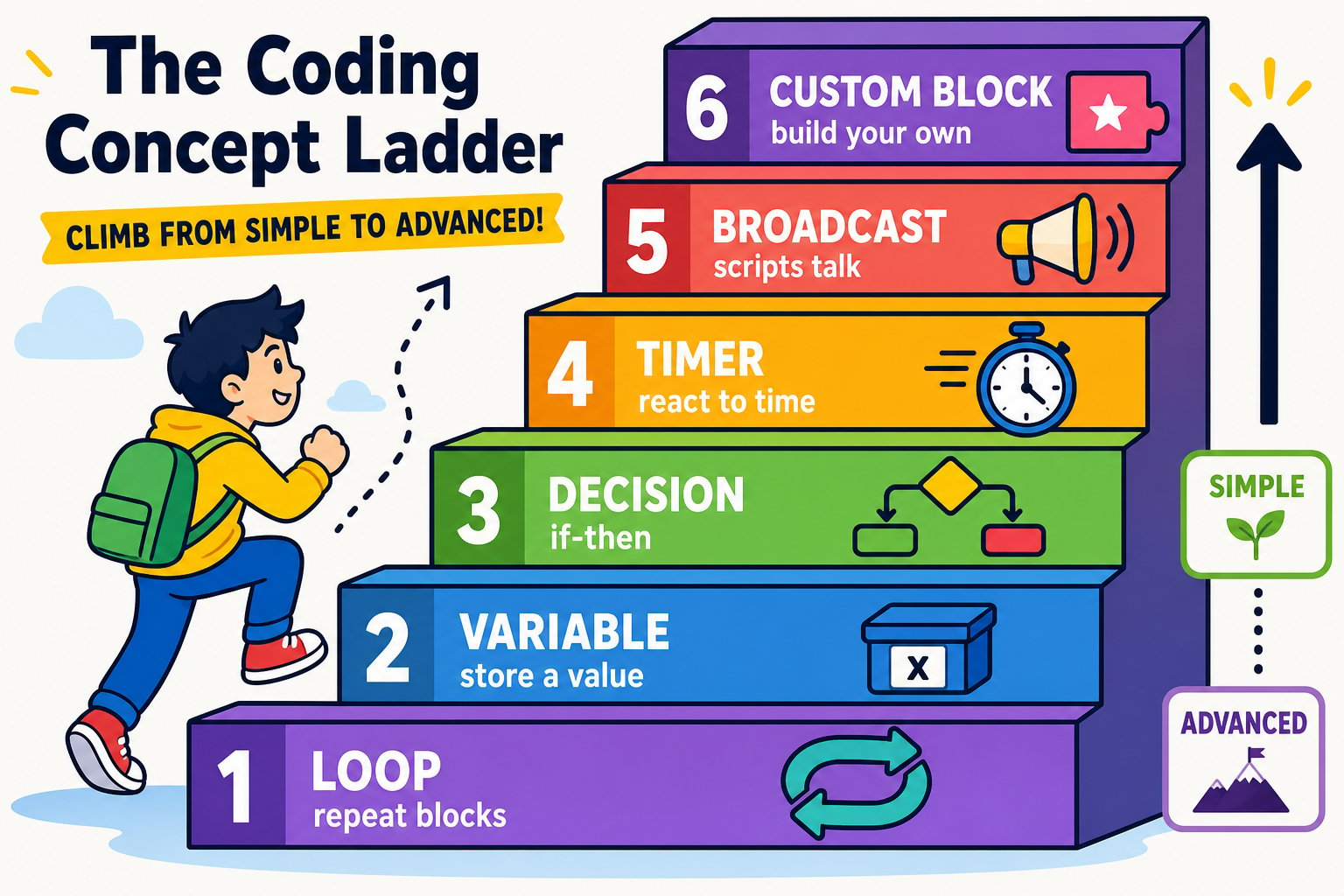
Each program climbs one rung up the coding ladder - loops, variables, decisions, and beyond
Program 1 - Fly a square with a loop
Instead of writing “move, turn” four times, use a repeat loop. This is the single most useful pattern in drone coding.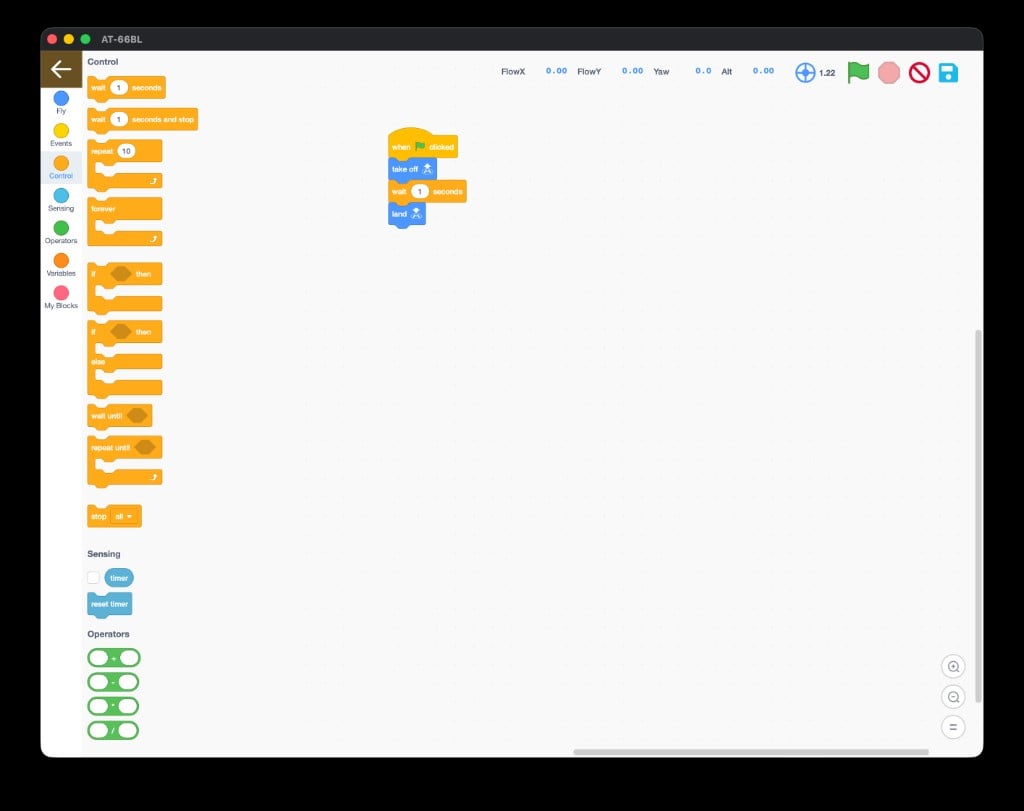
Control blocks: repeat, forever, if-then, wait until, and repeat until
Start and take off
Add when 🏳 clicked, then take off.
Add a repeat loop
From Control, drag a repeat [10] block and change it to 4.
Fill the loop
Inside the loop, add horizontal move [Forward] [50] cm speed [1], then turn [Right] [90] degree speed [1].
Land
Snap land below the loop.
Challenge
Change the repeat to 3 and the turn to 120° to fly a triangle. What repeat count and turn make a hexagon? (Hint: 360 ÷ sides.)
Program 2 - One number, any shape (variables)
A variable is a named box that holds a value. Store the number of sides once, and the whole program adapts.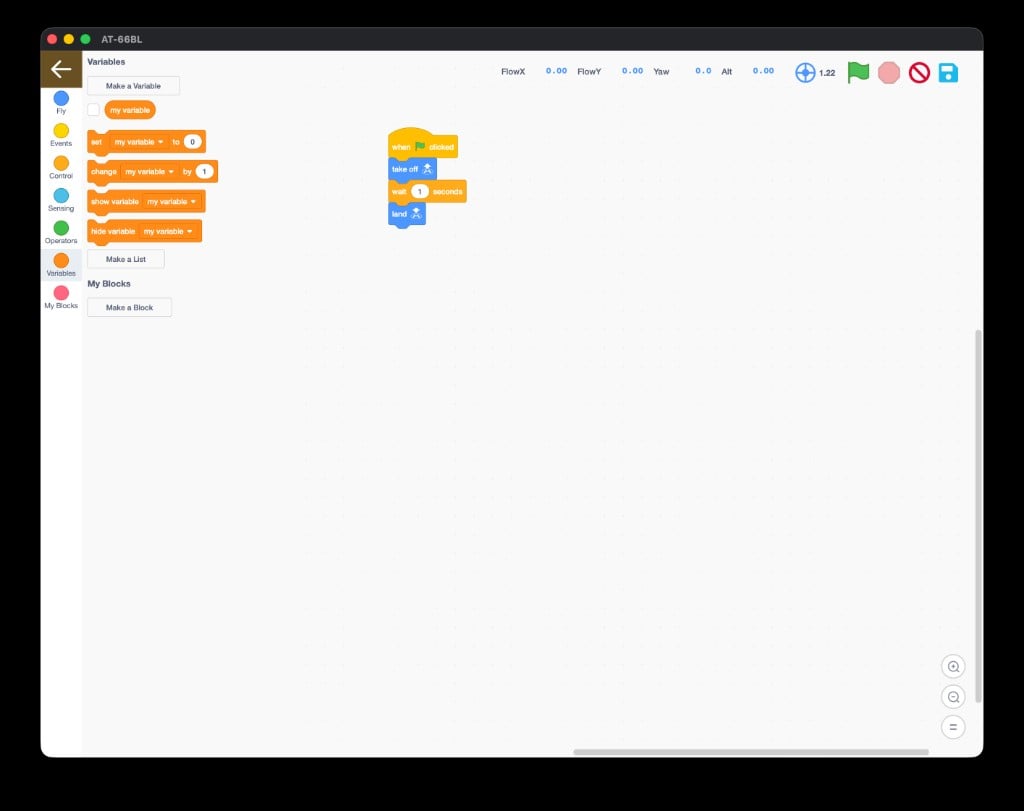
Variables blocks: make, set, and change your own values
Make a variable
Click Make a Variable and name it
sides.Set it
After take off, add set [sides] to [4].
Use it in the loop
Use repeat [sides]. For the turn, drop an Operators division block in and build turn Right (360 / sides) degree.
sides from 4 to 6 and the same program flies a hexagon. One change reshapes the whole flight - that’s the power of variables.
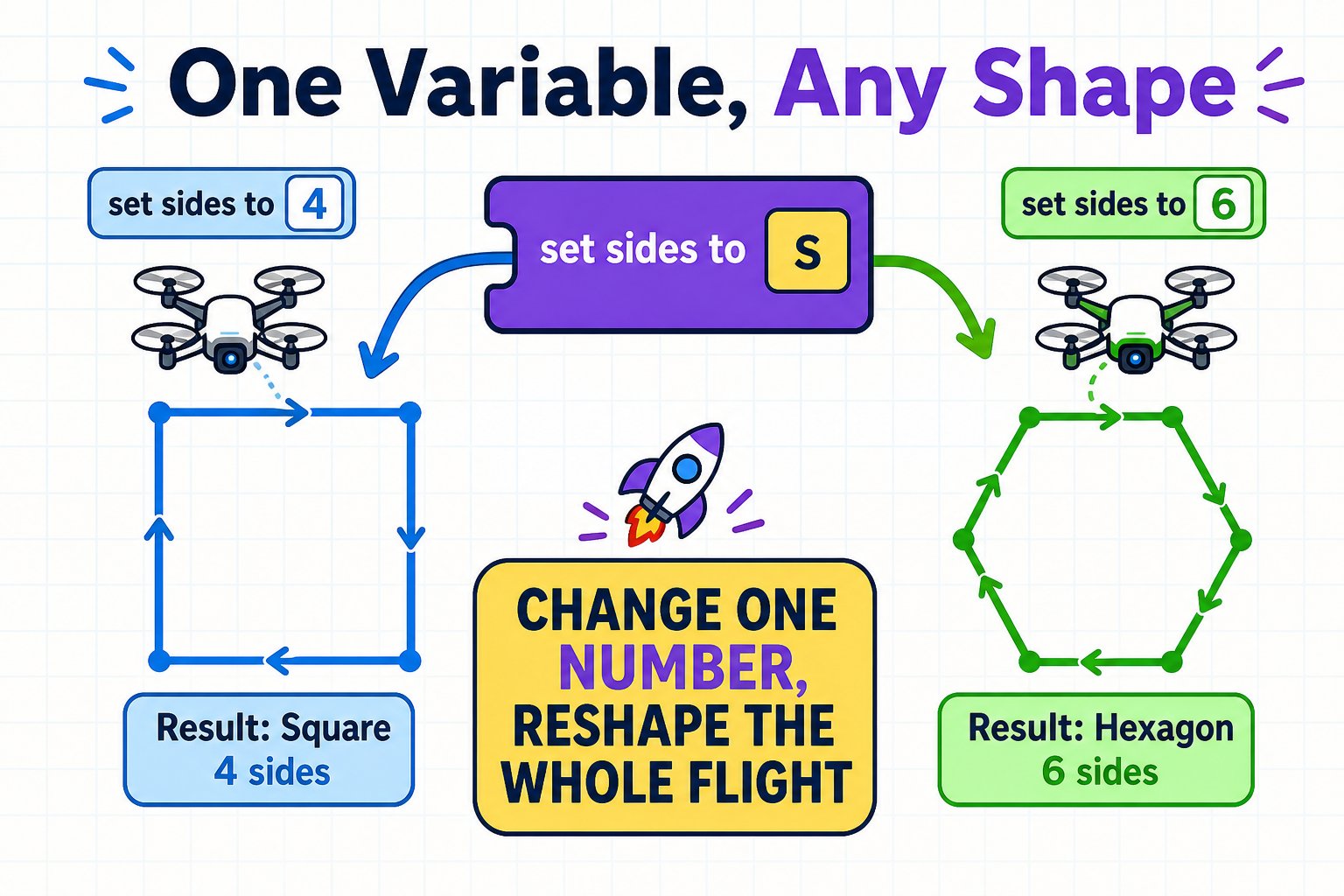
Change one variable, get a totally different shape - the same code flies them all
Challenge
Add set [size] to [50] and use it for the move distance too. Now one program flies any shape at any size.
Program 3 - Loops inside loops (a spiral tower)
Put a loop inside a loop to build patterns. Fly a square, rise a little, repeat.Challenge
Make each layer smaller than the last using a
size variable and change size by -10 each loop.Program 4 - Make it decide (if-then + operators)
An if-then block lets the drone choose what to do. Combine it with Operators to build a condition.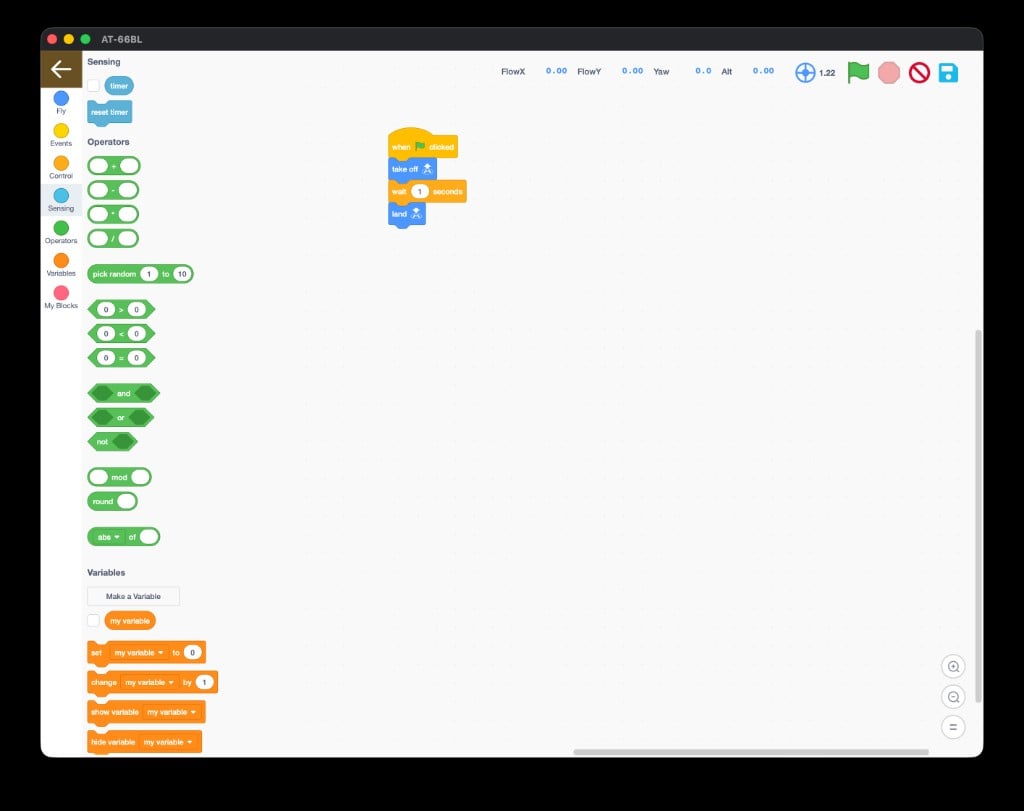
Operators blocks: random, comparisons, and logic
Challenge
Use pick random 1 to 4 and multiply by 90 to pick a random turn each time.
Program 5 - Time a routine (Sensing + timer)
The timer reports seconds since the program started. Pair it with a loop to run for a set time.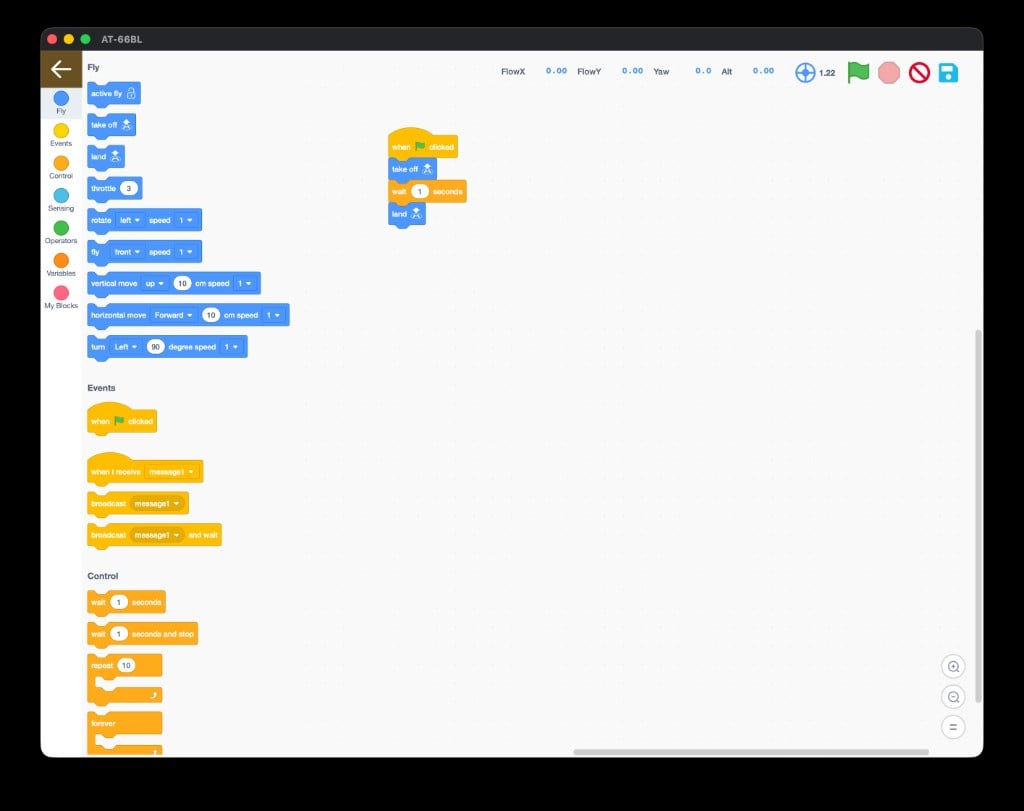
Sensing blocks: timer and reset timer
Challenge
Show the timer on screen with show variable, and make the drone do a different move every 3 seconds.
Program 6 - Two scripts talking (broadcast)
Broadcast lets one part of your program trigger another. This keeps big programs organized.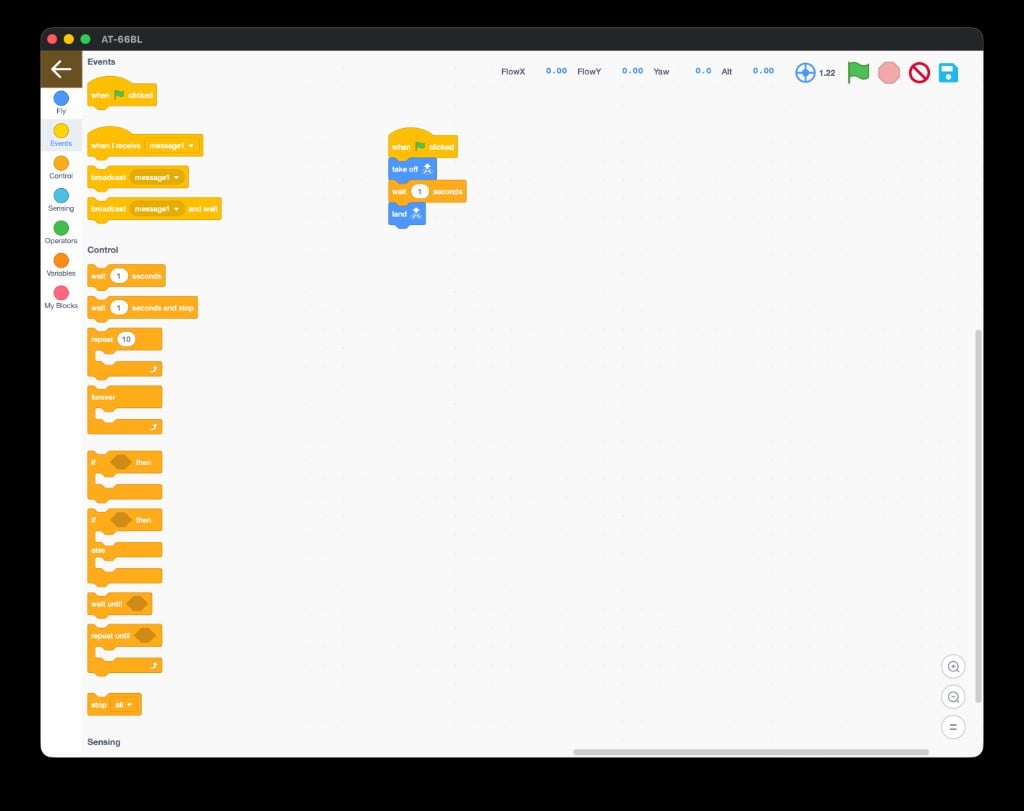
Events blocks: broadcast and when I receive
Program 7 - Build your own block (My Blocks)
Package a routine into one custom block you name yourself. This is how pros keep code readable.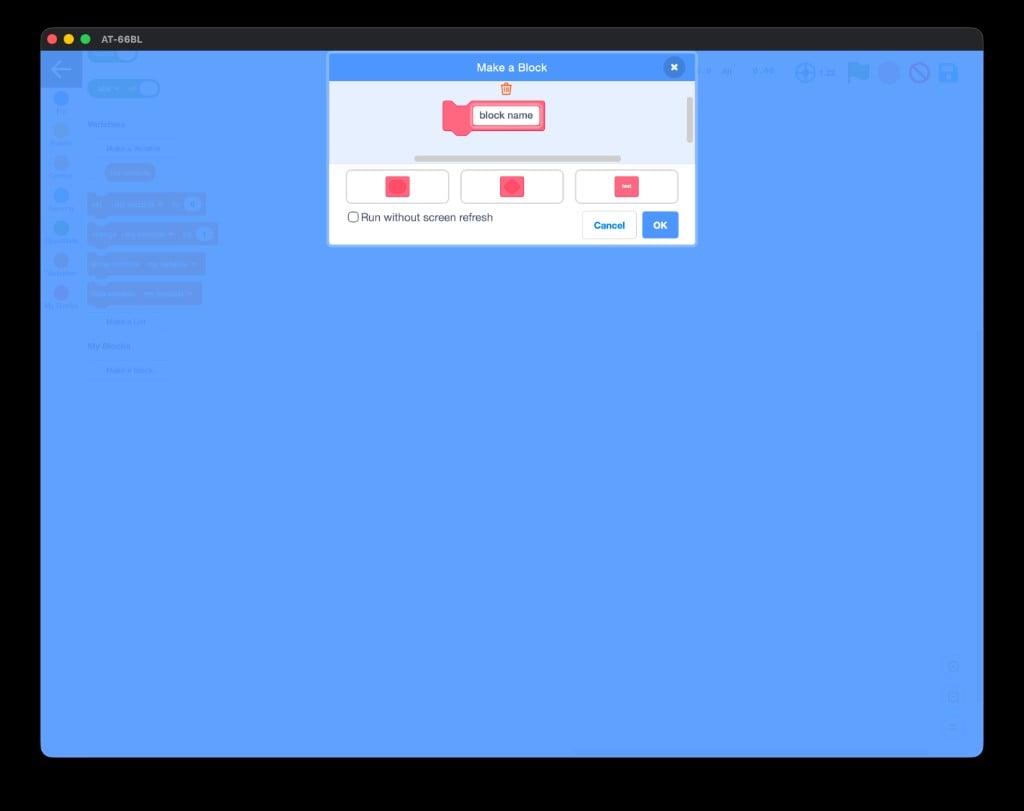
Make a Block - name your own reusable command
Make a Block
In My Blocks, click Make a Block and name it
square. Click OK.Define it
Under the new define square hat, put the four blocks that fly a square.
Use it
Now your main program can just call
square - as many times as you like.Instructor cheat sheet
If the green flag does nothing
If the green flag does nothing
Check for a when 🏳 clicked hat at the top of the stack, and confirm the drone is still paired (Bluetooth icon).
If the drone drifts on shapes
If the drone drifts on shapes
Fly slower (lower the speed), use larger distances, and start with a fully charged battery. Indoor drafts and low battery both cause drift.
If a loop never ends
If a loop never ends
A repeat until needs a condition that eventually becomes true. Test the condition with show variable or a shorter timer.
Keep the energy up
Keep the energy up
Turn each challenge into a quick “show me” - students fly their version for the class. Fast feedback keeps everyone building.
You built programs using a loop, a variable, an if-then decision, the timer, a broadcast, and a custom block, and you can explain what each one adds.
Next: the capstone project
Design, code, and present your own drone mission.