

Flash the SD card
Time: 9:45 AM to 10:30 AM
What you need before starting
Make sure you have all three of these items from your kit:- MicroSD card — a small card about the size of your thumbnail
- SD card reader — a USB adapter that the microSD card slides into
- Your laptop — with internet access to download the Raspberry Pi Imager
Remove the SD card from the robot
The Raspberry Pi sits below the Robot HAT board on the robot. The SD card slot is accessible from the back of the robot — you do not need to flip anything over. To remove it:- Look at the back of the robot. You will see the edge of the Raspberry Pi board with a small silver card sticking out of the slot.
- Push the card gently inward — you will feel a click — then release. The card springs out slightly so you can pull it free.
- Set the card aside. You will insert it into your SD card reader in a moment.
Download and install Raspberry Pi Imager
1
Download the Imager
Go to raspberrypi.com/software in your browser and click the Download for macOS button (or the appropriate button for your operating system).The download starts automatically. Wait for it to finish — the file is about 40 MB.
2
Install the Imager (Mac)
Open the downloaded 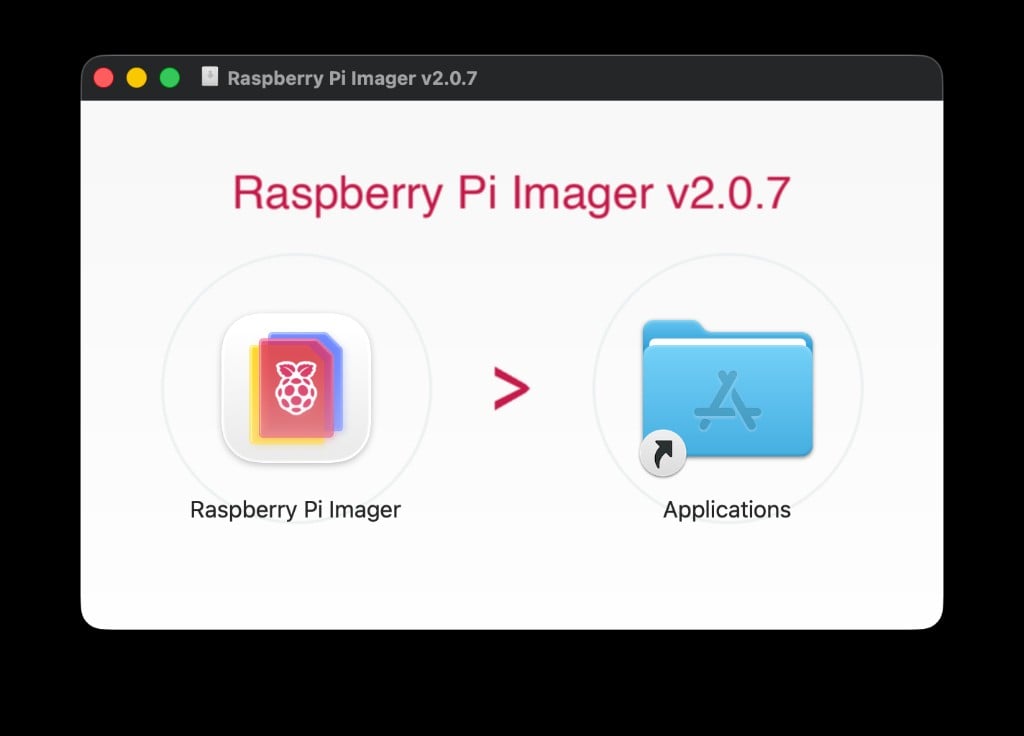
.dmg file. A window appears showing the Raspberry Pi Imager icon and an Applications folder. Drag the Imager icon into the Applications folder.3
Open the Imager
Open Finder, navigate to Applications, and double-click Raspberry Pi Imager.
4
Handle the macOS Gatekeeper warning
Since this app was downloaded from the internet, macOS may show a security warning asking if you want to open it. Click Open to continue.If you do not see the warning, the Imager opens directly — that is fine too.
Configure the Imager
Now you will tell the Imager exactly what device you have, what operating system to install, and where to write it. Follow each step and confirm your screen matches the screenshot before moving on.1
Choose the device
In the Imager window, click the Choose Device button.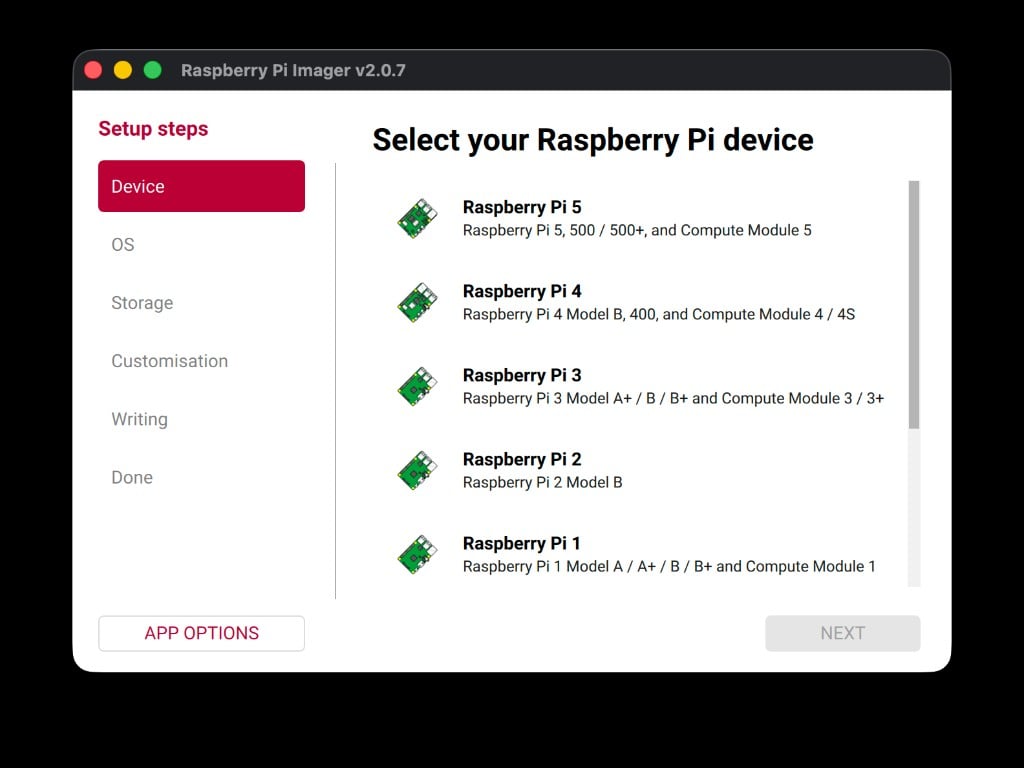
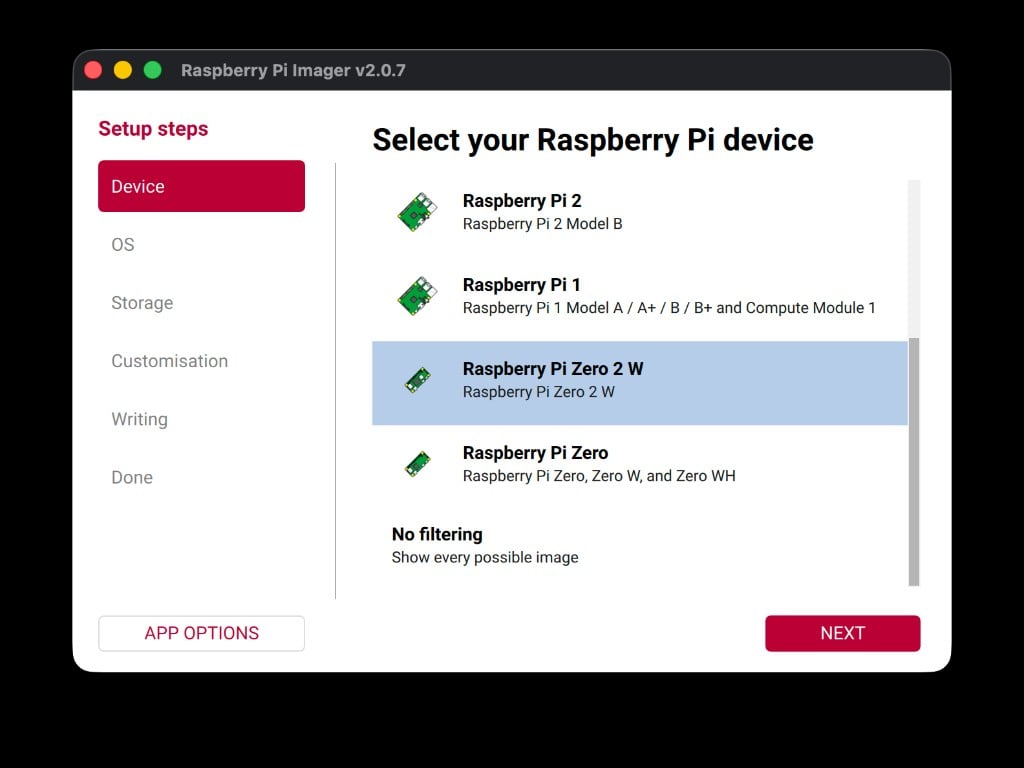
2
Choose the operating system
Click the Choose OS button. Select Raspberry Pi OS (32-bit) — this is the version based on Debian Trixie with Desktop. It should be the first recommended option in the list.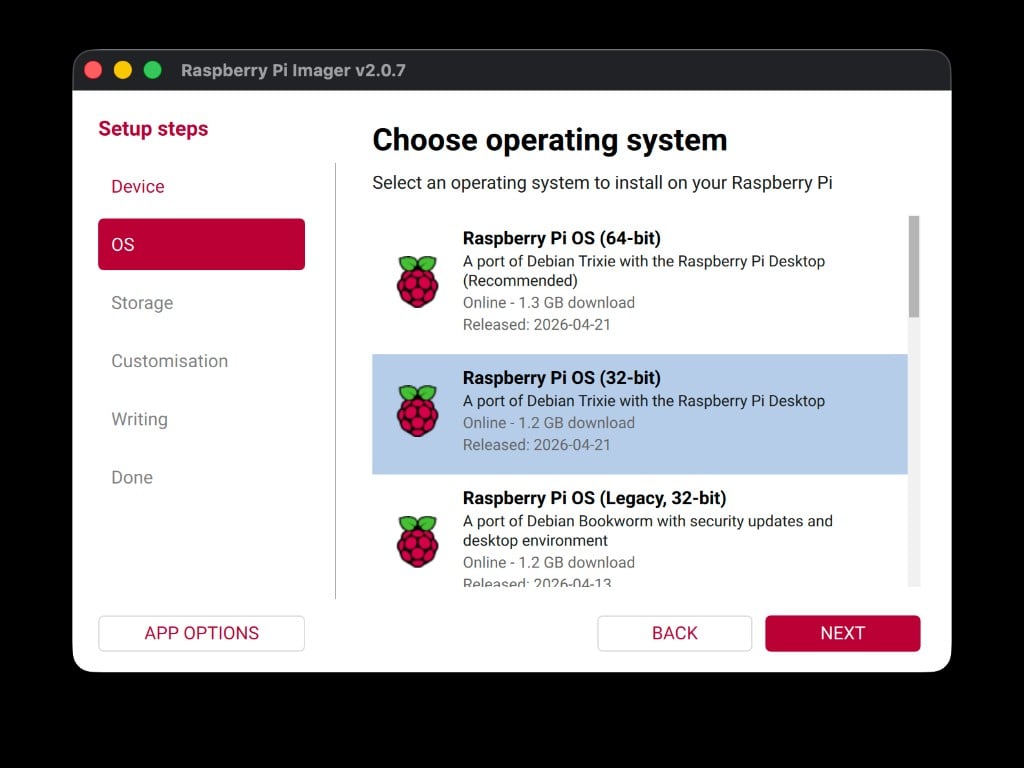
3
Choose the storage device
Insert your microSD card into the SD card reader, then plug the reader into a USB port on your laptop.Back in the Imager, click Choose Storage and select the SD card that appears. It is usually labeled with its storage size (for example, “32 GB”).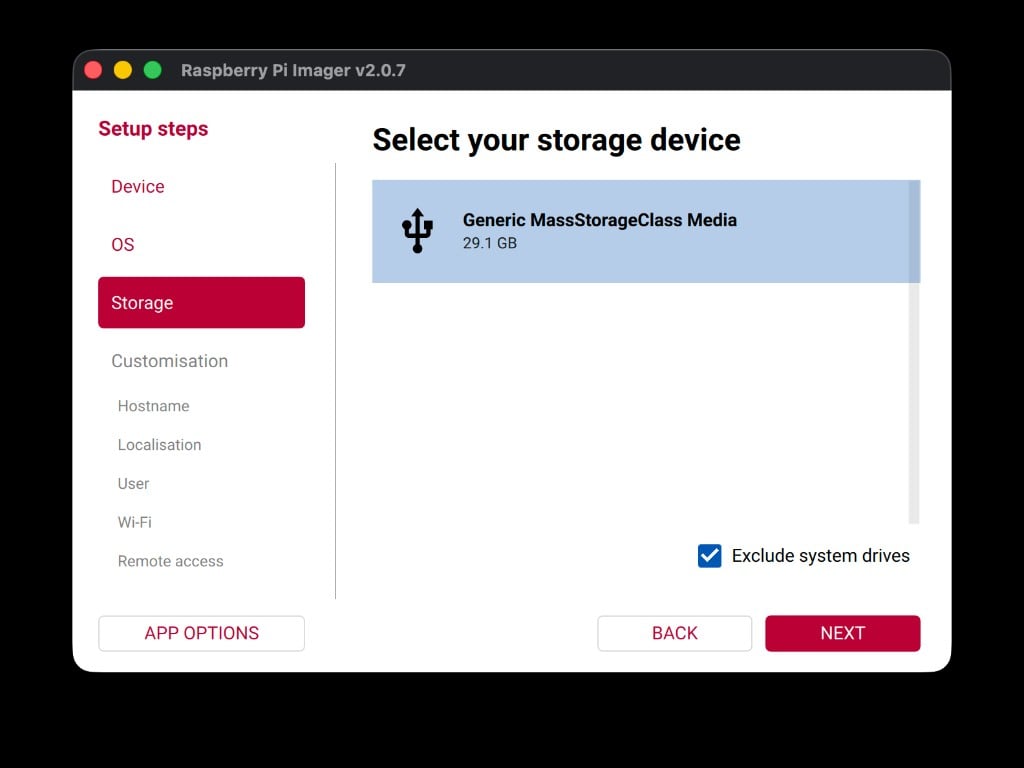
4
Open OS customization
Click Next. The Imager asks if you want to customize the OS settings. Click Edit Settings to open the customization panel.This is where you configure your hostname, login credentials, WiFi, and more. The next several steps walk through each setting.
General settings
1
Set the hostname
Check the Set hostname box and type:This is the name your robot will use on the network. You will use it later to connect via SSH.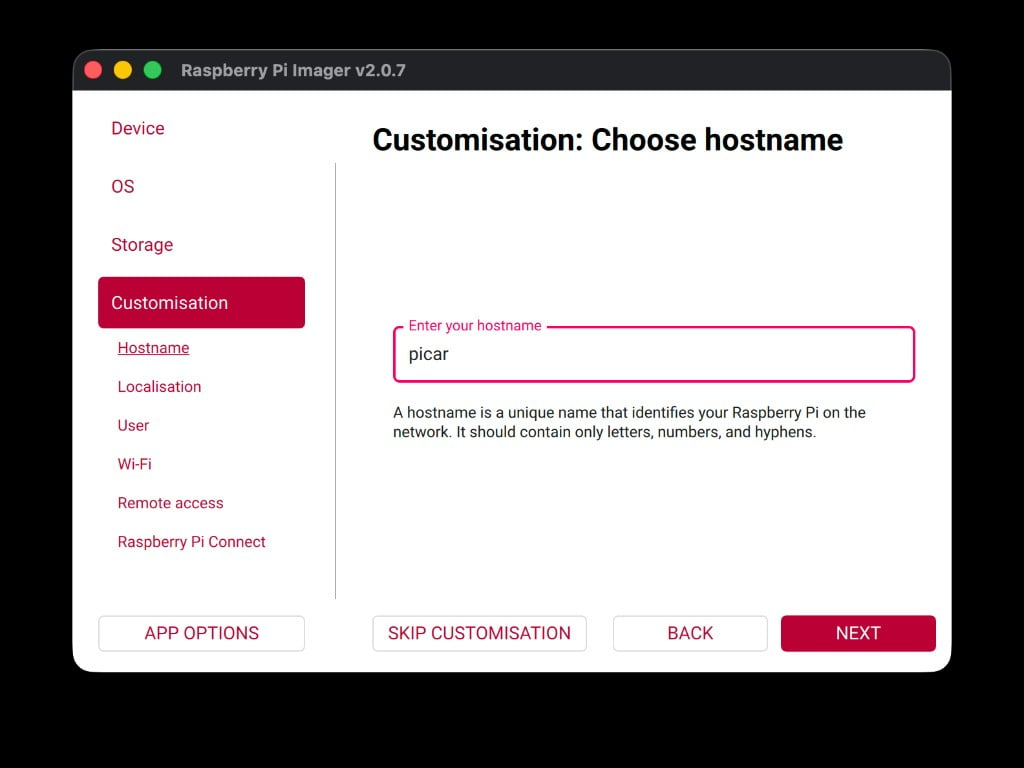
2
Set locale and timezone
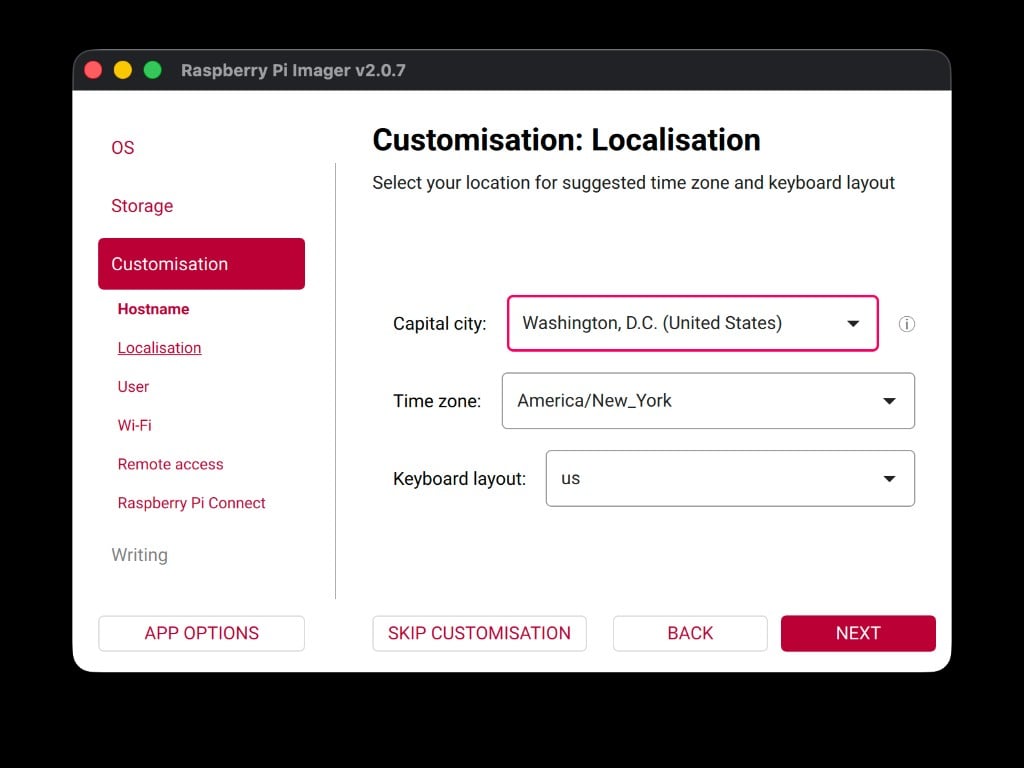
Scroll down to the locale section. Set the Time zone to America/New_York and the Keyboard layout to us.To find the timezone, scroll down to Washington, D.C. or type it into the search field if one is available.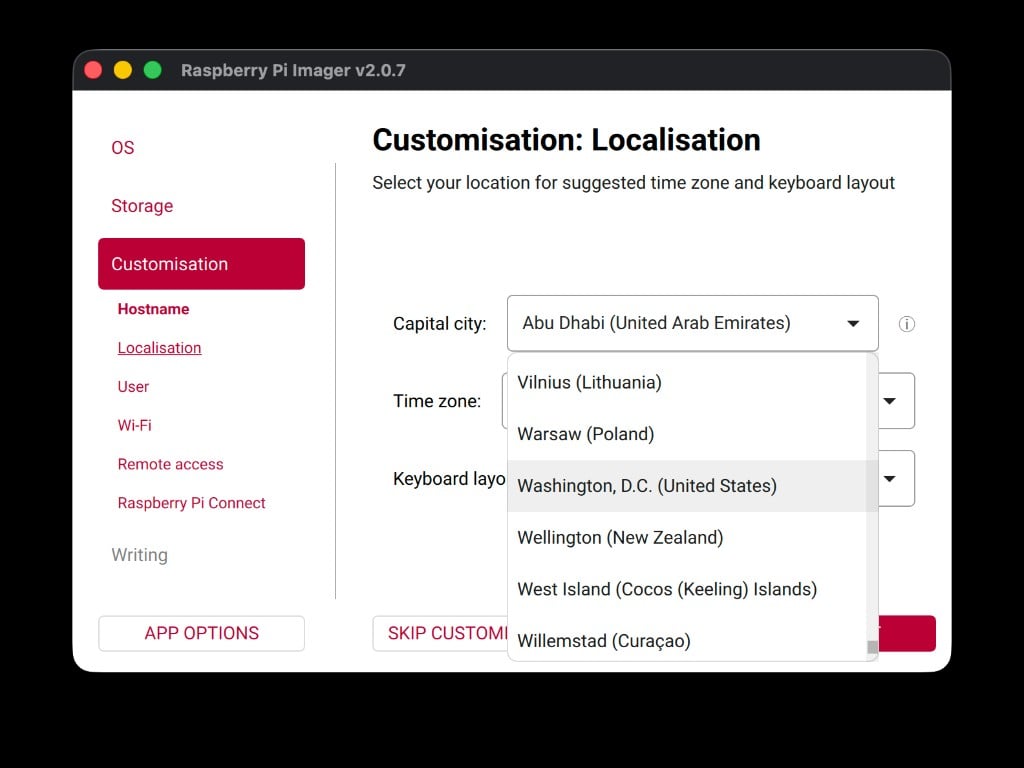
3
Set the username and password
Check the Set username and password box. Enter the following: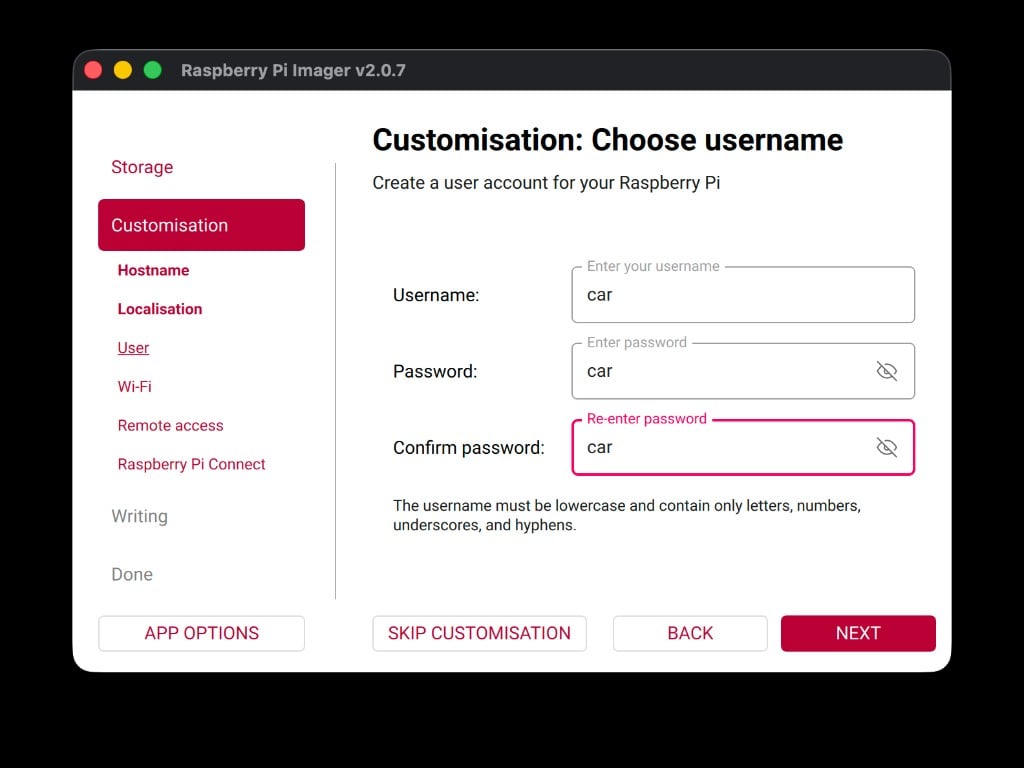
Everyone in the camp uses the same username and password so facilitators can help troubleshoot. This keeps things consistent across all robots.
4
Configure WiFi
Check the Configure wireless LAN box. Your facilitator will provide the WiFi network name and password. Enter them here: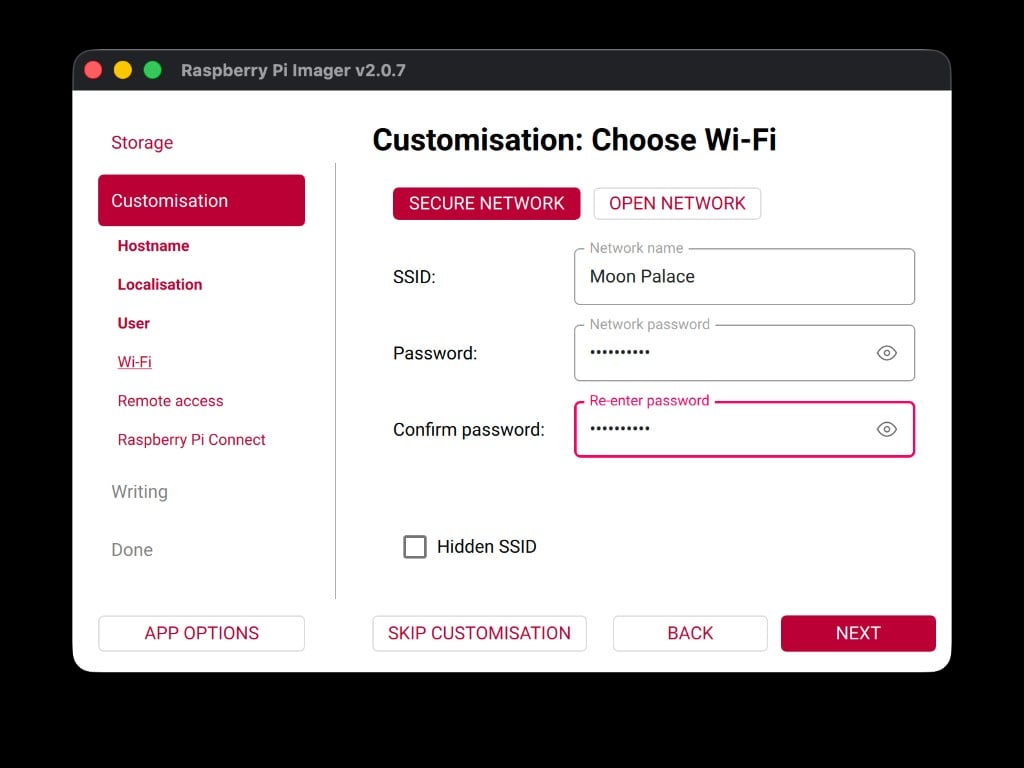
Services settings
Click the Services tab at the top of the customization panel.1
Enable SSH
Find the Enable SSH toggle. It starts in the off position.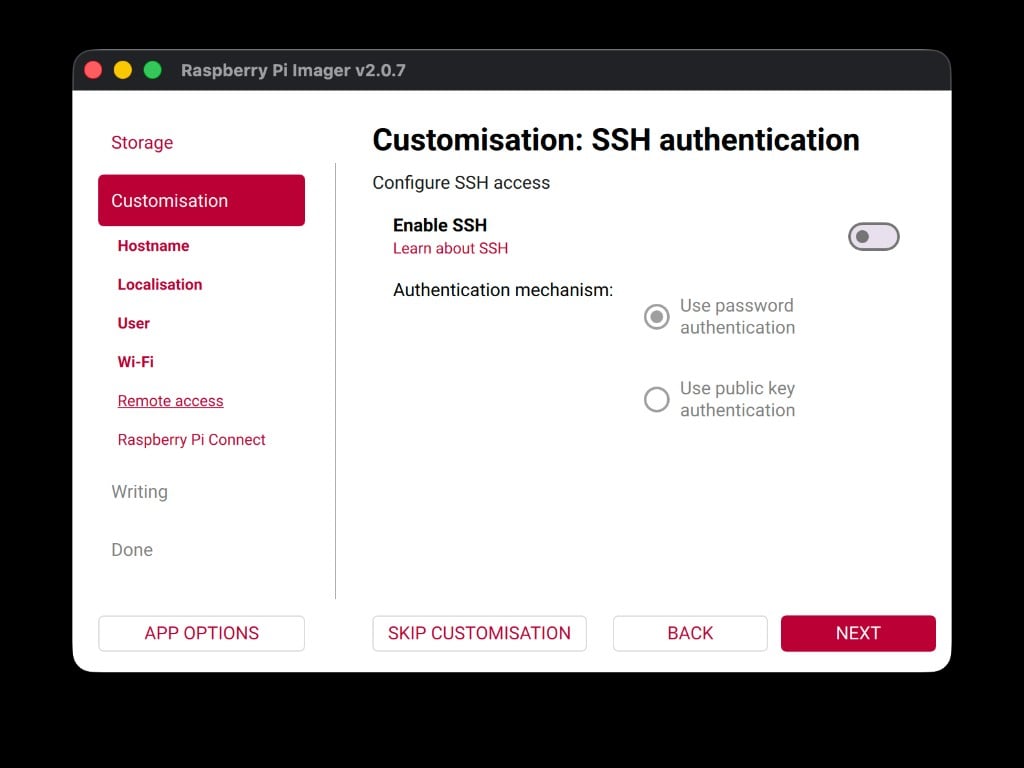
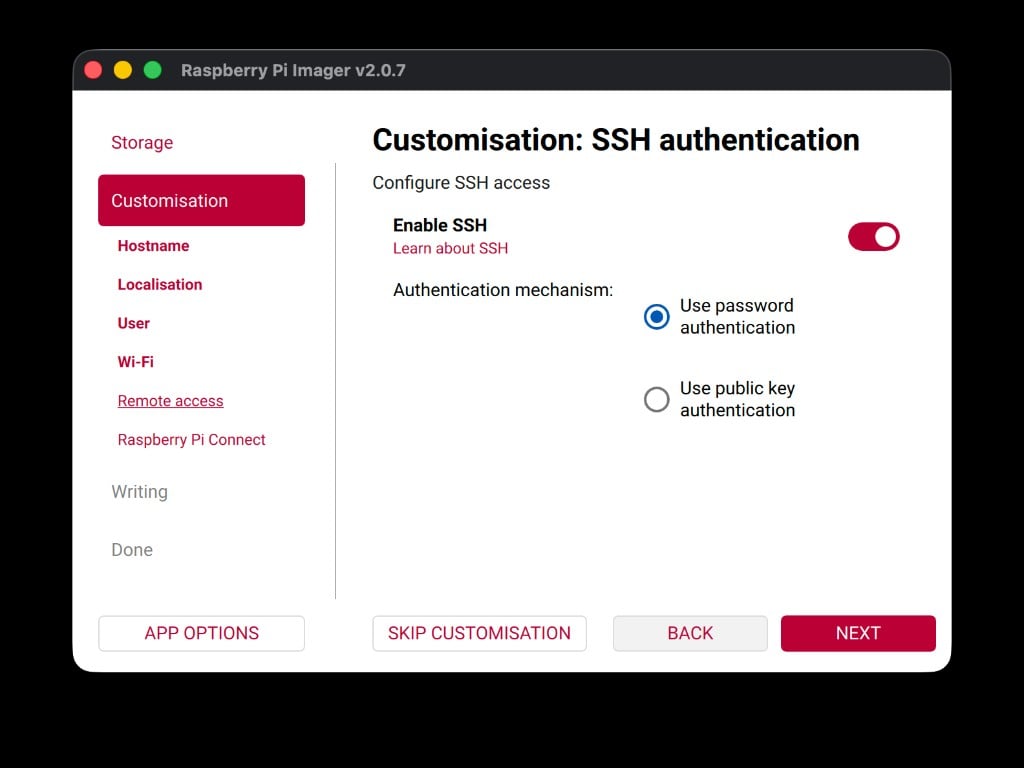
SSH (Secure Shell) lets you type commands on your robot from your laptop’s terminal. Without it enabled, you would have no way to control the Pi remotely.
Raspberry Pi Connect
Still on the Services tab, you will now enable Raspberry Pi Connect. This gives you a backup way to reach your robot through a web browser — even if SSH has issues.1
Turn on Raspberry Pi Connect
Find the Raspberry Pi Connect toggle and switch it on. The Imager opens a sign-in page in your browser.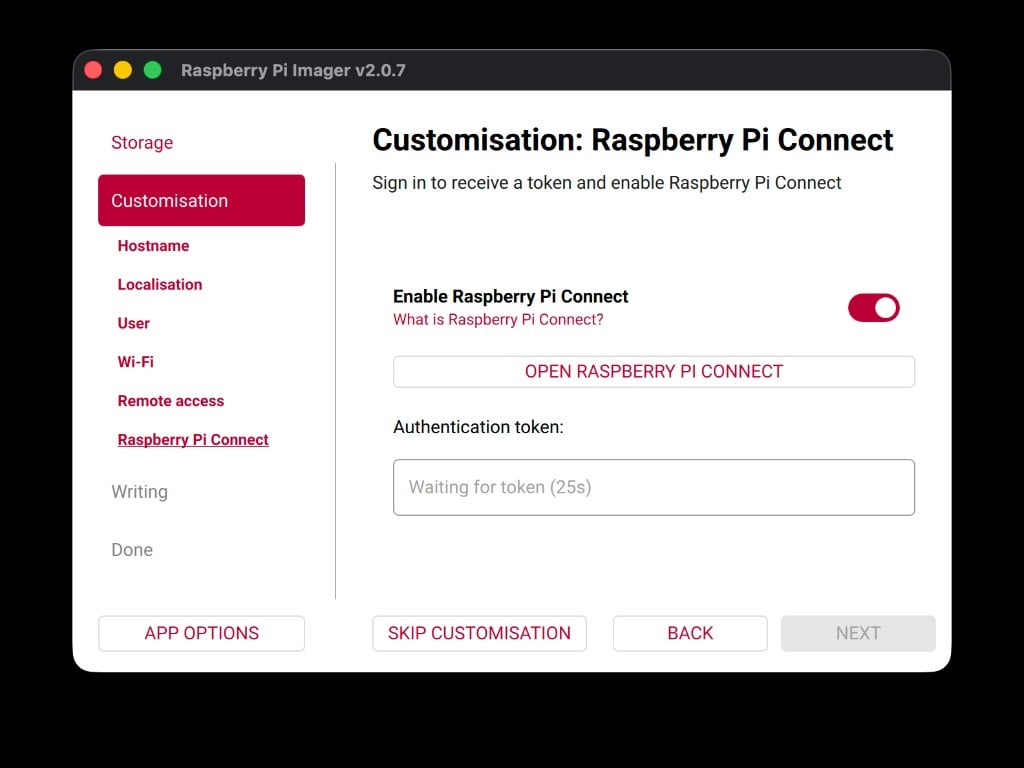
2
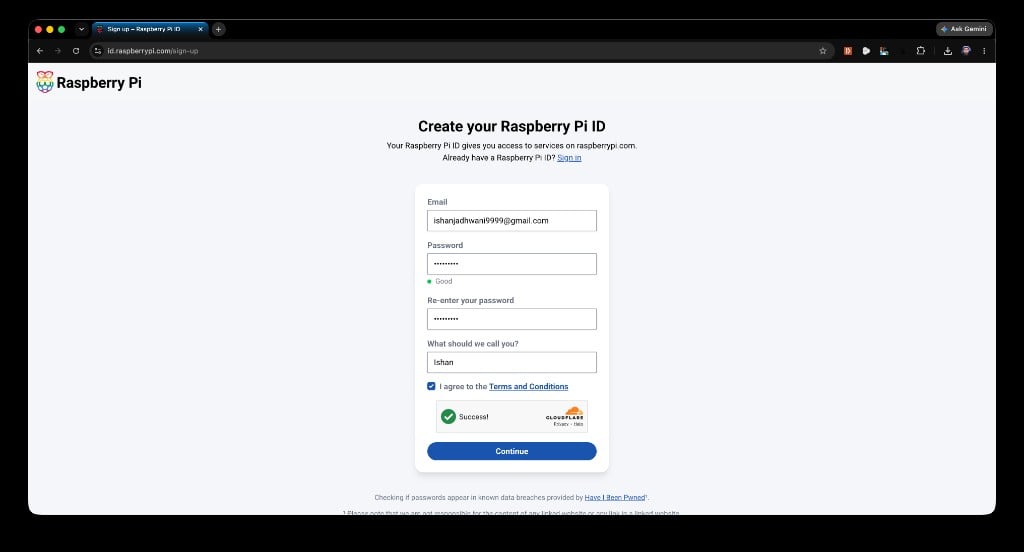
Create a Raspberry Pi account
On the sign-in page, click create one for free to make a new account.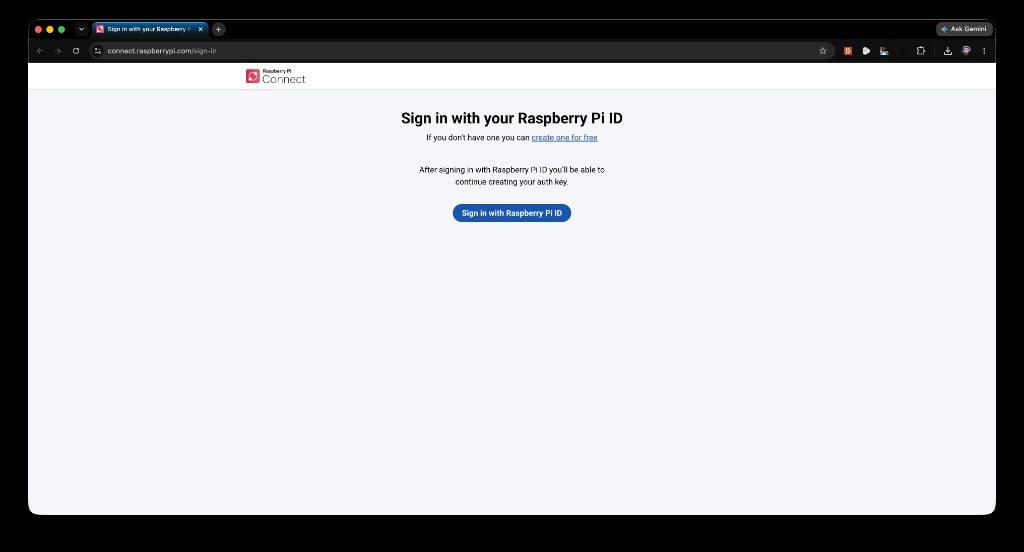
3
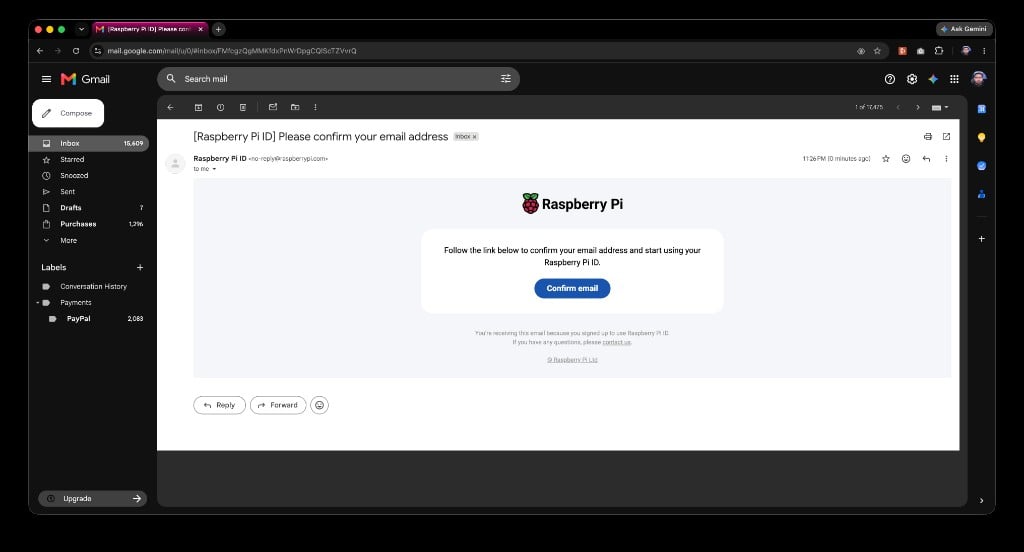
Verify your email
The Raspberry Pi website asks you to confirm your email address.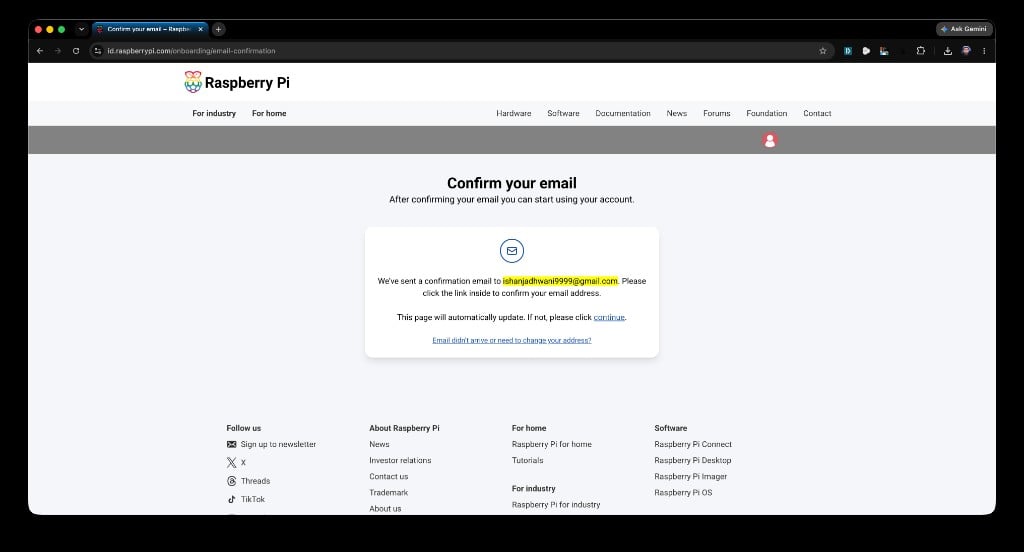
4
Confirm email success
After clicking the link, you see a confirmation page that says “Your email is now confirmed.” You can close this tab.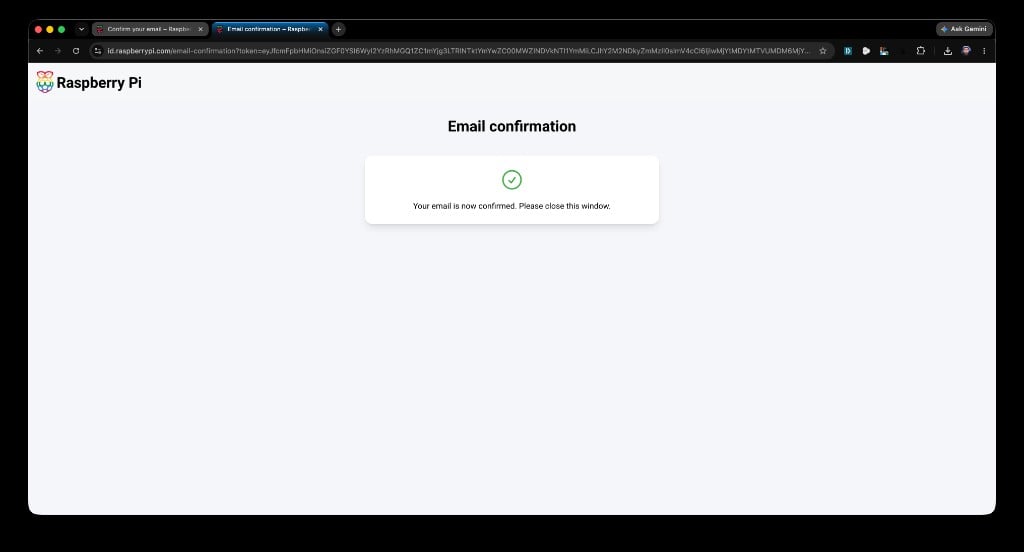
5
View your profile
You are now signed in to your Raspberry Pi account. You should see your profile page with a green “Email successfully confirmed” banner.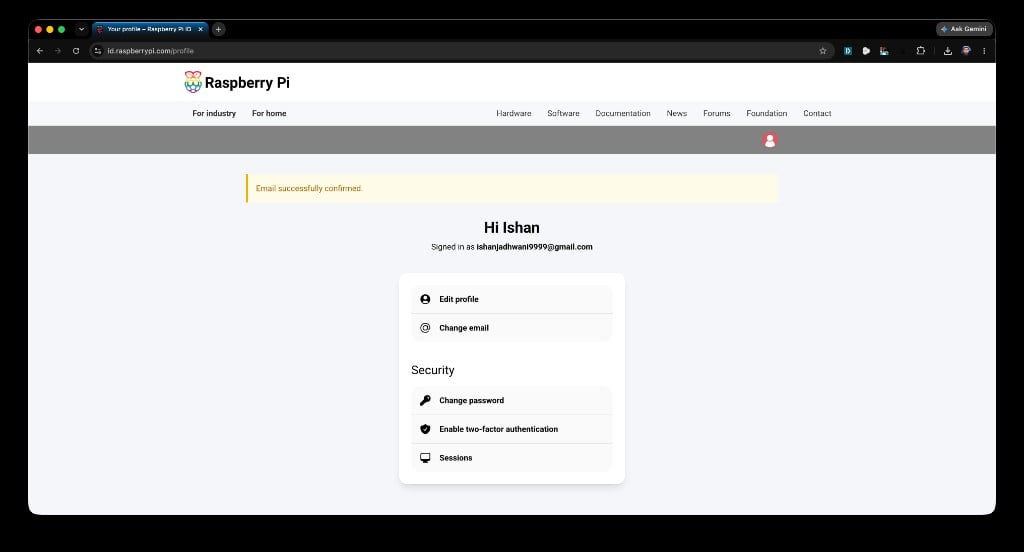
6
Sign in to Raspberry Pi Connect
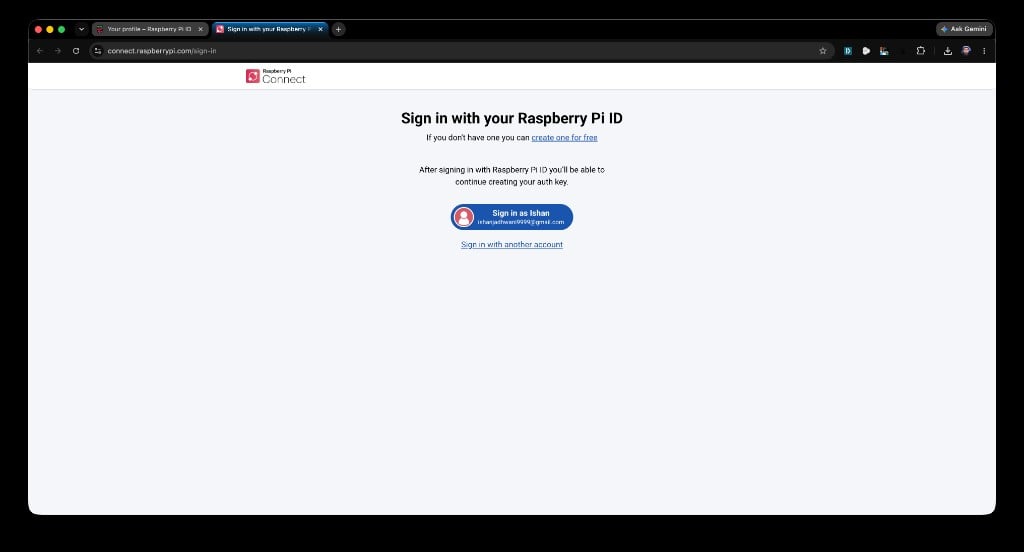
Go back to the Raspberry Pi Imager and click the Open Raspberry Pi Connect button again. This opens a new browser tab showing the sign-in page. Since you just created your account, it now shows a blue Sign in as [your name] pill. Click it to sign in.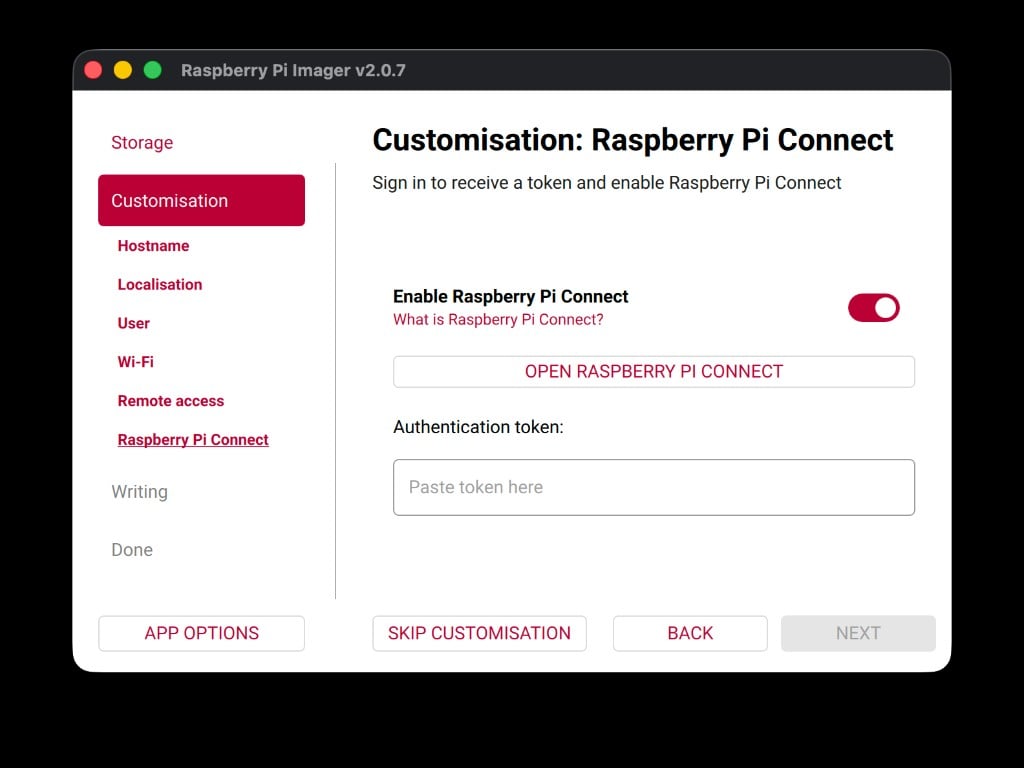
7
Create an auth key
After signing in, the page shows “New auth key”. Click the Create auth key and launch Raspberry Pi Imager button.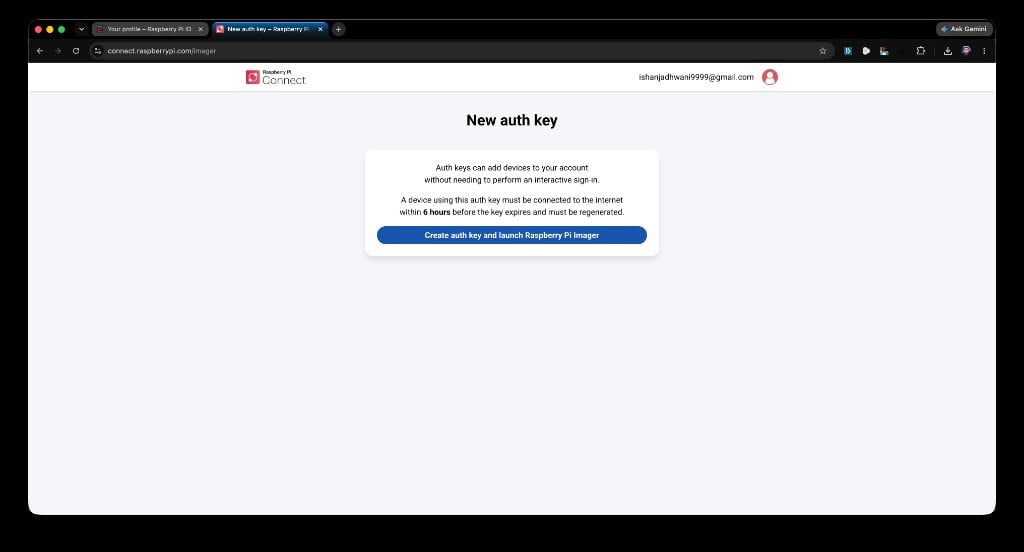
8
Open the Imager and confirm the token
Your browser asks if you want to open Raspberry Pi Imager. Click Open Raspberry Pi Imager.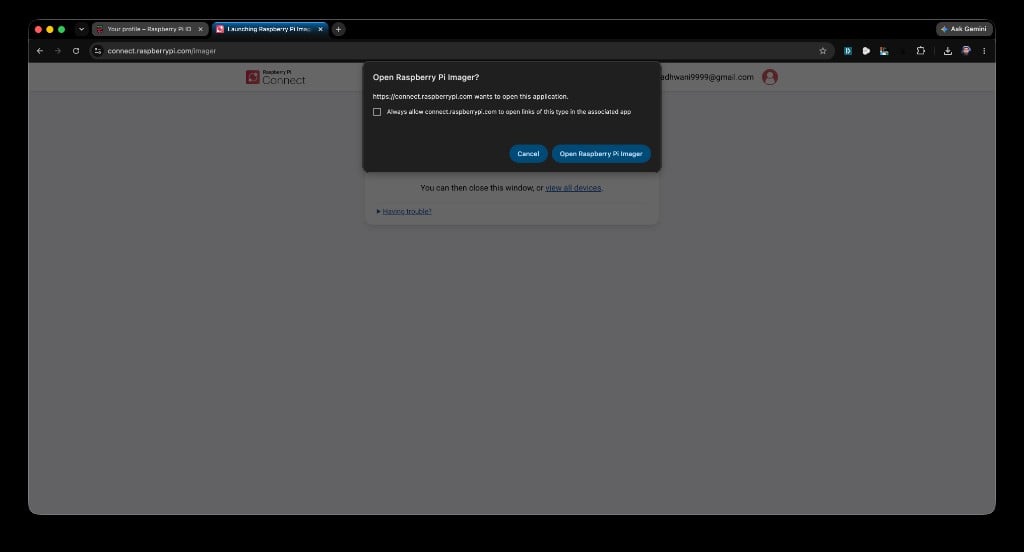
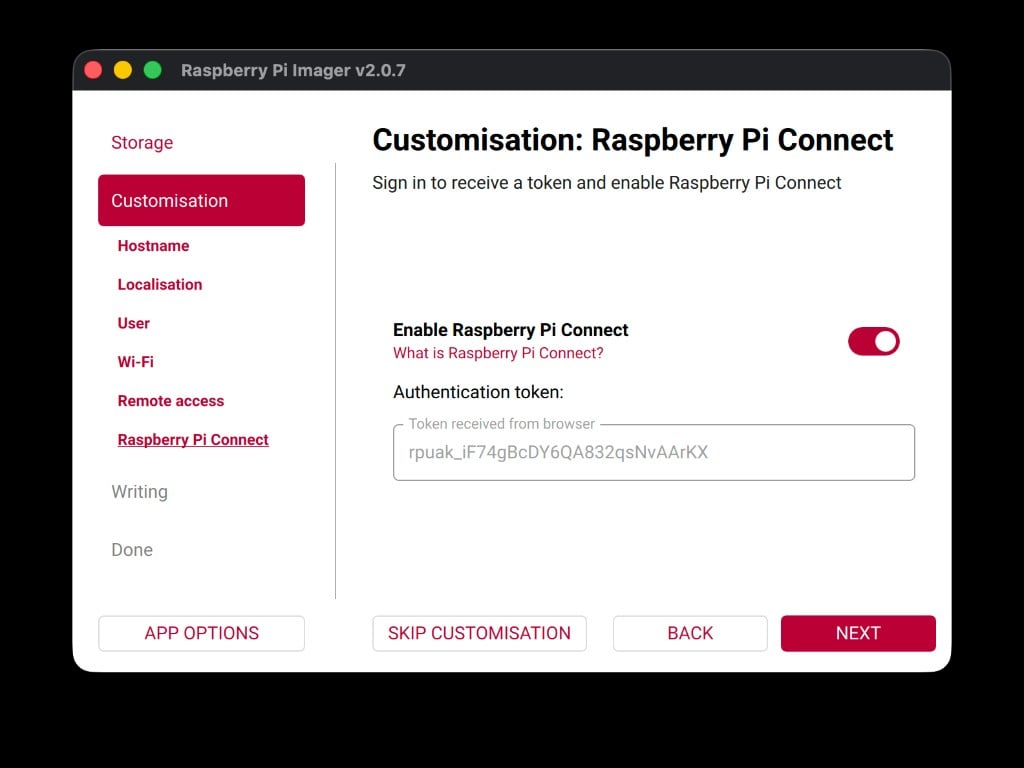
At this point, you have configured the hostname, locale, username, password, WiFi, SSH, and Raspberry Pi Connect. You are ready to write the image.
Write the image to the SD card
1
Review your settings
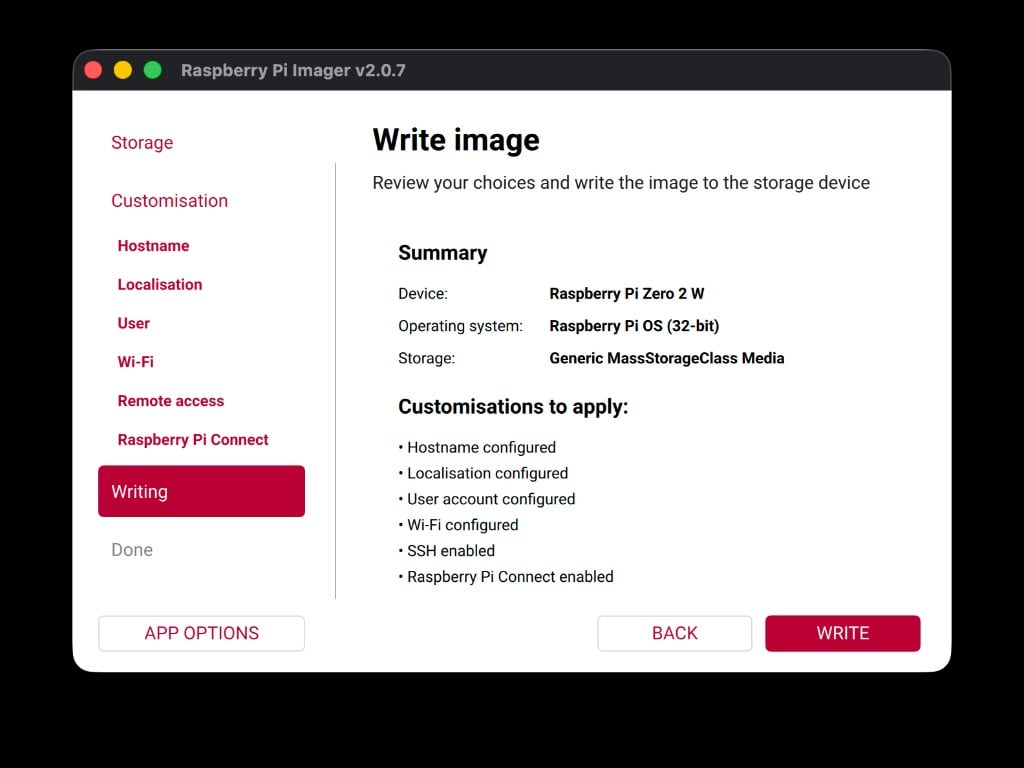
The Imager shows a summary of everything you configured. Review it carefully:
- Device: Raspberry Pi Zero 2 W
- OS: Raspberry Pi OS (32-bit)
- Hostname: picar
- Username: car
- WiFi: your network name
- SSH: enabled
-
Raspberry Pi Connect: enabled
2
Confirm the erase
Click Write. The Imager warns you that all data on the SD card will be erased. This is expected — click I UNDERSTAND, ERASE AND WRITE to confirm.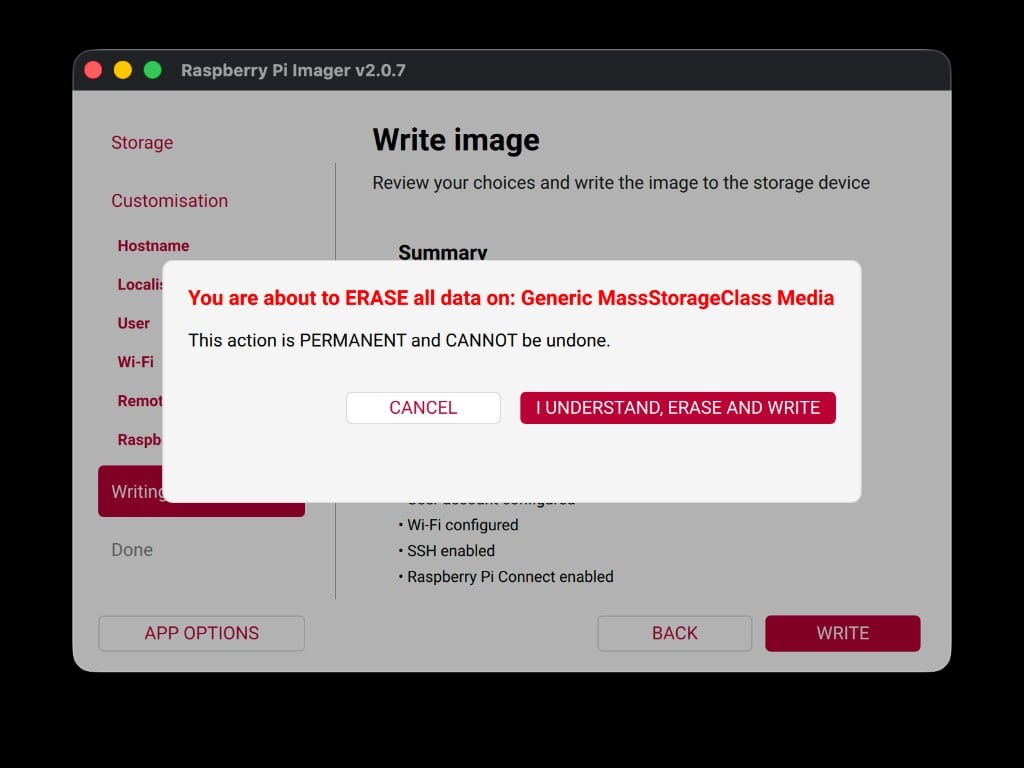
3
Enter your Mac password
macOS asks for your computer password to allow disk access. Type your Mac login password (not the 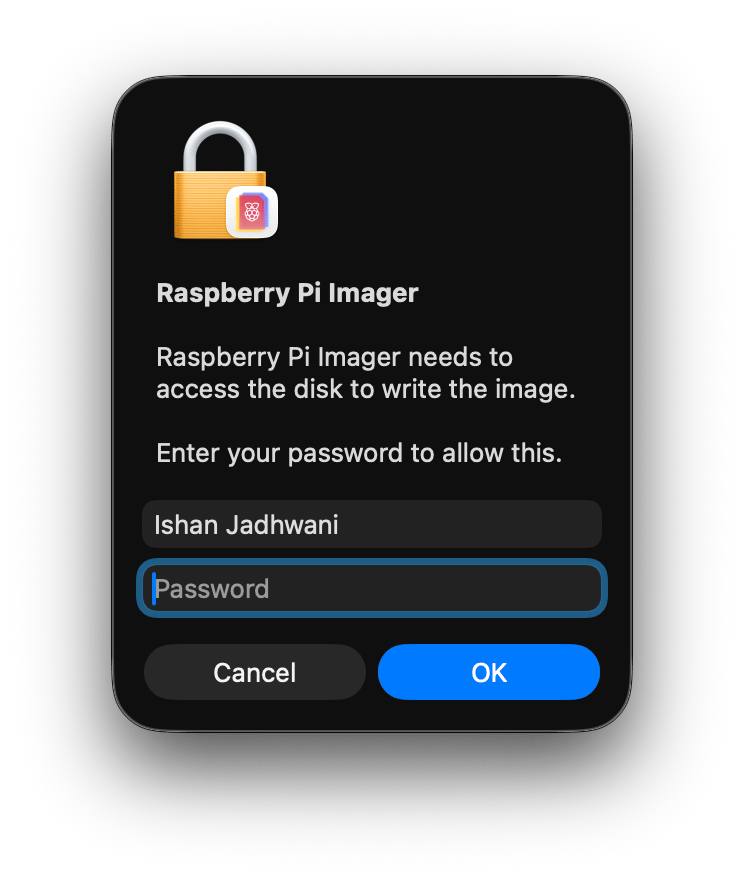
car password you set earlier) and click OK.This is your laptop’s password — the one you use to unlock your Mac. It is not the same as the
car password you just configured for the robot.4
Wait for the write to finish
The Imager writes the operating system to the SD card and then verifies the data. This takes 5 to 10 minutes depending on the speed of your SD card. When it finishes, you see a “Write complete!” success message.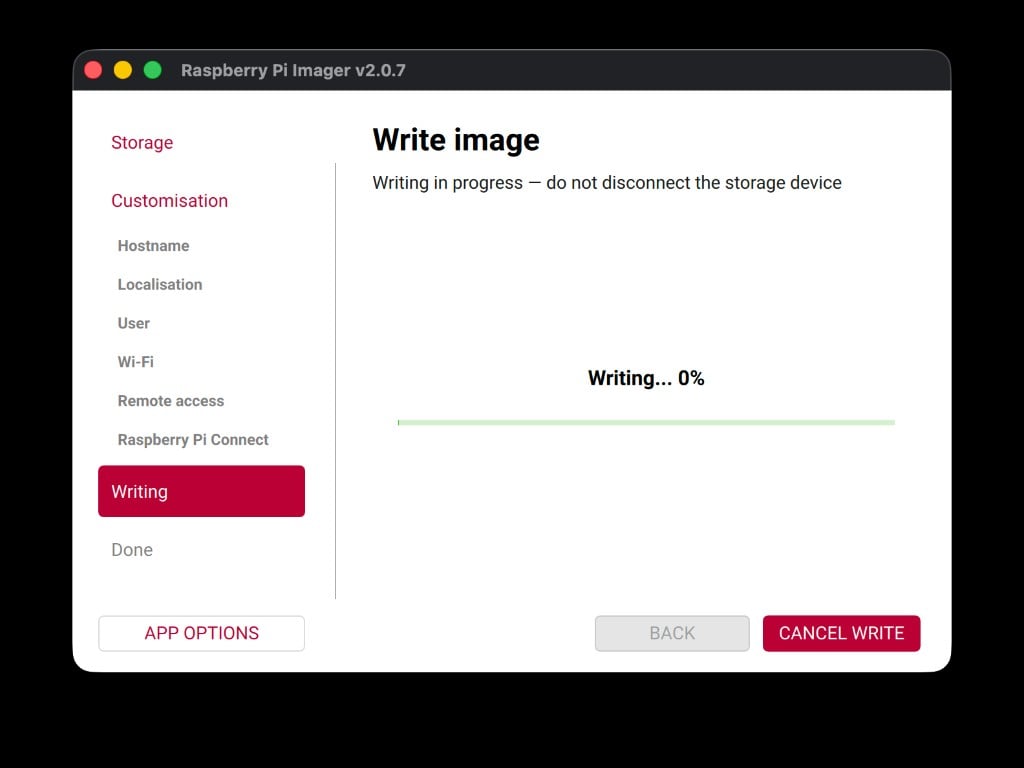
Insert the SD card and boot the robot
1
Remove the SD card from the reader
Pull the microSD card out of the SD card reader.
2
Insert the SD card into the Pi
Look at the back of the robot. The Raspberry Pi sits below the Robot HAT board, and the SD card slot is visible from the rear — you do not need to flip the robot over. Slide the microSD card into the slot with the gold contacts facing up (toward the board). Push gently until you feel it click into place.
3
Power on the robot
Find the toggle switch on the back of the Robot HAT (the top board). Flip it on. The green LED on the Pi should start blinking — this means the Pi is reading from the SD card and booting up.
What happens during first boot
The first time the Raspberry Pi boots with a fresh SD card, it needs extra time to:- Expand the file system to fill the entire SD card
- Apply the hostname, username, password, and WiFi settings you configured
- Connect to your WiFi network
- Register with Raspberry Pi Connect
First boot takes 2 to 3 minutes. The green LED blinks rapidly while the Pi is working. Wait until the blinking slows down before trying to connect.
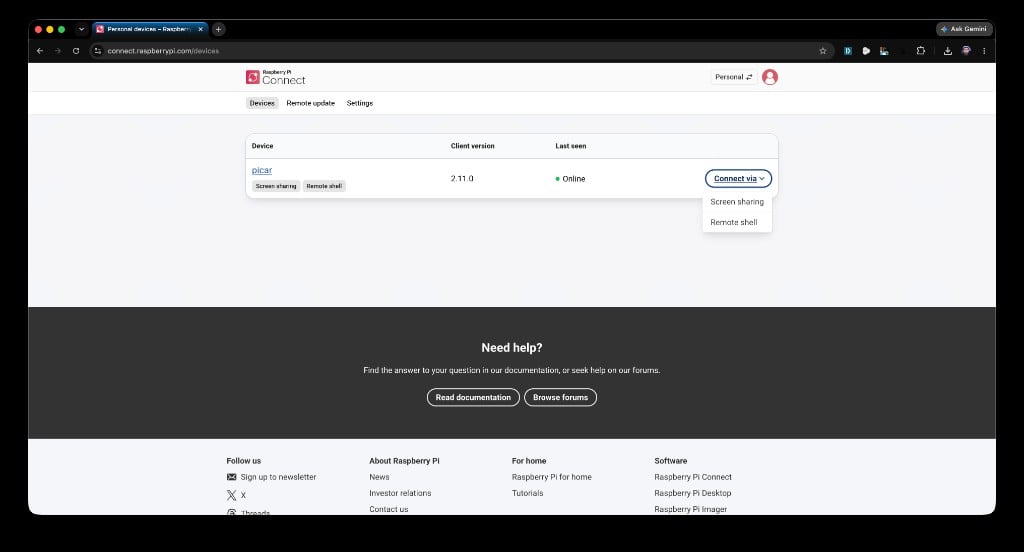
Your SD card is flashed, your robot is booting, and you are ready to move on to the next section: connecting via SSH.