> ## Documentation Index
> Fetch the complete documentation index at: https://stem-docs.intellectualpoint.com/llms.txt
> Use this file to discover all available pages before exploring further.
# Your first AT-66BL program
> Build and run the hello-world of AT-66BL - take off, hover, and land - starting from the green flag.
## Hello, flight - again
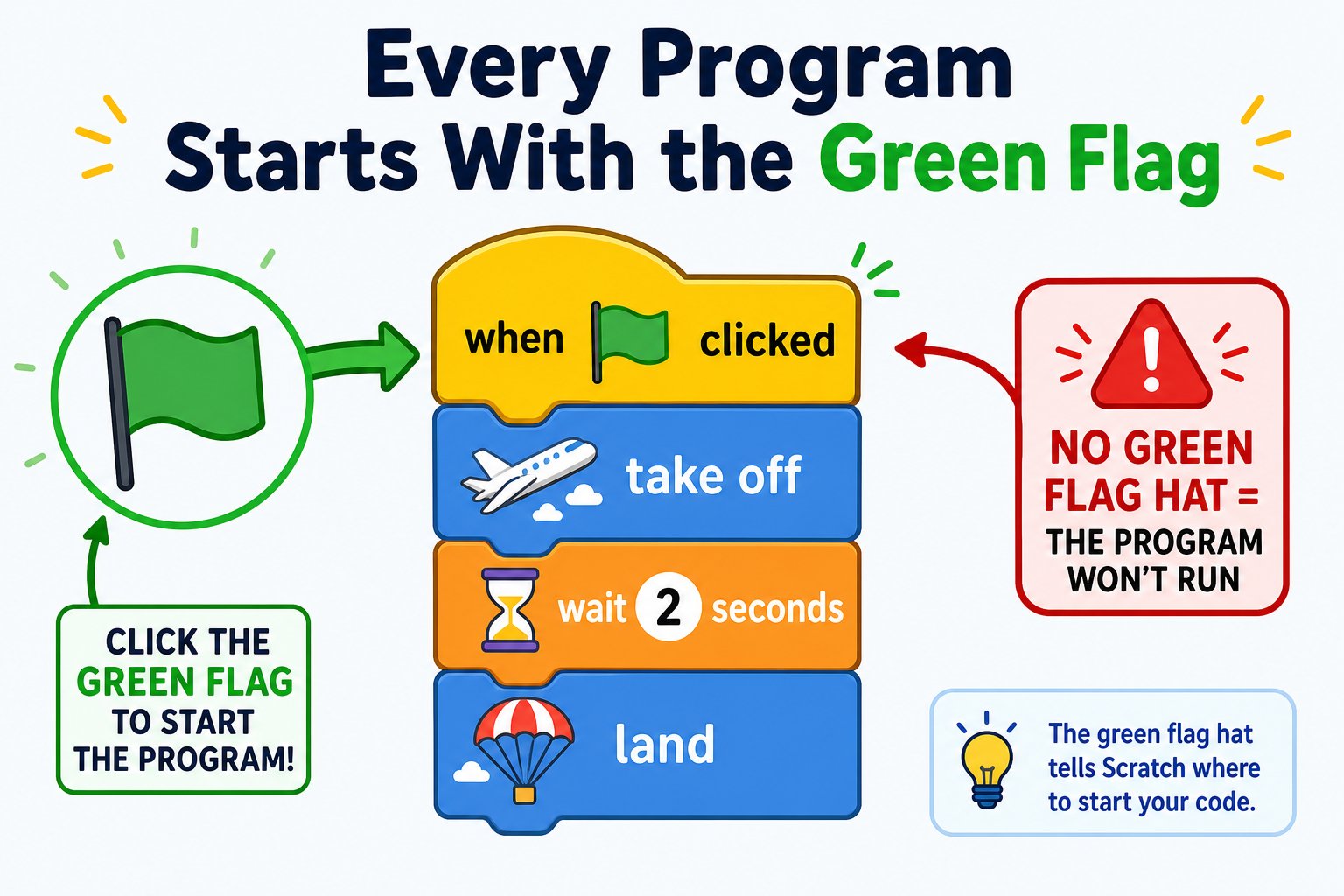
You wrote your first program on echo.pitsco.com. Now let's do the same thing in AT-66BL so you learn the one big difference: **programs start with the green flag** (a **when 🏳 clicked** block), not with take off.
 Fly in a clear space with no people or pets nearby. Before you click the green flag, know where the **red stop** and **no-entry** buttons are. Clicking them ends the flight immediately.
## The workspace, one more time
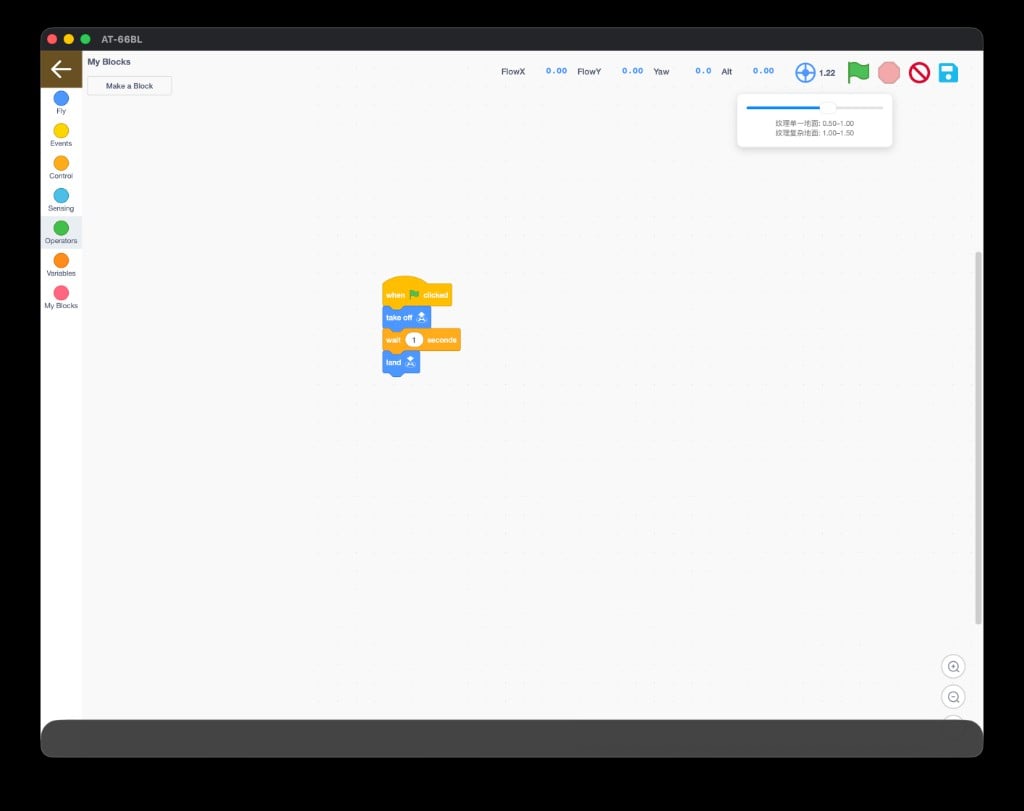
Open **Program** mode. Blocks are on the left, your canvas is the middle, and the run controls (green flag, stop, no-entry, save) are top-right.
Fly in a clear space with no people or pets nearby. Before you click the green flag, know where the **red stop** and **no-entry** buttons are. Clicking them ends the flight immediately.
## The workspace, one more time
Open **Program** mode. Blocks are on the left, your canvas is the middle, and the run controls (green flag, stop, no-entry, save) are top-right.
 ## Build it block by block
Open **Events** (yellow) and drag out a **when 🏳 clicked** block. This is the "start here" for every AT-66BL program.
Open **Fly** (blue) and snap a **take off** block under the flag. The drone will rise and hover.
Open **Control** (orange) and snap a **wait \[1] seconds** block. Change it to **3** so the drone holds steady for a moment.
Back in **Fly**, snap a **land** block at the very bottom. Always end a program by landing.
Your finished stack reads:
```text theme={null}
when 🏳 clicked
take off
wait 3 seconds
land
```
## Run it
Make sure the Bluetooth icon shows you're still paired to your drone.
Click the 🏳 **green flag** in the top-right. The drone takes off, hovers for 3 seconds, and lands.
If anything looks wrong, click the 🔴 **red stop** to end the program, or the 🚫 **no-entry** button to cut the motors instantly.
## Save your work
Click the 💾 **save icon** and choose **Save**. Give it a clear name like `first_flight`. You can reopen it later with **Load**.
## Now make it yours
Change **wait 3 seconds** to 5. Does the drone hold longer?
Between take off and land, add **vertical move up 20 cm** and watch it climb.
Try **turn right 90 degrees** before landing.
Stack two **wait** blocks with a move between them for a step-pause-step feel.
**Instructor:** the #1 beginner mistake here is forgetting the **when 🏳 clicked** hat, then wondering why the green flag does nothing. If a student's program won't run, check for the yellow hat block first.
Every program should end with **land**. If it finishes without landing, the drone keeps hovering until you hit stop or no-entry.
You built a **when 🏳 clicked → take off → wait → land** program, ran it with the green flag, and saved it with a name you can find again.
Add loops, variables, decisions, and custom blocks to build real missions.
## Build it block by block
Open **Events** (yellow) and drag out a **when 🏳 clicked** block. This is the "start here" for every AT-66BL program.
Open **Fly** (blue) and snap a **take off** block under the flag. The drone will rise and hover.
Open **Control** (orange) and snap a **wait \[1] seconds** block. Change it to **3** so the drone holds steady for a moment.
Back in **Fly**, snap a **land** block at the very bottom. Always end a program by landing.
Your finished stack reads:
```text theme={null}
when 🏳 clicked
take off
wait 3 seconds
land
```
## Run it
Make sure the Bluetooth icon shows you're still paired to your drone.
Click the 🏳 **green flag** in the top-right. The drone takes off, hovers for 3 seconds, and lands.
If anything looks wrong, click the 🔴 **red stop** to end the program, or the 🚫 **no-entry** button to cut the motors instantly.
## Save your work
Click the 💾 **save icon** and choose **Save**. Give it a clear name like `first_flight`. You can reopen it later with **Load**.
## Now make it yours
Change **wait 3 seconds** to 5. Does the drone hold longer?
Between take off and land, add **vertical move up 20 cm** and watch it climb.
Try **turn right 90 degrees** before landing.
Stack two **wait** blocks with a move between them for a step-pause-step feel.
**Instructor:** the #1 beginner mistake here is forgetting the **when 🏳 clicked** hat, then wondering why the green flag does nothing. If a student's program won't run, check for the yellow hat block first.
Every program should end with **land**. If it finishes without landing, the drone keeps hovering until you hit stop or no-entry.
You built a **when 🏳 clicked → take off → wait → land** program, ran it with the green flag, and saved it with a name you can find again.
Add loops, variables, decisions, and custom blocks to build real missions.