> ## Documentation Index
> Fetch the complete documentation index at: https://stem-docs.intellectualpoint.com/llms.txt
> Use this file to discover all available pages before exploring further.
# Advanced programs
> Build real missions in AT-66BL - loops, variables, decisions, operators, broadcasts, and custom blocks - with complete step-by-step programs.
## From commands to missions
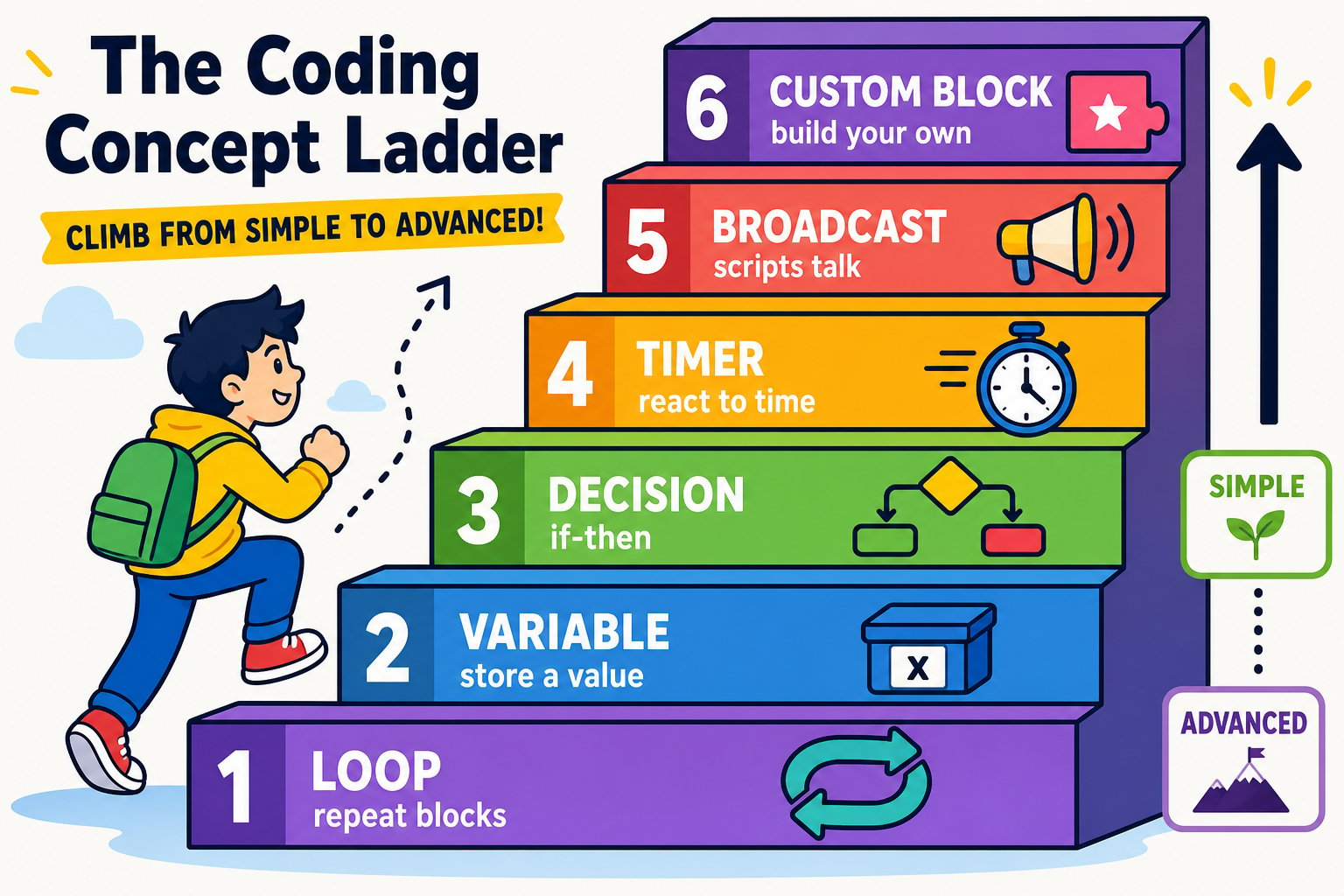
You can already take off, move, and land. Now you'll combine blocks into **smart, flexible programs** using the ideas real programmers use every day: **loops**, **variables**, **decisions**, **operators**, **broadcasts**, and **custom blocks**.
Work through these programs in order. Each one adds exactly one new idea, and each ends with a challenge to make it your own. That's four-plus hours of building - pick up wherever your class is.
 Every program below flies the drone. Run in a clear space, keep people back, and keep the 🔴 **stop** and 🚫 **no-entry** buttons in reach.
## Program 1 - Fly a square with a loop
Instead of writing "move, turn" four times, use a **repeat** loop. This is the single most useful pattern in drone coding.
Every program below flies the drone. Run in a clear space, keep people back, and keep the 🔴 **stop** and 🚫 **no-entry** buttons in reach.
## Program 1 - Fly a square with a loop
Instead of writing "move, turn" four times, use a **repeat** loop. This is the single most useful pattern in drone coding.
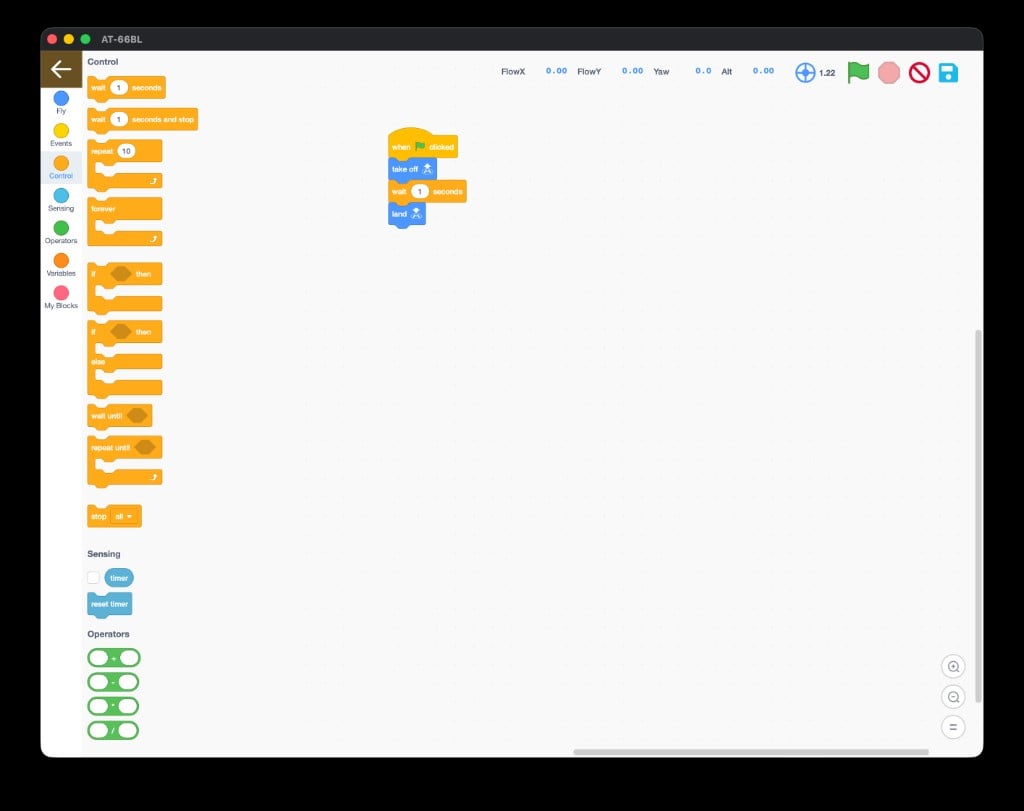 Add **when 🏳 clicked**, then **take off**.
From **Control**, drag a **repeat \[10]** block and change it to **4**.
Inside the loop, add **horizontal move \[Forward] \[50] cm speed \[1]**, then **turn \[Right] \[90] degree speed \[1]**.
Snap **land** below the loop.
```text theme={null}
when 🏳 clicked
take off
repeat 4
horizontal move Forward 50 cm speed 1
turn Right 90 degree speed 1
land
```
Change the repeat to **3** and the turn to **120°** to fly a triangle. What repeat count and turn make a hexagon? (Hint: 360 ÷ sides.)
## Program 2 - One number, any shape (variables)
A **variable** is a named box that holds a value. Store the number of sides once, and the whole program adapts.
Add **when 🏳 clicked**, then **take off**.
From **Control**, drag a **repeat \[10]** block and change it to **4**.
Inside the loop, add **horizontal move \[Forward] \[50] cm speed \[1]**, then **turn \[Right] \[90] degree speed \[1]**.
Snap **land** below the loop.
```text theme={null}
when 🏳 clicked
take off
repeat 4
horizontal move Forward 50 cm speed 1
turn Right 90 degree speed 1
land
```
Change the repeat to **3** and the turn to **120°** to fly a triangle. What repeat count and turn make a hexagon? (Hint: 360 ÷ sides.)
## Program 2 - One number, any shape (variables)
A **variable** is a named box that holds a value. Store the number of sides once, and the whole program adapts.
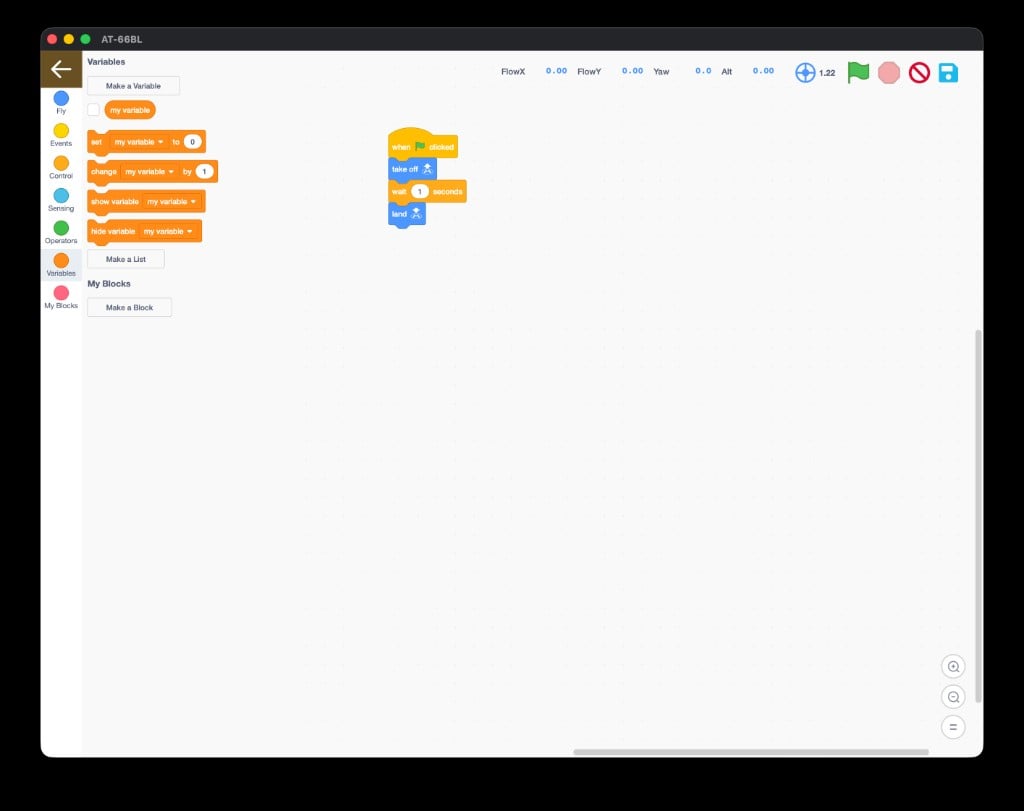 Click **Make a Variable** and name it `sides`.
After take off, add **set \[sides] to \[4]**.
Use **repeat \[sides]**. For the turn, drop an **Operators** division block in and build **turn Right (360 / sides) degree**.
```text theme={null}
when 🏳 clicked
set sides to 4
take off
repeat (sides)
horizontal move Forward 50 cm speed 1
turn Right (360 / sides) degree speed 1
land
```
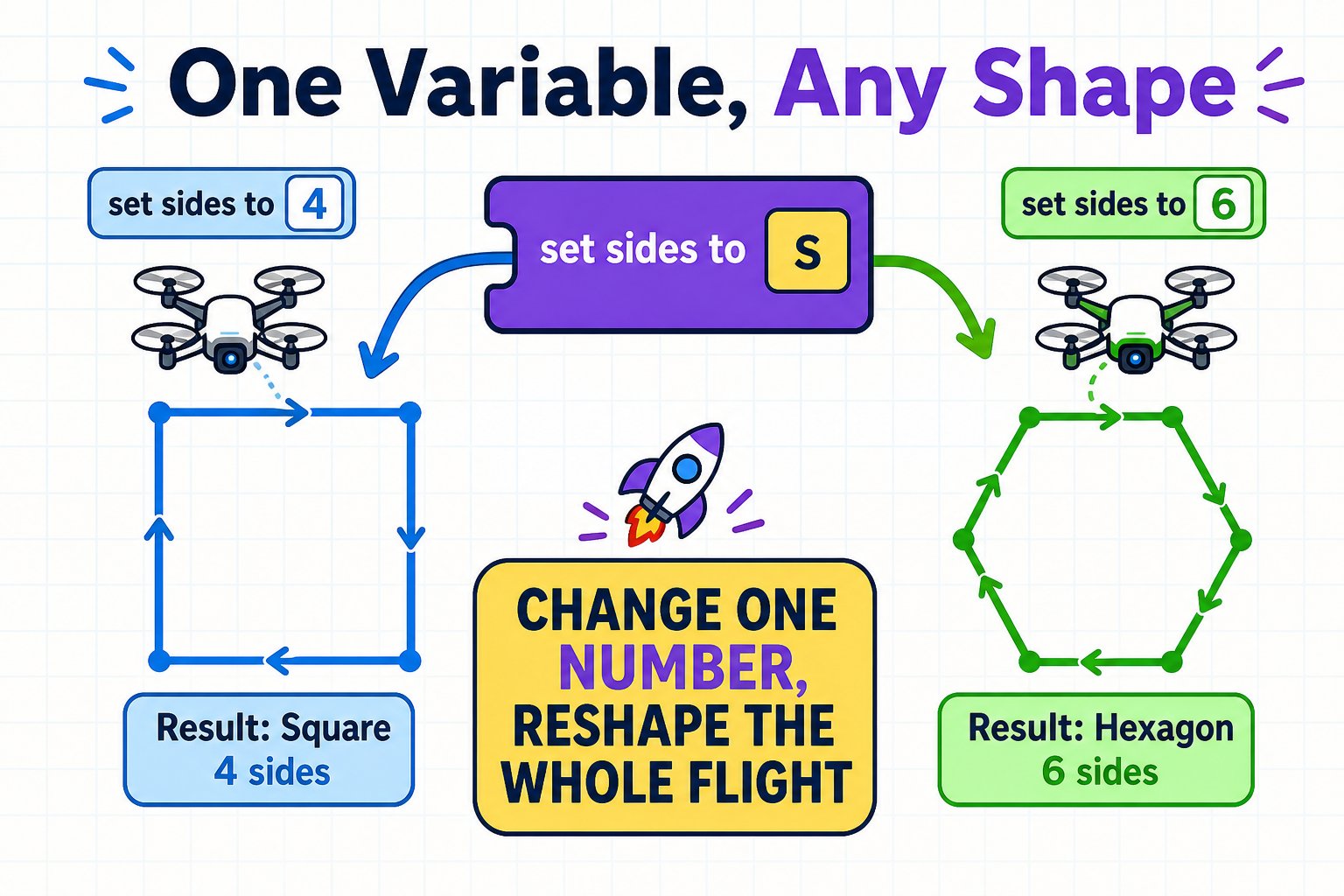
Now change `sides` from 4 to 6 and the **same program** flies a hexagon. **One change reshapes the whole flight** - that's the power of variables.
Click **Make a Variable** and name it `sides`.
After take off, add **set \[sides] to \[4]**.
Use **repeat \[sides]**. For the turn, drop an **Operators** division block in and build **turn Right (360 / sides) degree**.
```text theme={null}
when 🏳 clicked
set sides to 4
take off
repeat (sides)
horizontal move Forward 50 cm speed 1
turn Right (360 / sides) degree speed 1
land
```
Now change `sides` from 4 to 6 and the **same program** flies a hexagon. **One change reshapes the whole flight** - that's the power of variables.
 Add **set \[size] to \[50]** and use it for the move distance too. Now one program flies any shape at any size.
## Program 3 - Loops inside loops (a spiral tower)
Put a loop inside a loop to build patterns. Fly a square, rise a little, repeat.
```text theme={null}
when 🏳 clicked
take off
repeat 3
repeat 4
horizontal move Forward 40 cm speed 1
turn Right 90 degree speed 1
vertical move up 20 cm speed 1
land
```
The inner loop flies a square; the outer loop stacks three squares into a climbing tower.
Make each layer smaller than the last using a `size` variable and **change size by -10** each loop.
## Program 4 - Make it decide (if-then + operators)
An **if-then** block lets the drone choose what to do. Combine it with **Operators** to build a condition.
Add **set \[size] to \[50]** and use it for the move distance too. Now one program flies any shape at any size.
## Program 3 - Loops inside loops (a spiral tower)
Put a loop inside a loop to build patterns. Fly a square, rise a little, repeat.
```text theme={null}
when 🏳 clicked
take off
repeat 3
repeat 4
horizontal move Forward 40 cm speed 1
turn Right 90 degree speed 1
vertical move up 20 cm speed 1
land
```
The inner loop flies a square; the outer loop stacks three squares into a climbing tower.
Make each layer smaller than the last using a `size` variable and **change size by -10** each loop.
## Program 4 - Make it decide (if-then + operators)
An **if-then** block lets the drone choose what to do. Combine it with **Operators** to build a condition.
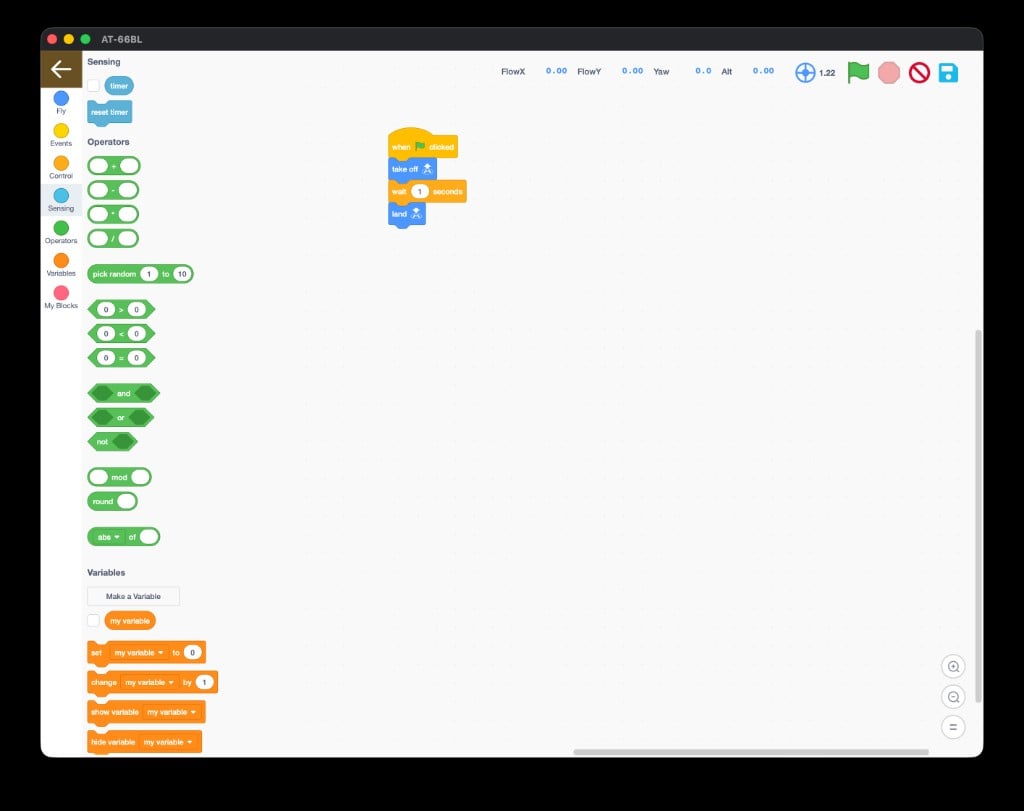 Use **pick random** so every run is different:
```text theme={null}
when 🏳 clicked
take off
repeat 4
if (pick random 1 to 2) = 1 then
turn Right 90 degree speed 1
else
turn Left 90 degree speed 1
horizontal move Forward 40 cm speed 1
land
```
Each lap the drone flips a coin and turns left or right - the path is a surprise every time.
Use **pick random 1 to 4** and multiply by 90 to pick a random turn each time.
## Program 5 - Time a routine (Sensing + timer)
The **timer** reports seconds since the program started. Pair it with a loop to run for a set time.
Use **pick random** so every run is different:
```text theme={null}
when 🏳 clicked
take off
repeat 4
if (pick random 1 to 2) = 1 then
turn Right 90 degree speed 1
else
turn Left 90 degree speed 1
horizontal move Forward 40 cm speed 1
land
```
Each lap the drone flips a coin and turns left or right - the path is a surprise every time.
Use **pick random 1 to 4** and multiply by 90 to pick a random turn each time.
## Program 5 - Time a routine (Sensing + timer)
The **timer** reports seconds since the program started. Pair it with a loop to run for a set time.
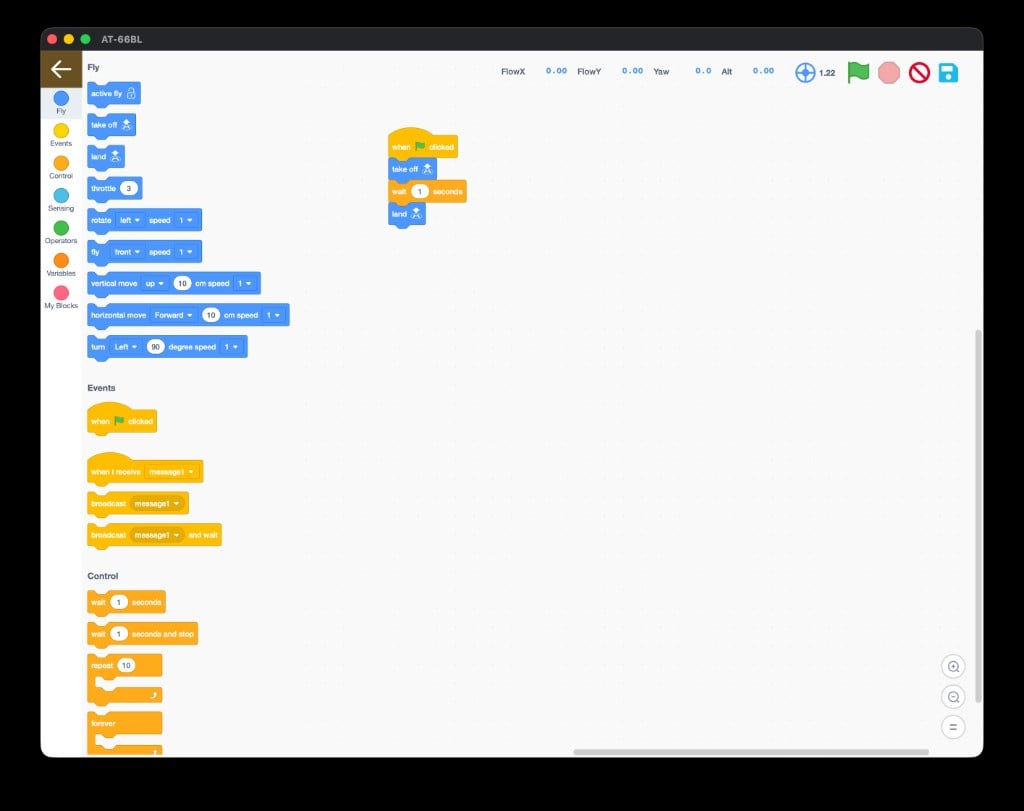 ```text theme={null}
when 🏳 clicked
reset timer
take off
repeat until (timer > 10)
fly Front speed 1
wait 1 seconds
turn Left 45 degree speed 1
land
```
The drone loops its routine until 10 seconds have passed, then lands - no matter how many laps it managed.
Show the timer on screen with **show variable**, and make the drone do a different move every 3 seconds.
## Program 6 - Two scripts talking (broadcast)
**Broadcast** lets one part of your program trigger another. This keeps big programs organized.
```text theme={null}
when 🏳 clicked
reset timer
take off
repeat until (timer > 10)
fly Front speed 1
wait 1 seconds
turn Left 45 degree speed 1
land
```
The drone loops its routine until 10 seconds have passed, then lands - no matter how many laps it managed.
Show the timer on screen with **show variable**, and make the drone do a different move every 3 seconds.
## Program 6 - Two scripts talking (broadcast)
**Broadcast** lets one part of your program trigger another. This keeps big programs organized.
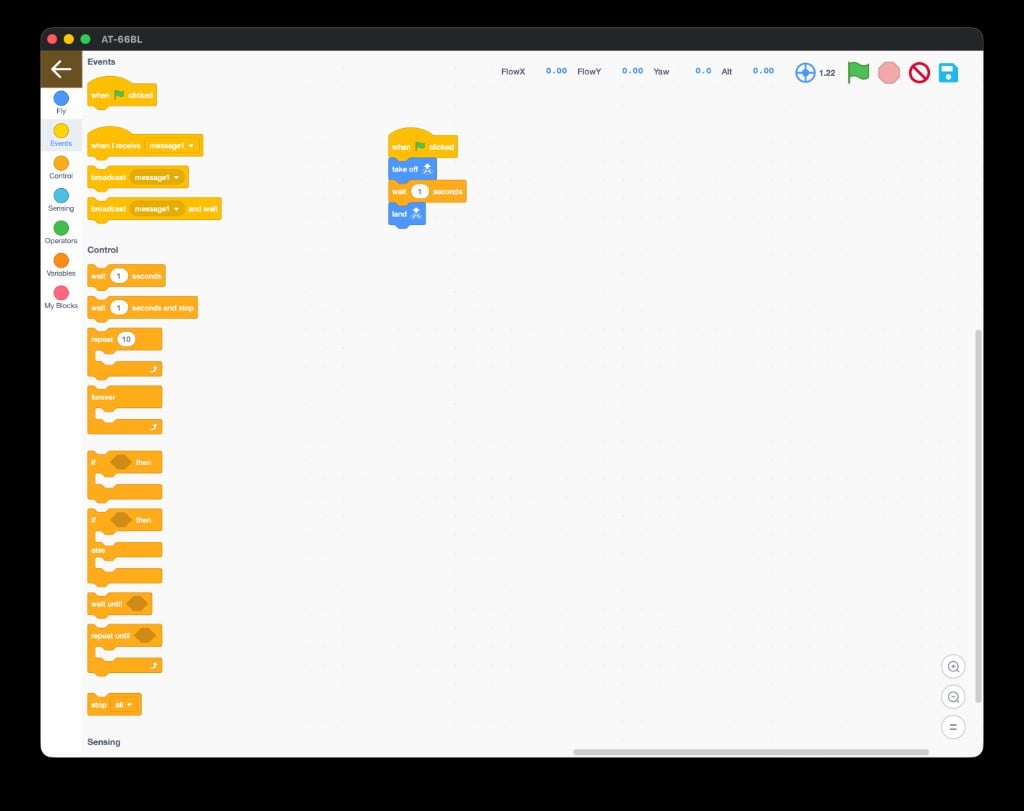 ```text theme={null}
when 🏳 clicked
take off
broadcast dance and wait
land
```
```text theme={null}
when I receive dance
repeat 4
turn Right 90 degree speed 1
vertical move up 10 cm speed 1
```
The main script handles take off and land; the "dance" script handles the moves. Send **dance** whenever you want that routine.
## Program 7 - Build your own block (My Blocks)
Package a routine into one **custom block** you name yourself. This is how pros keep code readable.
```text theme={null}
when 🏳 clicked
take off
broadcast dance and wait
land
```
```text theme={null}
when I receive dance
repeat 4
turn Right 90 degree speed 1
vertical move up 10 cm speed 1
```
The main script handles take off and land; the "dance" script handles the moves. Send **dance** whenever you want that routine.
## Program 7 - Build your own block (My Blocks)
Package a routine into one **custom block** you name yourself. This is how pros keep code readable.
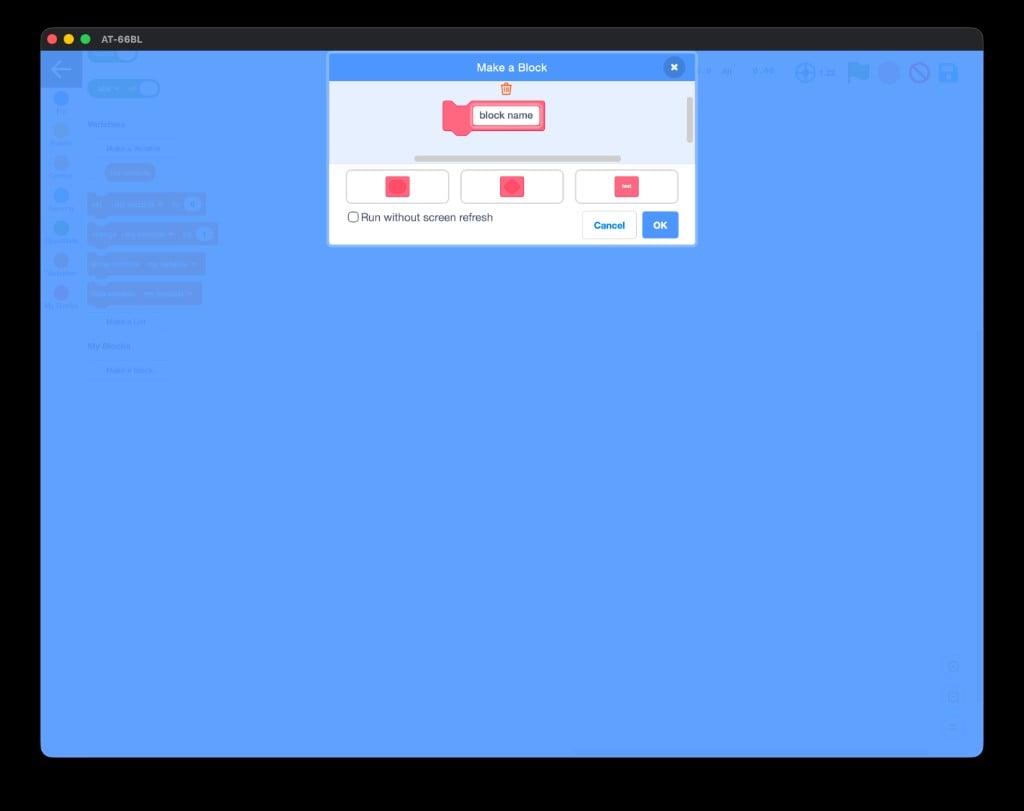 In **My Blocks**, click **Make a Block** and name it `square`. Click **OK**.
Under the new **define square** hat, put the four blocks that fly a square.
Now your main program can just call `square` - as many times as you like.
```text theme={null}
define square
repeat 4
horizontal move Forward 40 cm speed 1
turn Right 90 degree speed 1
when 🏳 clicked
take off
square
vertical move up 20 cm speed 1
square
land
```
Great programmers build in small, tested steps. Get a simple version flying, run it, then add **one** new feature at a time. If it breaks, you know exactly which change did it.
## Instructor cheat sheet
Check for a **when 🏳 clicked** hat at the top of the stack, and confirm the drone is still paired (Bluetooth icon).
Fly slower (lower the speed), use larger distances, and start with a fully charged battery. Indoor drafts and low battery both cause drift.
A **repeat until** needs a condition that eventually becomes true. Test the condition with **show variable** or a shorter timer.
Turn each challenge into a quick "show me" - students fly their version for the class. Fast feedback keeps everyone building.
You built programs using a **loop**, a **variable**, an **if-then decision**, the **timer**, a **broadcast**, and a **custom block**, and you can explain what each one adds.
Design, code, and present your own drone mission.
In **My Blocks**, click **Make a Block** and name it `square`. Click **OK**.
Under the new **define square** hat, put the four blocks that fly a square.
Now your main program can just call `square` - as many times as you like.
```text theme={null}
define square
repeat 4
horizontal move Forward 40 cm speed 1
turn Right 90 degree speed 1
when 🏳 clicked
take off
square
vertical move up 20 cm speed 1
square
land
```
Great programmers build in small, tested steps. Get a simple version flying, run it, then add **one** new feature at a time. If it breaks, you know exactly which change did it.
## Instructor cheat sheet
Check for a **when 🏳 clicked** hat at the top of the stack, and confirm the drone is still paired (Bluetooth icon).
Fly slower (lower the speed), use larger distances, and start with a fully charged battery. Indoor drafts and low battery both cause drift.
A **repeat until** needs a condition that eventually becomes true. Test the condition with **show variable** or a shorter timer.
Turn each challenge into a quick "show me" - students fly their version for the class. Fast feedback keeps everyone building.
You built programs using a **loop**, a **variable**, an **if-then decision**, the **timer**, a **broadcast**, and a **custom block**, and you can explain what each one adds.
Design, code, and present your own drone mission.