> ## Documentation Index
> Fetch the complete documentation index at: https://stem-docs.intellectualpoint.com/llms.txt
> Use this file to discover all available pages before exploring further.
# Connect the camera app
> Connect your phone to the drone over Wi-Fi with the Tspeed7 app to see its live camera feed.
## See through your drone's eyes
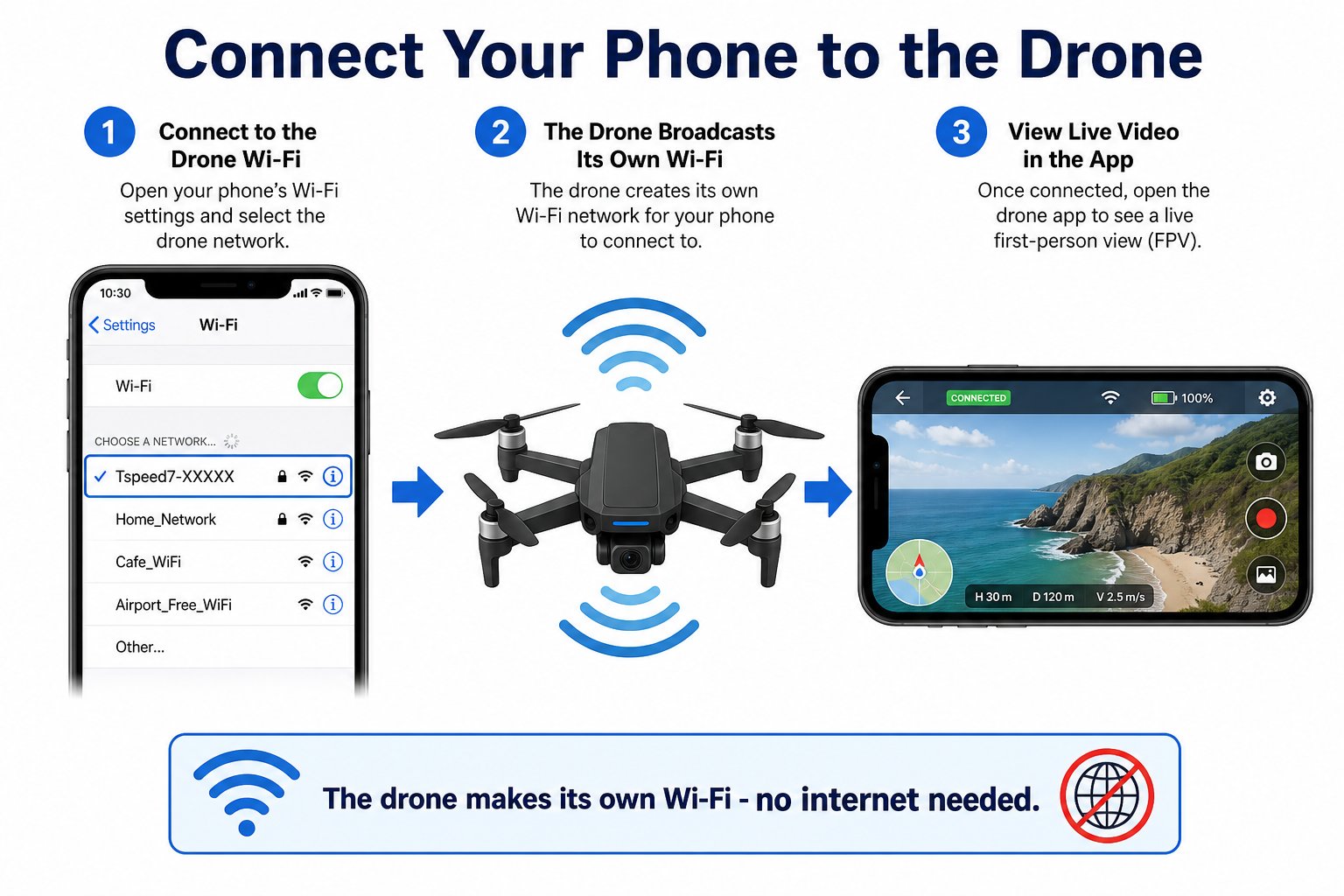
Your Echo Drone has a 720p camera. Today you'll connect your phone to the drone and watch its **live video feed** - the same first-person view real drone pilots use. This runs over **Wi-Fi** using the **Tspeed7** app.
 Camera video is separate from the Bluetooth coding you did on Day 3. The camera streams over **Wi-Fi** to the phone app, while echo.pitsco.com used Bluetooth for code. Different jobs, different connections.
## Two radios, two jobs
Your drone actually has **two wireless connections**, and they do completely different things. Yesterday you used Bluetooth to send code. Today you'll use Wi-Fi to receive video.
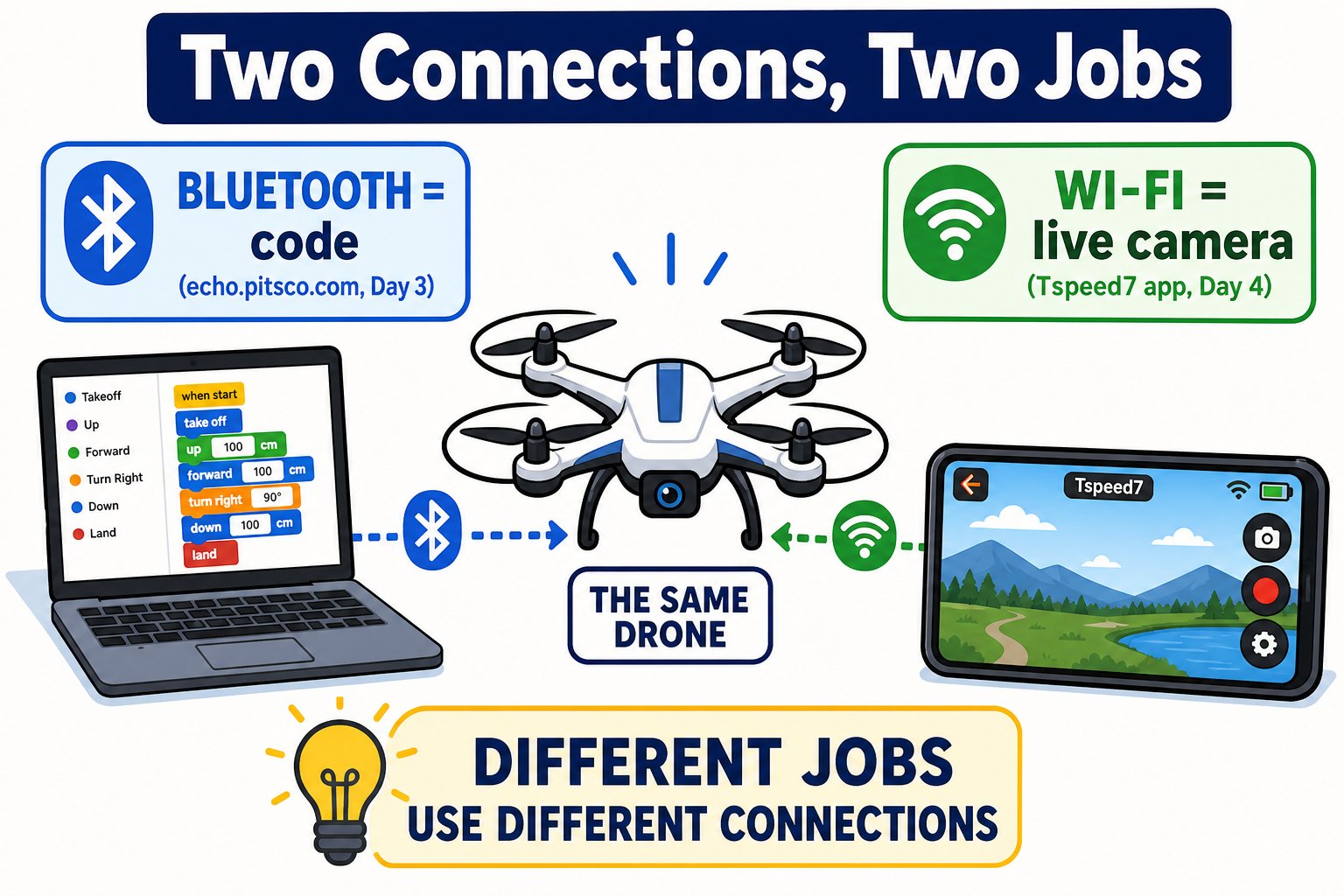
Camera video is separate from the Bluetooth coding you did on Day 3. The camera streams over **Wi-Fi** to the phone app, while echo.pitsco.com used Bluetooth for code. Different jobs, different connections.
## Two radios, two jobs
Your drone actually has **two wireless connections**, and they do completely different things. Yesterday you used Bluetooth to send code. Today you'll use Wi-Fi to receive video.
 | | Bluetooth (Day 3) | Wi-Fi (today) |
| ----------- | ------------------------- | ---------------------- |
| **Carries** | Your code / commands | Live camera video |
| **App** | echo.pitsco.com | Tspeed 7 |
| **Device** | Laptop | Phone / tablet |
| **Why** | Small, low-power messages | Big, fast video stream |
## Download the app
| Device | App | Where |
| ----------------------- | ------------ | ----------- |
| iPhone / iPad (iOS 10+) | **Tspeed 7** | App Store |
| Android (4.4+) | **Tspeed 7** | Google Play |
The controller and the app can't both control the drone at once. Don't pair the handheld controller while using the app.
## Connect over Wi-Fi
| | Bluetooth (Day 3) | Wi-Fi (today) |
| ----------- | ------------------------- | ---------------------- |
| **Carries** | Your code / commands | Live camera video |
| **App** | echo.pitsco.com | Tspeed 7 |
| **Device** | Laptop | Phone / tablet |
| **Why** | Small, low-power messages | Big, fast video stream |
## Download the app
| Device | App | Where |
| ----------------------- | ------------ | ----------- |
| iPhone / iPad (iOS 10+) | **Tspeed 7** | App Store |
| Android (4.4+) | **Tspeed 7** | Google Play |
The controller and the app can't both control the drone at once. Don't pair the handheld controller while using the app.
## Connect over Wi-Fi
 Power it up and set it on a flat surface.
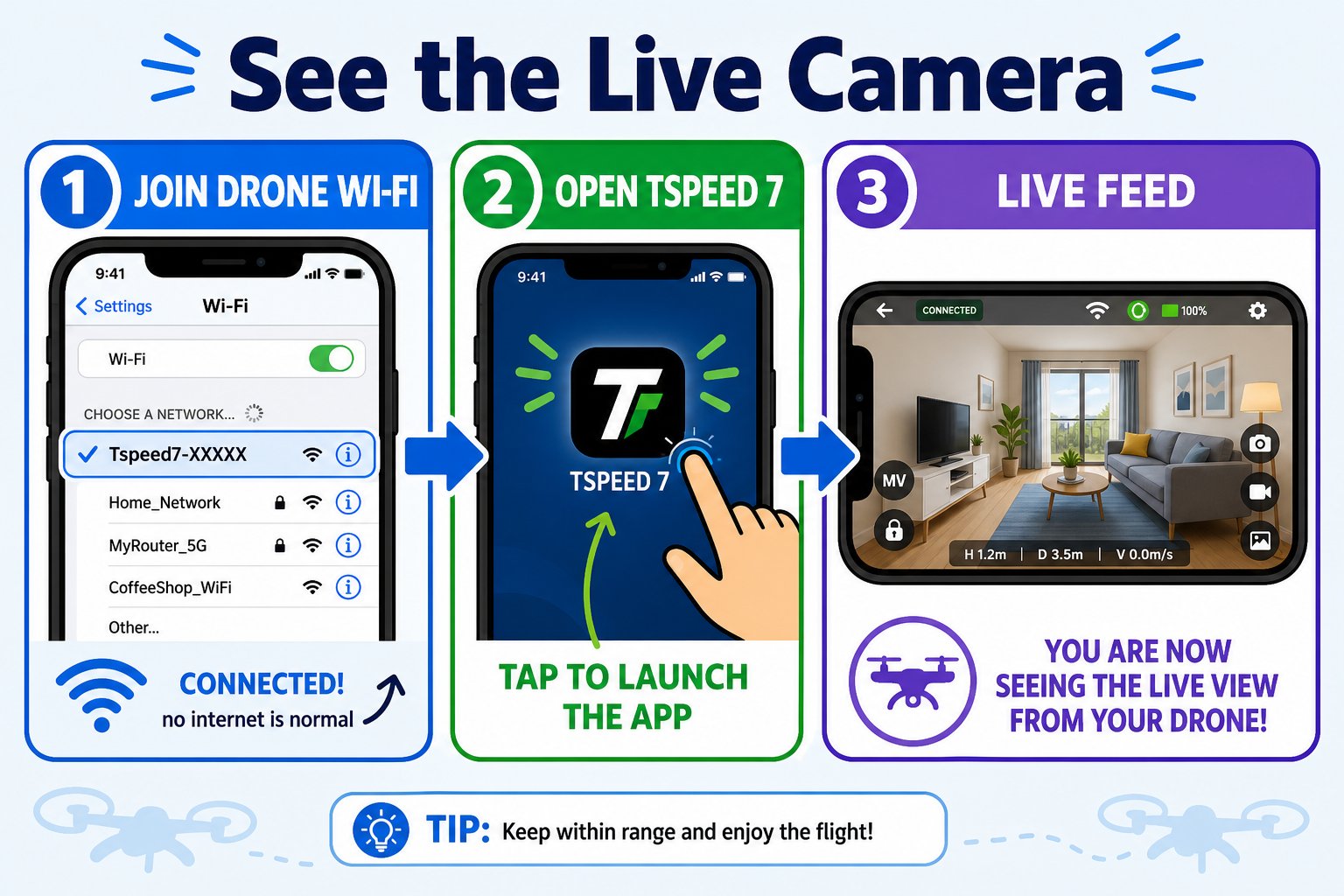
In your phone's Wi-Fi settings, connect to the network named **"Tspeed7-XXXXX"**. Your phone may warn there's "no internet" - that's correct. You're connected straight to the drone.
Launch the app. The live camera feed should appear on screen.
Grant location access so the drone can tell where the pilot is (used for some flight features).
Make sure the drone is fully powered on and give it 20-30 seconds to broadcast its Wi-Fi. Pull down to refresh your phone's Wi-Fi list.
Force-close and reopen the Tspeed 7 app. Confirm your phone is still on the drone's network and not on the school Wi-Fi.
Tap **stay connected**. The drone's Wi-Fi has no internet on purpose - it's a direct link to the drone, not a router.
## What you can do in the app
See real-time video from the drone's camera on your phone.
Fly the drone with touch joysticks right in the app.
Capture aerial photos and clips, saved in the app's album.
Adjust speed, trim, headless mode, and more from the interface.
Mount your phone in the controller's phone holder for a hands-free FPV view while you fly. It turns your setup into a real first-person-view flying rig.
Your phone is connected to the drone's Wi-Fi and you can see the live camera feed in the Tspeed 7 app.
Power it up and set it on a flat surface.
In your phone's Wi-Fi settings, connect to the network named **"Tspeed7-XXXXX"**. Your phone may warn there's "no internet" - that's correct. You're connected straight to the drone.
Launch the app. The live camera feed should appear on screen.
Grant location access so the drone can tell where the pilot is (used for some flight features).
Make sure the drone is fully powered on and give it 20-30 seconds to broadcast its Wi-Fi. Pull down to refresh your phone's Wi-Fi list.
Force-close and reopen the Tspeed 7 app. Confirm your phone is still on the drone's network and not on the school Wi-Fi.
Tap **stay connected**. The drone's Wi-Fi has no internet on purpose - it's a direct link to the drone, not a router.
## What you can do in the app
See real-time video from the drone's camera on your phone.
Fly the drone with touch joysticks right in the app.
Capture aerial photos and clips, saved in the app's album.
Adjust speed, trim, headless mode, and more from the interface.
Mount your phone in the controller's phone holder for a hands-free FPV view while you fly. It turns your setup into a real first-person-view flying rig.
Your phone is connected to the drone's Wi-Fi and you can see the live camera feed in the Tspeed 7 app.