> ## Documentation Index
> Fetch the complete documentation index at: https://stem-docs.intellectualpoint.com/llms.txt
> Use this file to discover all available pages before exploring further.
# Fly with your keyboard
> Use echo.pitsco.com's built-in keyboard control to fly the drone live from your laptop.
## Fly live from your laptop
Before you write full programs, echo.pitsco.com has a fun built-in feature: **keyboard control**. Once your drone is connected, you can fly it live using the keys on your laptop - no controller and no code needed. It's a great way to get comfortable flying from the computer.
Keyboard control flies the drone in real time. Use it in a clear space, watch the drone (not just the screen), and start with a low speed. Keep the red **LAND NOW** button in reach.
## Open keyboard control
Make sure your drone is connected (the toolbar shows **DISCONNECT**).
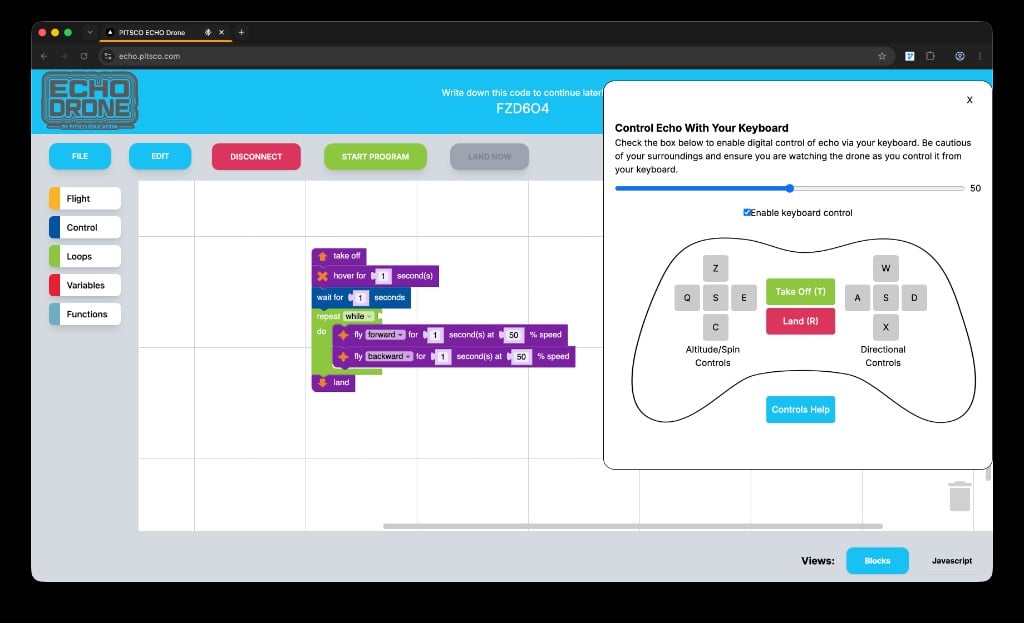
Click the blue **game controller icon** in the top-right of the workspace to open the **Control Echo With Your Keyboard** panel.
Check the **Enable keyboard control** box. Now your key presses fly the drone.
 ## The key map
The panel shows two groups of keys, like the two sticks on a controller:
Controls going **up/down** and **spinning (yaw) left/right** - the Z, Q, E, and C keys.
Controls flying **forward, back, left, and right** - the W, A, S, D keys.
| Key | Action |
| ------------- | -------------------------- |
| **T** | Take off |
| **R** | Land |
| **W / A / D** | Fly forward / left / right |
| **Z / C** | Go up / down |
| **Q / E** | Spin (yaw) left / right |
## The key map
The panel shows two groups of keys, like the two sticks on a controller:
Controls going **up/down** and **spinning (yaw) left/right** - the Z, Q, E, and C keys.
Controls flying **forward, back, left, and right** - the W, A, S, D keys.
| Key | Action |
| ------------- | -------------------------- |
| **T** | Take off |
| **R** | Land |
| **W / A / D** | Fly forward / left / right |
| **Z / C** | Go up / down |
| **Q / E** | Spin (yaw) left / right |
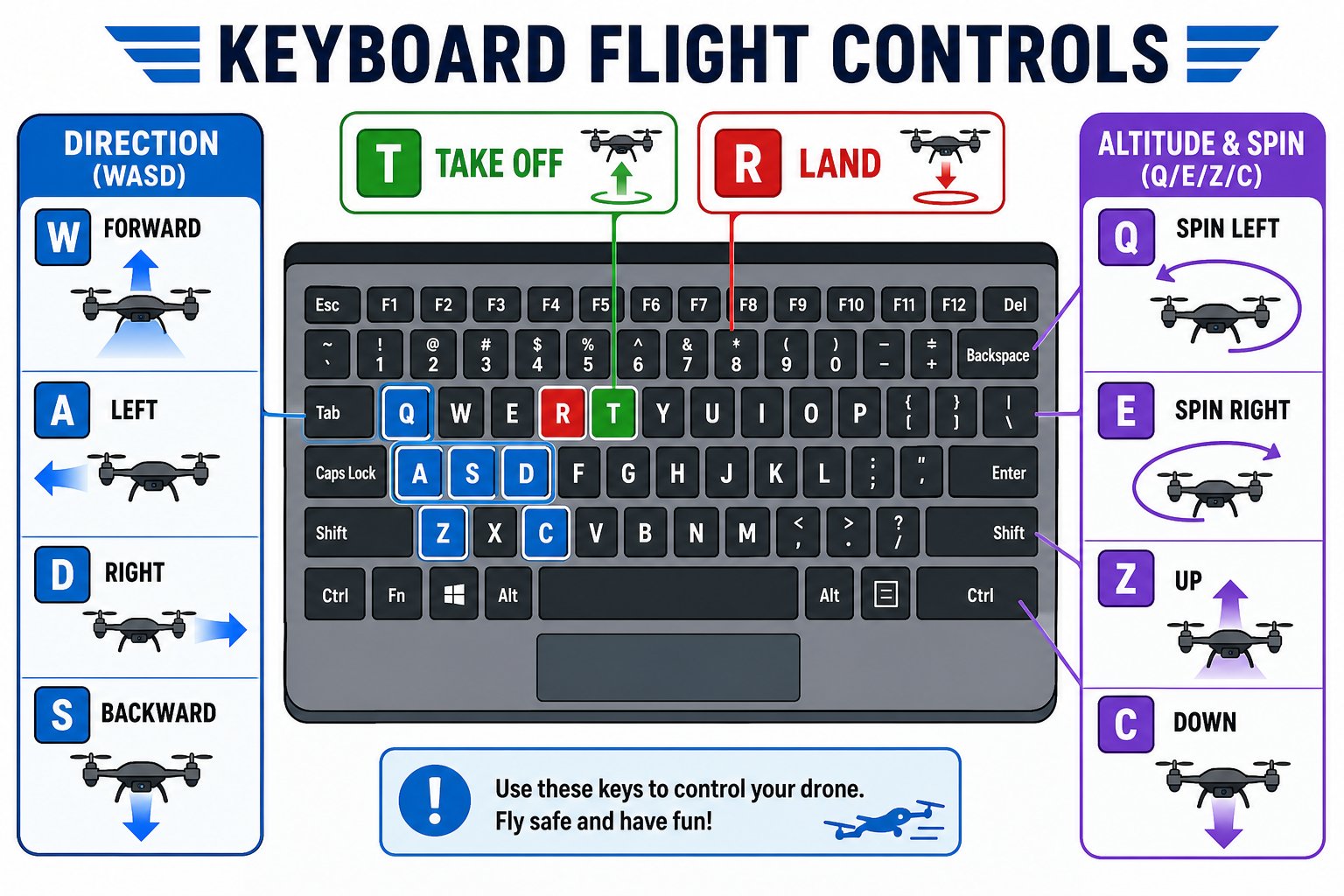 The exact key layout is shown right on the panel, and the **Controls Help** button explains each one. Glance at the on-screen pad if you forget a key.
## Adjust the speed
The **slider** at the top of the panel sets how fast the drone responds (it starts around 50). Start low while you're learning - a slower drone is much easier to control - and turn it up as you get comfortable.
## Practice
Press **T**, let it hover, then press **R** to land. Repeat until it feels natural.
Tap W, A, and D briefly to nudge the drone around. Small taps beat holding keys down.
Practice Z/C to change height and Q/E to spin and face new directions.
Put a target on the floor and practice flying to it and landing with R.
Keyboard control is perfect for quick, hands-on flying. When you're ready to make the drone fly a path **on its own**, that's what programs are for - which is exactly what you'll build next.
You enabled keyboard control, took off with T, flew the drone around with the keys, and landed with R.
The exact key layout is shown right on the panel, and the **Controls Help** button explains each one. Glance at the on-screen pad if you forget a key.
## Adjust the speed
The **slider** at the top of the panel sets how fast the drone responds (it starts around 50). Start low while you're learning - a slower drone is much easier to control - and turn it up as you get comfortable.
## Practice
Press **T**, let it hover, then press **R** to land. Repeat until it feels natural.
Tap W, A, and D briefly to nudge the drone around. Small taps beat holding keys down.
Practice Z/C to change height and Q/E to spin and face new directions.
Put a target on the floor and practice flying to it and landing with R.
Keyboard control is perfect for quick, hands-on flying. When you're ready to make the drone fly a path **on its own**, that's what programs are for - which is exactly what you'll build next.
You enabled keyboard control, took off with T, flew the drone around with the keys, and landed with R.