> ## Documentation Index
> Fetch the complete documentation index at: https://stem-docs.intellectualpoint.com/llms.txt
> Use this file to discover all available pages before exploring further.
# Level up to JavaScript
> Switch from blocks to real text code - see and edit the same drone programs in JavaScript.
## From blocks to real code
Blocks are a great way to start, but every block stands for a line of **real code**. echo.pitsco.com lets you switch to **JavaScript** - the most popular programming language in the world - and see the same program as text.
Look for the **Views: Blocks | Javascript** toggle in the bottom-right corner of echo.pitsco.com. Click **Javascript** to see your blocks turn into code.
## Blocks and code are the same thing
Every block you used has a JavaScript equivalent. Build a program in blocks, flip to the JavaScript view, and you'll see the matching text. Your take off, hover, and land program becomes a few clean lines of code - each block is one line.
Here's the idea:
**Blocks:**
```text theme={null}
take off
hover for 3 second(s)
land
```
**JavaScript (what the toggle shows):**
```javascript theme={null}
takeOff();
hover(3);
land();
```
Each block became one line. The drone does exactly the same thing - you're just reading instructions as text instead of dragging them.
## Your square in JavaScript
Remember the loop that flew a square? In JavaScript, a loop is written with `for`:
```javascript theme={null}
takeOff();
for (let i = 0; i < 4; i++) {
flyForward(1, 50); // fly forward 1 second at 50% speed
spinRight(1, 50); // spin right 1 second at 50% speed
}
land();
```
The `for` line means "repeat 4 times." Everything inside the `{ }` runs each time - exactly like the repeat block.
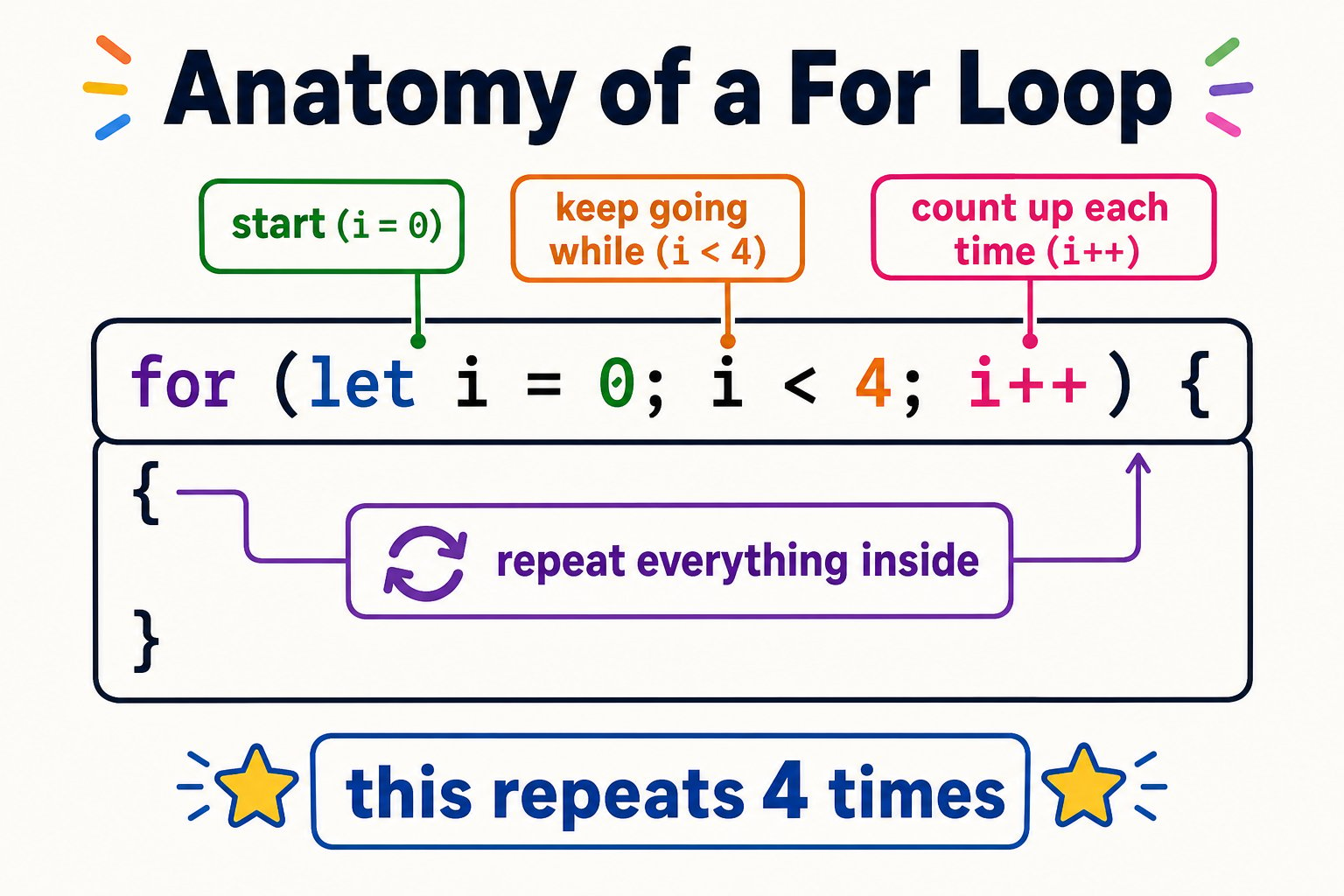 Don't let the `for (let i = 0; i < 4; i++)` line scare anyone - it's just three small jobs bolted together: **start counting at 0**, **keep going while the count is under 4**, and **add 1 each time**. The block palette wrote all of that for you.
The exact function names shown in the editor may differ slightly - the best way to learn them is to build a program in blocks, then flip to the **Javascript** view and read the real code it generates.
## Why learn the text version?
Once you know the commands, typing is quicker than dragging blocks.
JavaScript, `for` loops, and functions are used by professional programmers every day.
Text code makes it easy to fine-tune exact numbers and see your whole program at once.
The same concepts carry into Python, app development, and game design.
## Try it
Make a short program with blocks - take off, fly forward, spin, land.
Click **Javascript** in the Views toggle and read the code your blocks created.
Edit a value in a line - change a speed or a time - then run it with START PROGRAM.
You can switch to the Javascript view, explain that each block equals a line of code, and edit a value in the code.
Don't let the `for (let i = 0; i < 4; i++)` line scare anyone - it's just three small jobs bolted together: **start counting at 0**, **keep going while the count is under 4**, and **add 1 each time**. The block palette wrote all of that for you.
The exact function names shown in the editor may differ slightly - the best way to learn them is to build a program in blocks, then flip to the **Javascript** view and read the real code it generates.
## Why learn the text version?
Once you know the commands, typing is quicker than dragging blocks.
JavaScript, `for` loops, and functions are used by professional programmers every day.
Text code makes it easy to fine-tune exact numbers and see your whole program at once.
The same concepts carry into Python, app development, and game design.
## Try it
Make a short program with blocks - take off, fly forward, spin, land.
Click **Javascript** in the Views toggle and read the code your blocks created.
Edit a value in a line - change a speed or a time - then run it with START PROGRAM.
You can switch to the Javascript view, explain that each block equals a line of code, and edit a value in the code.