> ## Documentation Index
> Fetch the complete documentation index at: https://stem-docs.intellectualpoint.com/llms.txt
> Use this file to discover all available pages before exploring further.
# Pair the controller
> Link your drone and controller so they can talk to each other - the first step before every flight.
## Getting the drone and controller talking
Before your drone will respond to a single joystick move, the drone and controller have to **pair** - like connecting Bluetooth headphones to a phone. You'll do this at the start of every flight session.
Make sure you have **two AAA batteries** in the controller and a **charged battery** in the drone before you start.
## Pairing steps
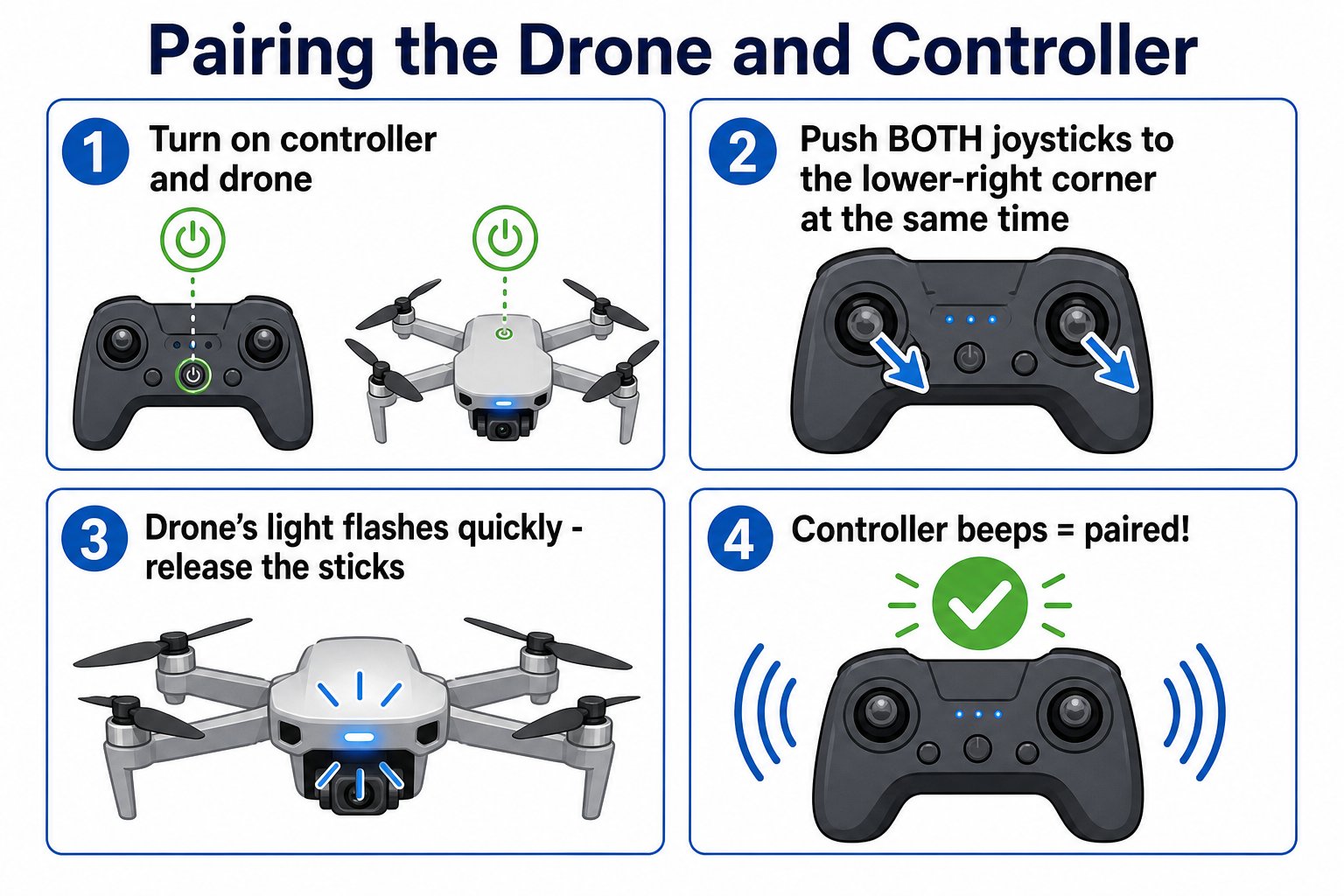 Place the drone on a flat surface. Press and hold the controller's On/Off button, then flip the drone's power switch on. The controller starts beeping.
Push **both** joysticks to the lower-right corner at the same time and hold.
When the drone's indicator light flashes quickly, release the joysticks.
The light keeps flashing until the controller beeps again. That beep means the drone and controller are **paired** and ready.
If you have several drones in the same room, pair them **one at a time**. Radio interference between multiple drones is the most common reason pairing fails.
## Getting the sticks right
The trickiest part is Step 2. Both joysticks go to the **lower-right** corner *at the same time* and you **hold** until the drone's light flashes fast.
Place the drone on a flat surface. Press and hold the controller's On/Off button, then flip the drone's power switch on. The controller starts beeping.
Push **both** joysticks to the lower-right corner at the same time and hold.
When the drone's indicator light flashes quickly, release the joysticks.
The light keeps flashing until the controller beeps again. That beep means the drone and controller are **paired** and ready.
If you have several drones in the same room, pair them **one at a time**. Radio interference between multiple drones is the most common reason pairing fails.
## Getting the sticks right
The trickiest part is Step 2. Both joysticks go to the **lower-right** corner *at the same time* and you **hold** until the drone's light flashes fast.
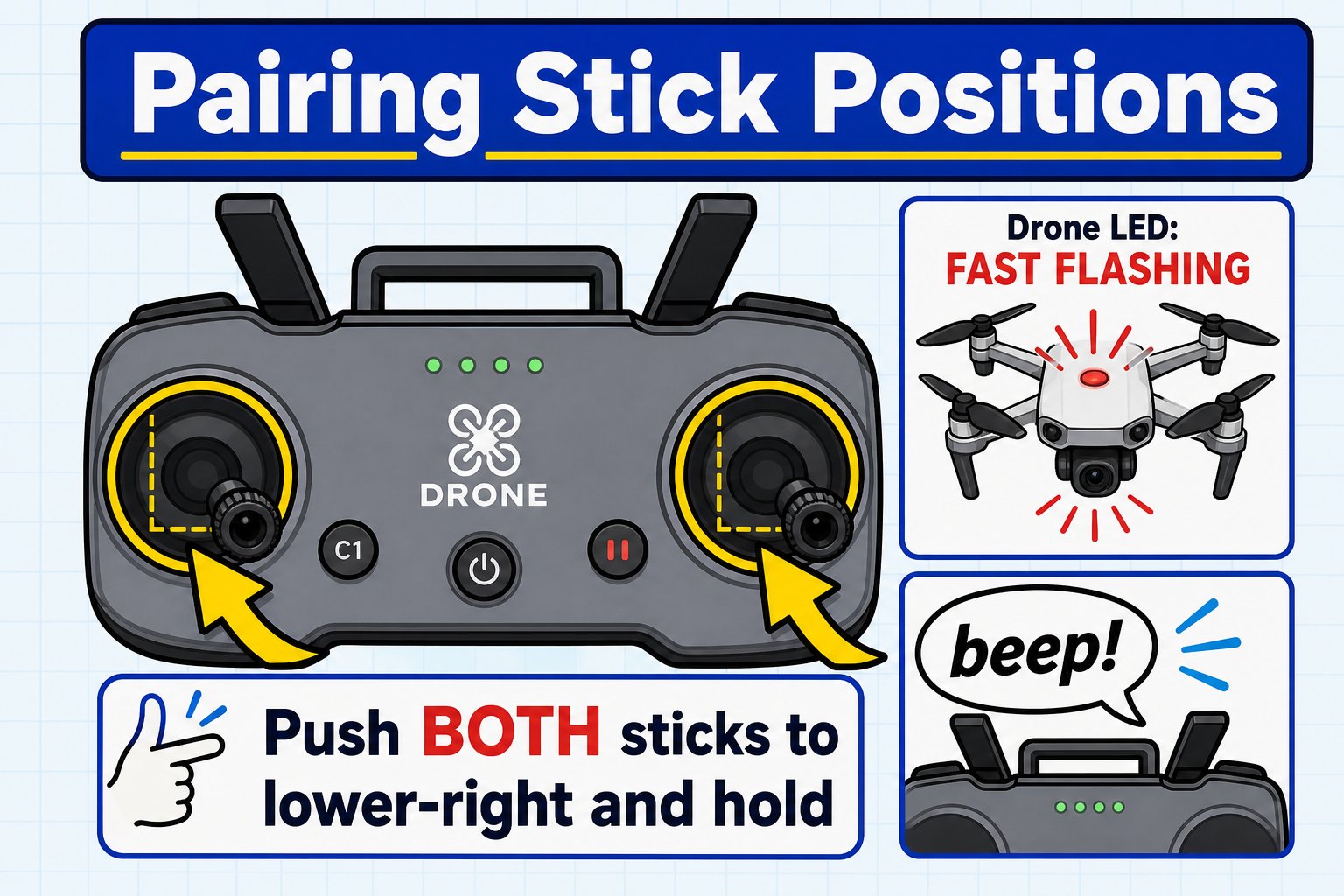 Think of it as pushing both sticks toward the same bottom corner. If nothing happens, you may be holding them toward different corners - reset your hands and try again.
## How to tell if it worked
Pairing gives you two clear signals: the drone's **light** and the controller's **beep**. Use this chart to check.
Think of it as pushing both sticks toward the same bottom corner. If nothing happens, you may be holding them toward different corners - reset your hands and try again.
## How to tell if it worked
Pairing gives you two clear signals: the drone's **light** and the controller's **beep**. Use this chart to check.
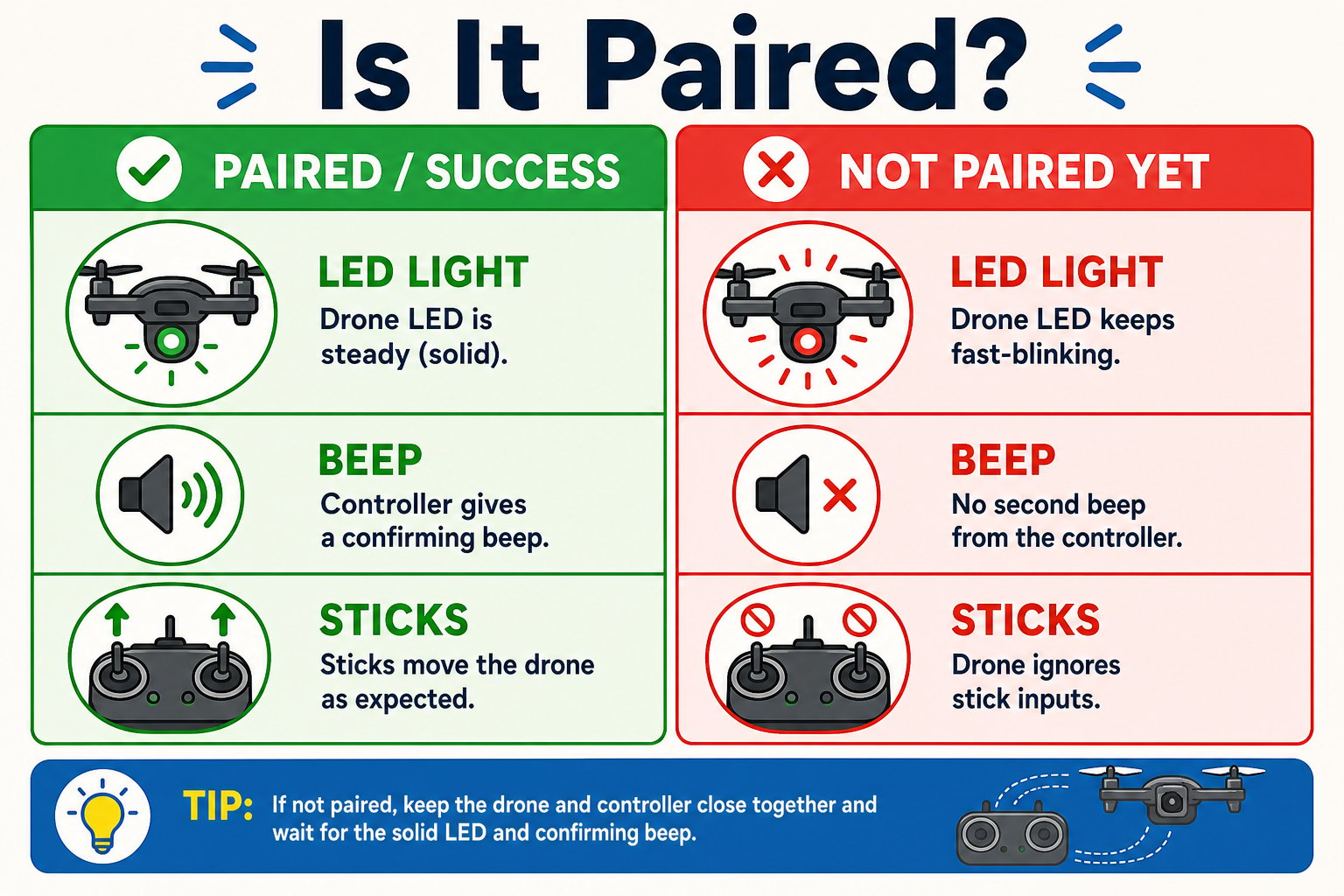 | Signal | Paired | Not paired yet |
| -------------- | --------------- | ------------------- |
| **Drone LED** | Steady / solid | Keeps fast-blinking |
| **Controller** | Confirming beep | No second beep |
| **Sticks** | Drone responds | Drone ignores you |
Do a quick test after pairing: nudge the left stick up a tiny bit (motors must be unlocked first). If the drone reacts, you're paired. If not, re-pair before takeoff.
## If pairing fails
Turn both off and try again from step one. Make sure the drone is still and on a flat surface.
Check the drone battery is charged and clicked in, and that the controller has fresh AAA batteries.
Move apart from other students and pair one drone at a time to avoid interference.
Your drone and controller are paired - the controller has beeped and the drone's light is steady. You're ready to learn the controls.
| Signal | Paired | Not paired yet |
| -------------- | --------------- | ------------------- |
| **Drone LED** | Steady / solid | Keeps fast-blinking |
| **Controller** | Confirming beep | No second beep |
| **Sticks** | Drone responds | Drone ignores you |
Do a quick test after pairing: nudge the left stick up a tiny bit (motors must be unlocked first). If the drone reacts, you're paired. If not, re-pair before takeoff.
## If pairing fails
Turn both off and try again from step one. Make sure the drone is still and on a flat surface.
Check the drone battery is charged and clicked in, and that the controller has fresh AAA batteries.
Move apart from other students and pair one drone at a time to avoid interference.
Your drone and controller are paired - the controller has beeped and the drone's light is steady. You're ready to learn the controls.