> ## Documentation Index
> Fetch the complete documentation index at: https://stem-docs.intellectualpoint.com/llms.txt
> Use this file to discover all available pages before exploring further.
# Know your controller
> Learn every button and joystick on your controller and what each one does.
## Your command center
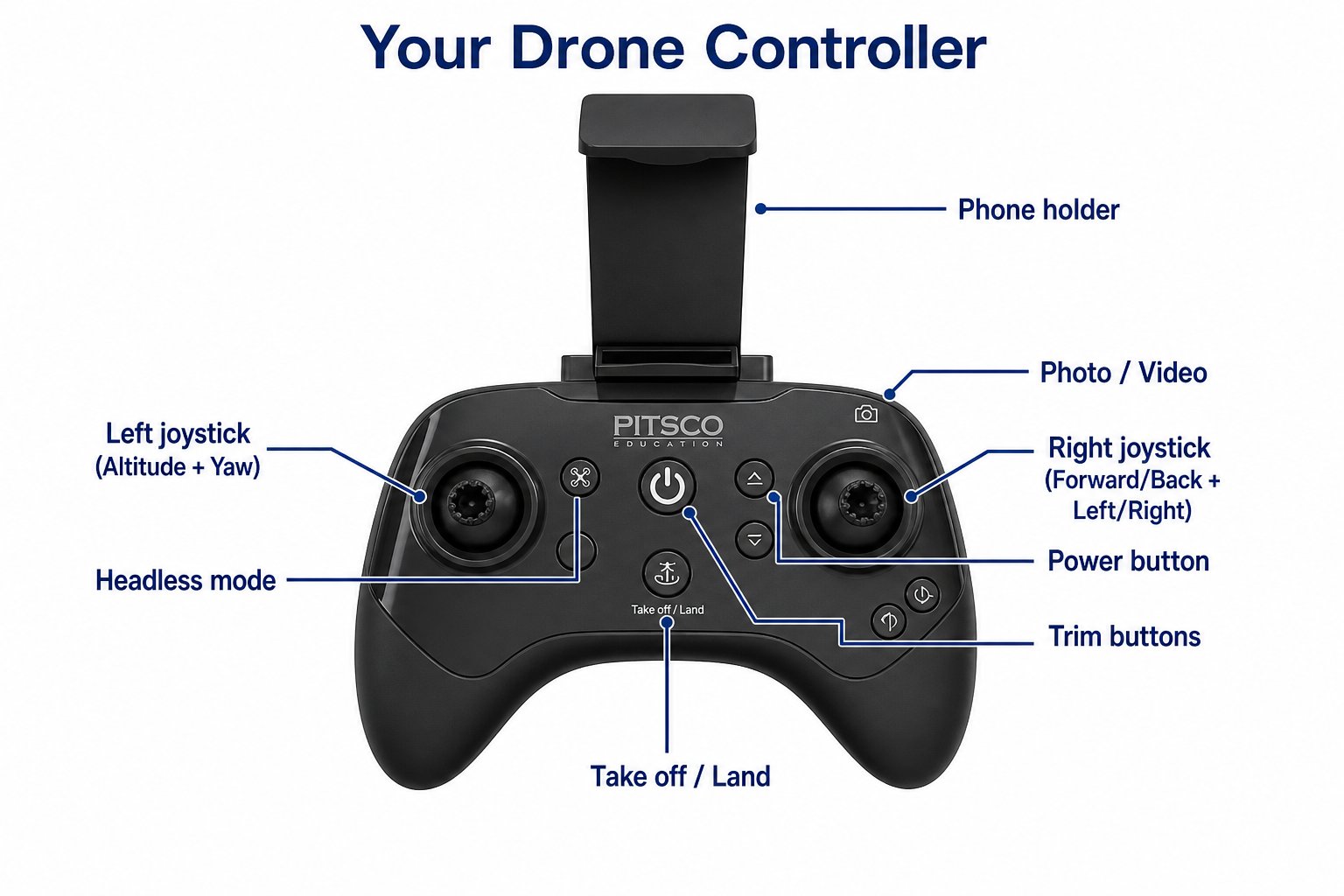
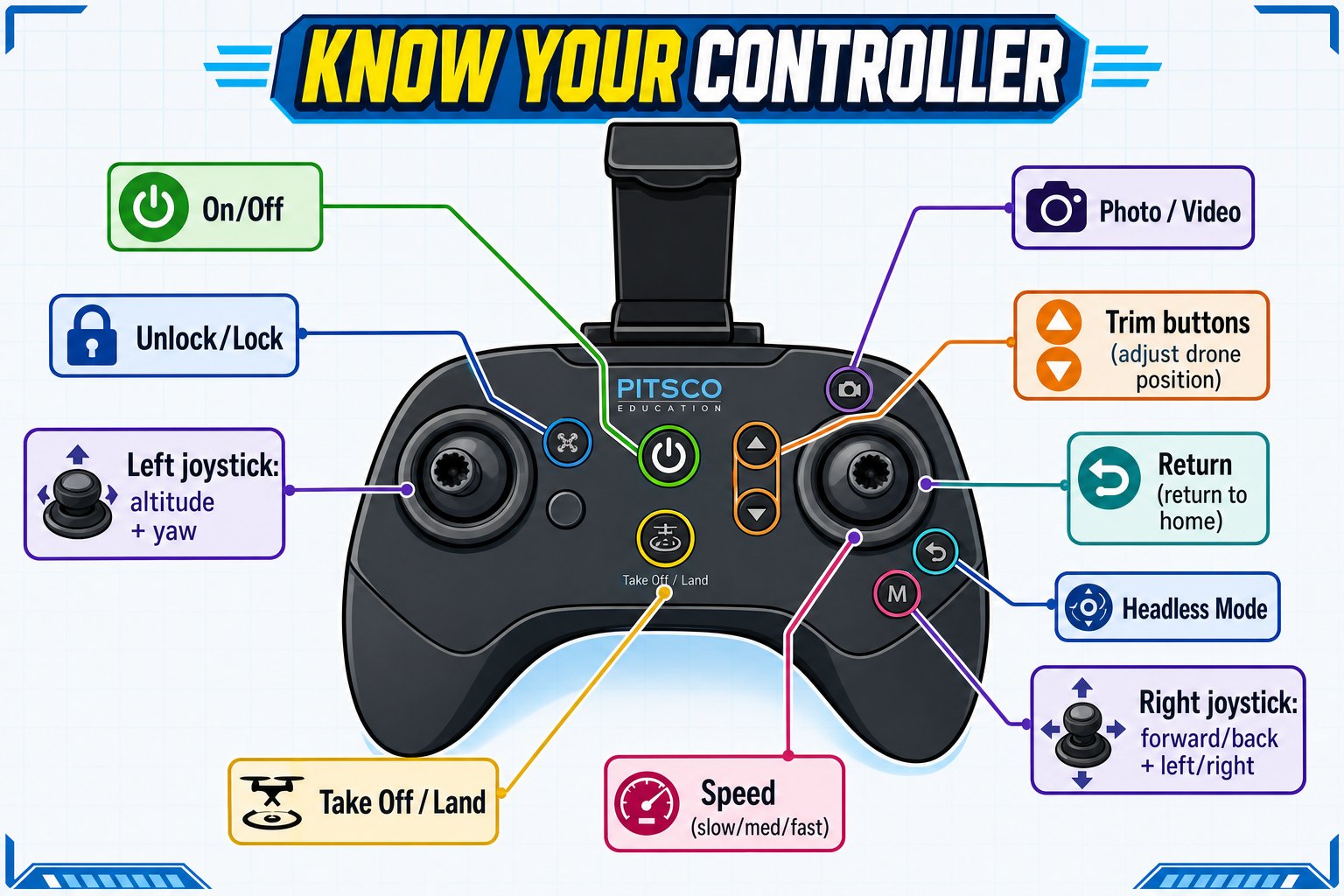
The controller is how you talk to your drone. Before flying, get familiar with every button so your hands know what to do without looking.
 Play "name that button." One student points to a control, the rest call out what it does. In two minutes everyone knows the layout by heart - and never has to look down while flying.
## The buttons
Press and hold to turn the controller on or off.
The drone must be **unlocked** to fly. Unlock by pushing the left stick to the lower-left and the right stick to the lower-right at the same time - the motors start spinning. Lock (motors stop) by doing the mirror image: left stick lower-right, right stick lower-left.
After unlocking (motors spinning), press this once and the drone takes off and hovers about one meter up. Press again to land automatically.
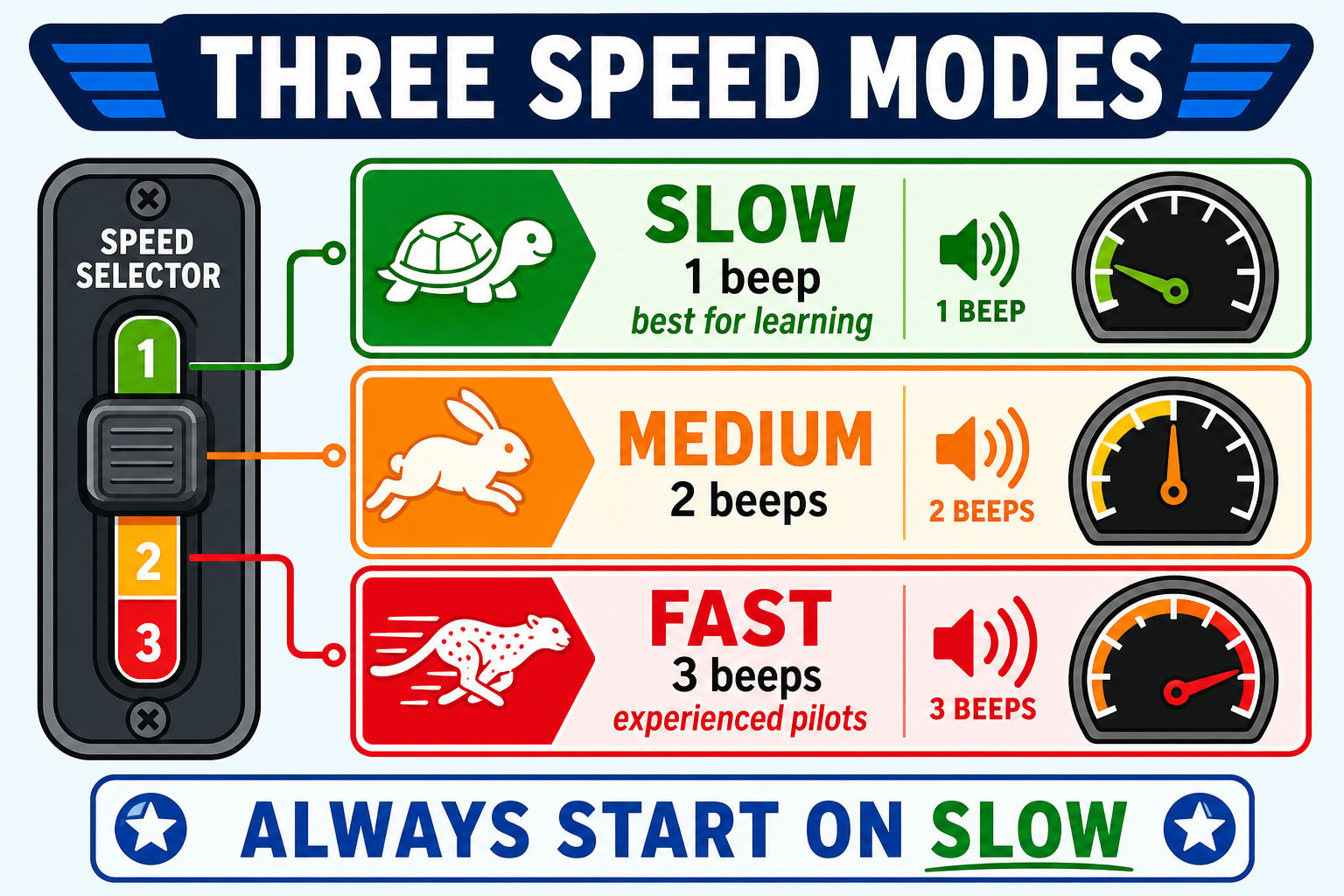
The left bumper cycles through three speeds. The controller beeps to tell you which: **slow** (one beep), **medium** (two beeps), **fast** (three beeps). Start slow!
## Unlock and lock the motors
Before the Take Off button does anything, the motors must be spinning. You start them with a **stick gesture** - and stop them with the mirror image.
Play "name that button." One student points to a control, the rest call out what it does. In two minutes everyone knows the layout by heart - and never has to look down while flying.
## The buttons
Press and hold to turn the controller on or off.
The drone must be **unlocked** to fly. Unlock by pushing the left stick to the lower-left and the right stick to the lower-right at the same time - the motors start spinning. Lock (motors stop) by doing the mirror image: left stick lower-right, right stick lower-left.
After unlocking (motors spinning), press this once and the drone takes off and hovers about one meter up. Press again to land automatically.
The left bumper cycles through three speeds. The controller beeps to tell you which: **slow** (one beep), **medium** (two beeps), **fast** (three beeps). Start slow!
## Unlock and lock the motors
Before the Take Off button does anything, the motors must be spinning. You start them with a **stick gesture** - and stop them with the mirror image.
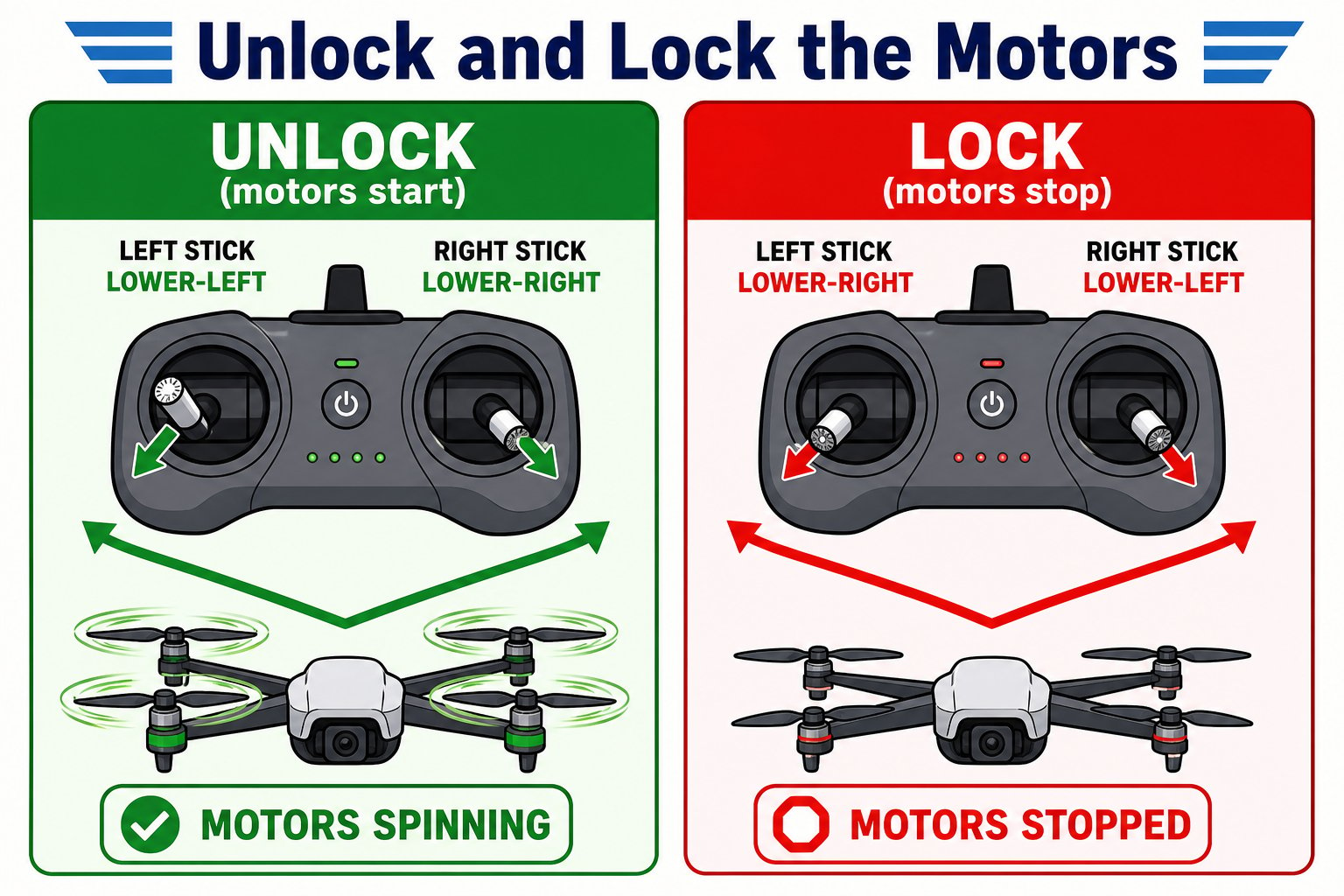 Get in the habit of **locking** the drone the moment you're done flying or if anything goes wrong. Locked motors can't spin a propeller into a finger.
## The three speed modes
The Speed button cycles slow → medium → fast, and the controller **beeps** so you always know which mode you're in without looking.
Get in the habit of **locking** the drone the moment you're done flying or if anything goes wrong. Locked motors can't spin a propeller into a finger.
## The three speed modes
The Speed button cycles slow → medium → fast, and the controller **beeps** so you always know which mode you're in without looking.
 ## More buttons
Small buttons that nudge the drone's balance if it drifts on its own while hovering. More on these next page.
Switches between normal flight and headless mode (covered on the next page). One beep on, two beeps off.
In headless mode, sends the drone back toward where it took off.
Press to snap a photo, press and hold for video. Media is saved in the app (when connected).
## The two joysticks
The joysticks are the heart of flying. Each one controls two things:
**Altitude** (up/down) and **yaw** (turn left/right).
**Forward/backward** and **left/right** movement.
The single most important habit for new pilots: **fly on the slowest speed setting first.** It gives you time to react and makes the drone far more forgiving while you learn.
To take off, the drone must first be **unlocked** (motors spinning) - then you press Take Off. Pressing Take Off alone won't work if the drone is still locked.
You can point to and name every button on your controller and explain what each joystick controls.
## More buttons
Small buttons that nudge the drone's balance if it drifts on its own while hovering. More on these next page.
Switches between normal flight and headless mode (covered on the next page). One beep on, two beeps off.
In headless mode, sends the drone back toward where it took off.
Press to snap a photo, press and hold for video. Media is saved in the app (when connected).
## The two joysticks
The joysticks are the heart of flying. Each one controls two things:
**Altitude** (up/down) and **yaw** (turn left/right).
**Forward/backward** and **left/right** movement.
The single most important habit for new pilots: **fly on the slowest speed setting first.** It gives you time to react and makes the drone far more forgiving while you learn.
To take off, the drone must first be **unlocked** (motors spinning) - then you press Take Off. Pressing Take Off alone won't work if the drone is still locked.
You can point to and name every button on your controller and explain what each joystick controls.