> ## Documentation Index
> Fetch the complete documentation index at: https://stem-docs.intellectualpoint.com/llms.txt
> Use this file to discover all available pages before exploring further.
# What is keystroke injection
> Understand how the USB Rubber Ducky exploits trust between computers and keyboards to automate attacks.
## Your computer trusts keyboards completely
When you plug a keyboard into your computer, something interesting happens: the operating system trusts it immediately. No permission prompt. No security scan. No "are you sure?" dialog. The computer accepts every keystroke as if a legitimate user is sitting at the desk.
This behavior is by design. Keyboards are **Human Interface Devices (HID)** - the USB device class that includes keyboards, mice, and game controllers. Operating systems have trusted HID devices unconditionally since the early days of USB because you need your keyboard to work the moment you plug it in, before you can even type a password.
**Keystroke injection** exploits this trust. A keystroke injection device looks like a USB flash drive on the outside, but when you plug it in, the computer sees a keyboard. The device then "types" pre-programmed commands at superhuman speed - hundreds of keystrokes per second - executing whatever script the attacker loaded onto it.
The USB Rubber Ducky is the most well-known keystroke injection tool. Created by Hak5, it looks like an ordinary USB flash drive but registers as a keyboard when plugged into a target computer.
Here's what makes keystroke injection so effective:
| Advantage | Why it matters |
| ------------------------------ | ------------------------------------------------------------------------------------------------------------------------------------------------------- |
| **No malware to detect** | Antivirus software looks for malicious files. The Rubber Ducky doesn't install files - it types commands that the operating system executes normally. |
| **Superhuman speed** | It can type hundreds of keystrokes per second. An entire attack script can execute before a user can react. |
| **Bypasses software defenses** | Firewalls, antivirus, and endpoint protection are designed to stop network attacks and malicious software - not keystrokes from a "keyboard." |
| **Cross-platform** | Keyboards work on Windows, macOS, Linux, Android, and iOS. The same concept applies everywhere. |
Keystroke injection is a real attack technique used in both authorized penetration tests and criminal hacking. Everything you learn today is for educational purposes. You must only use these tools on computers you own or have explicit written permission to test.
***
## History of the USB Rubber Ducky
The USB Rubber Ducky was created by **Darren Kitchen**, founder of Hak5, in 2010. It wasn't originally designed as an attack tool - Kitchen built it to solve a mundane IT problem.
Kitchen was working as an IT administrator and got tired of manually typing the same commands over and over - fixing printers, mapping network drives, configuring workstations. He wanted a device that could automate repetitive keyboard input, plug-and-play, on any computer.
The result was a USB device with a microcontroller, a microSD card slot for storing scripts, and firmware that made it register as a keyboard. The Rubber Ducky was born.
What Kitchen quickly realized - and what made it legendary - was that this same capability could be used for offensive security. If a device can type anything a human can type, it can also open a terminal, download malware, exfiltrate data, or create a backdoor account.
The USB Rubber Ducky became a hacker culture icon:
* **Mr. Robot (2015)** - The show featured the Rubber Ducky in multiple episodes, bringing it into mainstream awareness
* **Penetration testing standard** - It became one of the first tools recommended in professional pentesting courses
* **Hak5 community** - An entire ecosystem of payloads, forums, and educational content grew around the device
* **Inspired an industry** - Other keystroke injection tools followed (Bash Bunny, O.MG Cable, MalDuino), but the Rubber Ducky remains the original
The Rubber Ducky has gone through several hardware revisions:
| Generation | Year | Key improvements |
| ------------------------ | ---- | --------------------------------------------------------------------------------------------- |
| Original | 2010 | Basic keystroke injection, 60 MHz processor |
| USB Rubber Ducky (Gen 2) | 2022 | DuckyScript 3.0, conditional logic, variables, keystroke reflection, cross-platform targeting |
The latest generation runs DuckyScript 3.0, which turns the Rubber Ducky from a simple keystroke replayer into a programmable attack platform with variables, conditionals, loops, and OS detection.
***
## How it works
The attack chain is straightforward. You write a script, compile it, load it onto the device, and plug it in.
DuckyScript is the scripting language designed specifically for the USB Rubber Ducky. You write human-readable commands like `STRING`, `DELAY`, `GUI r`, and `ENTER`. Each command maps to a keyboard action.
The Rubber Ducky doesn't read raw DuckyScript - it reads compiled binary files. You use **PayloadStudio** (Hak5's web-based IDE) to compile your `.txt` script into an `inject.bin` file.
The Rubber Ducky stores its payload on a removable microSD card. You put the device into **arming mode** (where it appears as a flash drive), copy `inject.bin` to the root of the drive, and eject it.
When you insert the Rubber Ducky into a USB port, the target computer's operating system detects a new HID keyboard device. No driver installation is needed - it uses standard USB HID drivers that every operating system has built in.
The Rubber Ducky begins "typing" the pre-programmed keystrokes immediately. It can open applications, type commands, navigate menus, download files, modify settings - anything a human with a keyboard can do, but in seconds.
The entire process - from plugging in to payload completion - typically takes between 3 and 15 seconds depending on the complexity of the script. That's faster than most people can react.
***
## The hardware
The USB Rubber Ducky is a purpose-built piece of hardware. Here's what it looks like and what each component does.
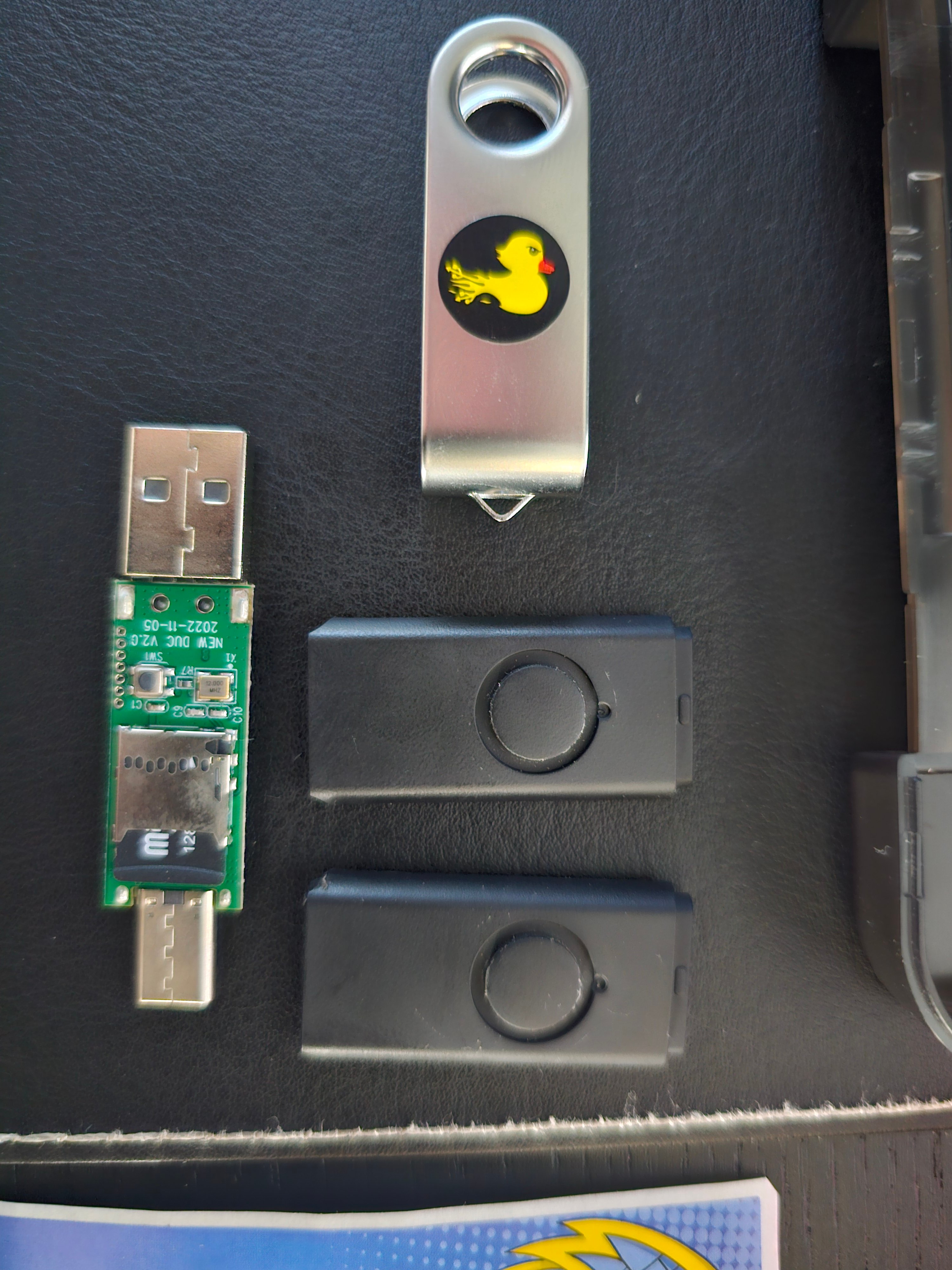 The Rubber Ducky comes in several form factors. The branded version with the duck logo is the most recognizable, but the black-cased versions are designed to look like ordinary USB flash drives - making them harder for a target to identify as an attack tool.
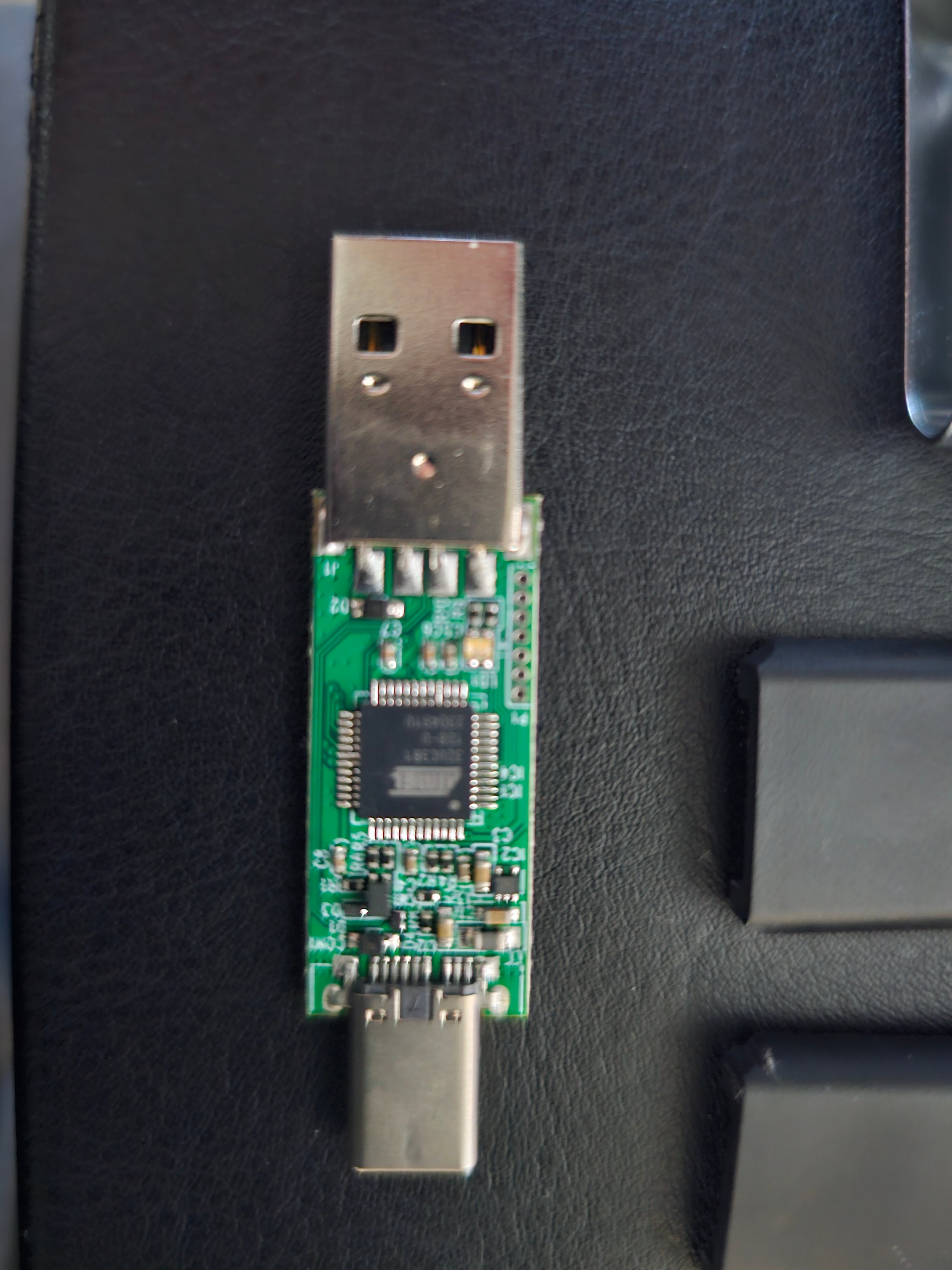 The bare PCB reveals the hardware that makes keystroke injection possible:
| Component | Purpose |
| --------------------- | --------------------------------------------------------------------------------------- |
| **Microcontroller** | The brain of the device - runs the compiled payload and emulates a USB keyboard |
| **USB connector** | Standard USB-A plug that connects to the target computer |
| **Push button** | Switches between arming mode (flash drive) and attack mode (keyboard) |
| **LED indicator** | Provides visual feedback during payload execution - can be controlled via DuckyScript |
| **microSD card slot** | Holds the `inject.bin` payload file |
The bare PCB reveals the hardware that makes keystroke injection possible:
| Component | Purpose |
| --------------------- | --------------------------------------------------------------------------------------- |
| **Microcontroller** | The brain of the device - runs the compiled payload and emulates a USB keyboard |
| **USB connector** | Standard USB-A plug that connects to the target computer |
| **Push button** | Switches between arming mode (flash drive) and attack mode (keyboard) |
| **LED indicator** | Provides visual feedback during payload execution - can be controlled via DuckyScript |
| **microSD card slot** | Holds the `inject.bin` payload file |
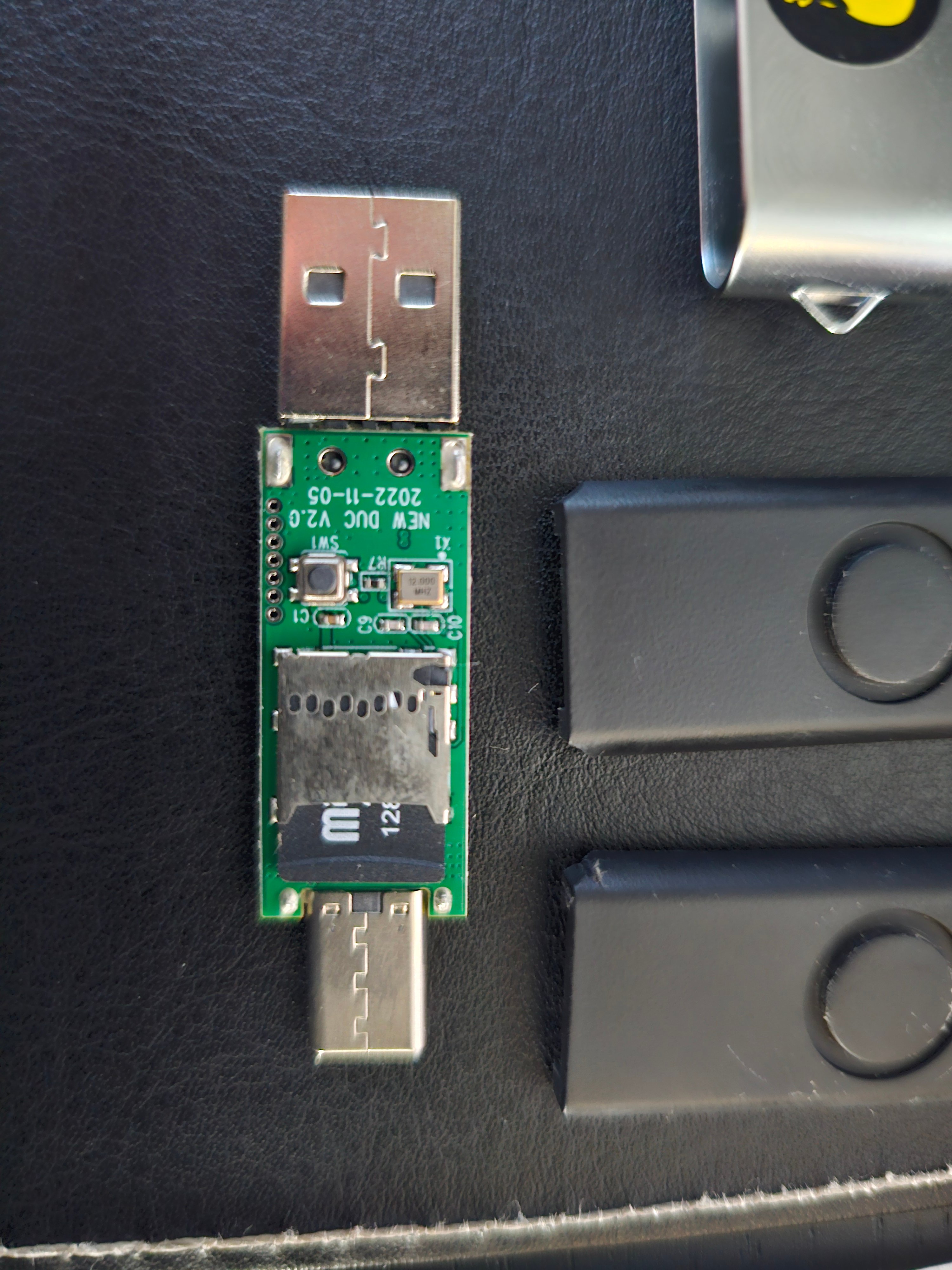 The microSD card slot is where you load your compiled payloads. The Rubber Ducky reads `inject.bin` from the root of the microSD card on boot. You can swap microSD cards to quickly change between different payloads.
***
## Key concepts
Before you start writing payloads, you need to understand five key terms. You will use these throughout the rest of Day 5.
HID is the **USB device class** for input devices - keyboards, mice, game controllers, and touchscreens. When a USB device identifies itself as an HID keyboard, the operating system loads generic keyboard drivers and starts accepting keystrokes immediately.
The Rubber Ducky's firmware tells the computer "I'm a keyboard" via the USB HID protocol. The computer has no reason to question this - it's the same protocol that your actual keyboard uses.
This is why no special drivers or permissions are needed. The operating system is designed to trust HID devices by default.
A **payload** is the script that tells the Rubber Ducky what to type. It's a set of instructions - open this application, type this command, press these keys, wait this long.
Payloads range from harmless pranks (opening a YouTube video) to devastating attacks (creating backdoor accounts, exfiltrating data, installing remote access tools). The device itself is neutral - the payload determines what it does.
You will write payloads in DuckyScript and compile them into `inject.bin` files using PayloadStudio.
**DuckyScript** is the programming language created by Hak5 specifically for writing USB Rubber Ducky payloads. It uses simple, human-readable commands that map directly to keyboard actions.
For example:
* `STRING Hello` types the word "Hello"
* `ENTER` presses the Enter key
* `GUI r` presses Windows+R (opens the Run dialog)
* `DELAY 1000` waits one second
DuckyScript 3.0 (the latest version) adds variables, conditionals, loops, functions, and OS detection - making the Rubber Ducky a fully programmable platform.
**Arming mode** is when the Rubber Ducky presents itself as a USB flash drive instead of a keyboard. In this mode, the computer mounts the microSD card as a removable drive (usually labeled "DUCKY"), and you can copy files to it.
You use arming mode to:
* Load a new `inject.bin` payload onto the device
* Remove or replace an existing payload
* Check what payload is currently loaded
To enter arming mode, press the **push button** on the device while it's plugged in. Some Rubber Ducky models enter arming mode automatically when first plugged in before a payload is loaded.
**Attack mode** is the default operating mode. When the Rubber Ducky is plugged in with a valid `inject.bin` on its microSD card, it registers as a keyboard and immediately begins executing the payload.
In attack mode:
* The computer sees a keyboard, not a flash drive
* The payload executes automatically - no user interaction required
* The LED can provide visual feedback (if the payload uses `LED_R`, `LED_G`, etc.)
* The device cannot be browsed as a storage device
To stop a running payload and switch to arming mode, press the push button.
***
## Why this matters for defense
The USB Rubber Ducky is a penetration testing tool, but the attack technique it uses - keystroke injection via malicious USB devices - is a real-world threat. Understanding this attack helps you defend against it.
Attackers intentionally leave malicious USB devices in parking lots, lobbies, and conference rooms, hoping someone picks one up and plugs it in. This is a form of **social engineering** - it preys on human curiosity. Remember the social engineering attacks you learned about on Day 2? USB baiting is one of the most effective.
Some attackers modify legitimate USB devices before they reach the target - intercepting shipments and adding keystroke injection hardware inside ordinary-looking devices.
An insider with physical access to a workstation can plug in a Rubber Ducky in seconds. The attack completes before anyone notices, and the device can be removed immediately.
Traditional antivirus and endpoint detection tools look for malicious software. Keystroke injection doesn't install software - it uses the computer's own tools against it. This makes it invisible to most security products.
### How organizations defend against keystroke injection
| Defense | How it works |
| ----------------------------------------- | ----------------------------------------------------------------------------------------------------------------- |
| **USB port policies** | Group Policy or endpoint management tools can disable USB ports or restrict them to approved devices only |
| **USB device whitelisting** | Only pre-approved USB devices (by vendor ID and product ID) are allowed to connect |
| **Physical port blockers** | Plastic plugs that physically block unused USB ports - requires a special key to remove |
| **Security awareness training** | Teach employees to never plug in USB devices they find or receive unexpectedly |
| **Endpoint detection and response (EDR)** | Advanced EDR tools can detect suspicious keyboard behavior - like a "keyboard" typing 500 characters per second |
| **Network segmentation** | Even if an attacker gets keystrokes executed, network segmentation limits what they can reach |
The most effective defense is the simplest: **never plug in a USB device you didn't buy yourself or receive from a trusted source.** This single rule blocks the majority of USB-based attacks.
***
## Knowledge check
Test your understanding before moving on.
Operating systems trust USB HID (keyboard) devices unconditionally. When a device identifies itself as a keyboard, the OS accepts its keystrokes without any security verification. The Rubber Ducky exploits this trust by registering as a keyboard and "typing" pre-programmed commands.
Antivirus software scans for malicious files and known malware signatures. The Rubber Ducky doesn't install files - it types commands using the computer's own legitimate tools (Run dialog, terminal, PowerShell). From the antivirus perspective, a user is just typing on their keyboard.
**Arming mode:** The Rubber Ducky appears as a flash drive. You use this mode to load payloads onto the microSD card.
**Attack mode:** The Rubber Ducky appears as a keyboard and executes the payload. This is the default mode when the device is plugged in with a valid `inject.bin` file.
USB baiting is a social engineering attack that exploits human curiosity. Attackers leave malicious USB devices where targets will find them. The victim's curiosity ("What's on this drive?") overrides their security training, and they plug it in. This connects directly to the social engineering techniques covered on Day 2 - it's a physical-world version of a phishing attack.
The microSD card slot is where you load your compiled payloads. The Rubber Ducky reads `inject.bin` from the root of the microSD card on boot. You can swap microSD cards to quickly change between different payloads.
***
## Key concepts
Before you start writing payloads, you need to understand five key terms. You will use these throughout the rest of Day 5.
HID is the **USB device class** for input devices - keyboards, mice, game controllers, and touchscreens. When a USB device identifies itself as an HID keyboard, the operating system loads generic keyboard drivers and starts accepting keystrokes immediately.
The Rubber Ducky's firmware tells the computer "I'm a keyboard" via the USB HID protocol. The computer has no reason to question this - it's the same protocol that your actual keyboard uses.
This is why no special drivers or permissions are needed. The operating system is designed to trust HID devices by default.
A **payload** is the script that tells the Rubber Ducky what to type. It's a set of instructions - open this application, type this command, press these keys, wait this long.
Payloads range from harmless pranks (opening a YouTube video) to devastating attacks (creating backdoor accounts, exfiltrating data, installing remote access tools). The device itself is neutral - the payload determines what it does.
You will write payloads in DuckyScript and compile them into `inject.bin` files using PayloadStudio.
**DuckyScript** is the programming language created by Hak5 specifically for writing USB Rubber Ducky payloads. It uses simple, human-readable commands that map directly to keyboard actions.
For example:
* `STRING Hello` types the word "Hello"
* `ENTER` presses the Enter key
* `GUI r` presses Windows+R (opens the Run dialog)
* `DELAY 1000` waits one second
DuckyScript 3.0 (the latest version) adds variables, conditionals, loops, functions, and OS detection - making the Rubber Ducky a fully programmable platform.
**Arming mode** is when the Rubber Ducky presents itself as a USB flash drive instead of a keyboard. In this mode, the computer mounts the microSD card as a removable drive (usually labeled "DUCKY"), and you can copy files to it.
You use arming mode to:
* Load a new `inject.bin` payload onto the device
* Remove or replace an existing payload
* Check what payload is currently loaded
To enter arming mode, press the **push button** on the device while it's plugged in. Some Rubber Ducky models enter arming mode automatically when first plugged in before a payload is loaded.
**Attack mode** is the default operating mode. When the Rubber Ducky is plugged in with a valid `inject.bin` on its microSD card, it registers as a keyboard and immediately begins executing the payload.
In attack mode:
* The computer sees a keyboard, not a flash drive
* The payload executes automatically - no user interaction required
* The LED can provide visual feedback (if the payload uses `LED_R`, `LED_G`, etc.)
* The device cannot be browsed as a storage device
To stop a running payload and switch to arming mode, press the push button.
***
## Why this matters for defense
The USB Rubber Ducky is a penetration testing tool, but the attack technique it uses - keystroke injection via malicious USB devices - is a real-world threat. Understanding this attack helps you defend against it.
Attackers intentionally leave malicious USB devices in parking lots, lobbies, and conference rooms, hoping someone picks one up and plugs it in. This is a form of **social engineering** - it preys on human curiosity. Remember the social engineering attacks you learned about on Day 2? USB baiting is one of the most effective.
Some attackers modify legitimate USB devices before they reach the target - intercepting shipments and adding keystroke injection hardware inside ordinary-looking devices.
An insider with physical access to a workstation can plug in a Rubber Ducky in seconds. The attack completes before anyone notices, and the device can be removed immediately.
Traditional antivirus and endpoint detection tools look for malicious software. Keystroke injection doesn't install software - it uses the computer's own tools against it. This makes it invisible to most security products.
### How organizations defend against keystroke injection
| Defense | How it works |
| ----------------------------------------- | ----------------------------------------------------------------------------------------------------------------- |
| **USB port policies** | Group Policy or endpoint management tools can disable USB ports or restrict them to approved devices only |
| **USB device whitelisting** | Only pre-approved USB devices (by vendor ID and product ID) are allowed to connect |
| **Physical port blockers** | Plastic plugs that physically block unused USB ports - requires a special key to remove |
| **Security awareness training** | Teach employees to never plug in USB devices they find or receive unexpectedly |
| **Endpoint detection and response (EDR)** | Advanced EDR tools can detect suspicious keyboard behavior - like a "keyboard" typing 500 characters per second |
| **Network segmentation** | Even if an attacker gets keystrokes executed, network segmentation limits what they can reach |
The most effective defense is the simplest: **never plug in a USB device you didn't buy yourself or receive from a trusted source.** This single rule blocks the majority of USB-based attacks.
***
## Knowledge check
Test your understanding before moving on.
Operating systems trust USB HID (keyboard) devices unconditionally. When a device identifies itself as a keyboard, the OS accepts its keystrokes without any security verification. The Rubber Ducky exploits this trust by registering as a keyboard and "typing" pre-programmed commands.
Antivirus software scans for malicious files and known malware signatures. The Rubber Ducky doesn't install files - it types commands using the computer's own legitimate tools (Run dialog, terminal, PowerShell). From the antivirus perspective, a user is just typing on their keyboard.
**Arming mode:** The Rubber Ducky appears as a flash drive. You use this mode to load payloads onto the microSD card.
**Attack mode:** The Rubber Ducky appears as a keyboard and executes the payload. This is the default mode when the device is plugged in with a valid `inject.bin` file.
USB baiting is a social engineering attack that exploits human curiosity. Attackers leave malicious USB devices where targets will find them. The victim's curiosity ("What's on this drive?") overrides their security training, and they plug it in. This connects directly to the social engineering techniques covered on Day 2 - it's a physical-world version of a phishing attack.