> ## Documentation Index
> Fetch the complete documentation index at: https://stem-docs.intellectualpoint.com/llms.txt
> Use this file to discover all available pages before exploring further.
# Network architecture
> Understand how networks are structured, from DMZs to servers, and how IP addressing works.
## Why network architecture matters
Every organization - from a small donut shop to a multinational corporation - relies on a network to function. Email, websites, payment processing, file sharing, and security cameras all run over a network. If you don't understand how the network is structured, you can't defend it.
Network architecture is the blueprint of how devices, servers, and security systems are connected. As a defender, your job is to know where traffic flows, where sensitive data lives, and where an attacker could break in.
Think of network architecture like the floor plan of a building. A security guard who doesn't know the layout can't protect it. The same applies to cybersecurity - you need to know the map before you can defend the territory.
## Traditional network architecture
Most organizations use what's called a **monolithic** or **traditional** network architecture. It looks something like this:
```
Internet → Firewall → DMZ → Internal Network → Servers / Workstations
```
Each layer serves a purpose, and traffic has to pass through security checkpoints to move deeper into the network.
### The DMZ (demilitarized zone)
The **DMZ** is a buffer network that sits between the public internet and your internal network. It's like the lobby of a secure office building - visitors can enter the lobby, but they can't walk straight into the executive offices.
The DMZ hosts services that need to be accessible from the internet (like your website) without exposing your internal systems.
The name "DMZ" comes from military terminology - a demilitarized zone is a buffer area between two opposing forces. In networking, it's the buffer between the untrusted internet and your trusted internal network.
**What goes in the DMZ:**
* Public-facing web servers
* Email gateways
* DNS servers
* VPN endpoints
**What stays on the internal network:**
* Employee workstations
* Database servers with sensitive data
* HR and payroll systems
* Internal file shares
### Front end vs back end
You'll hear "front end" and "back end" throughout cybersecurity and software development:
| Term | What it means | Example |
| ------------- | ------------------------------------- | -------------------------------------------------------------- |
| **Front end** | The part users interact with directly | A website's login page, a mobile app's interface |
| **Back end** | The part that runs behind the scenes | The database storing passwords, the server processing payments |
In network architecture, **front-end servers** sit closer to the internet (often in the DMZ), while **back-end servers** sit deeper in the internal network where they're harder for attackers to reach.
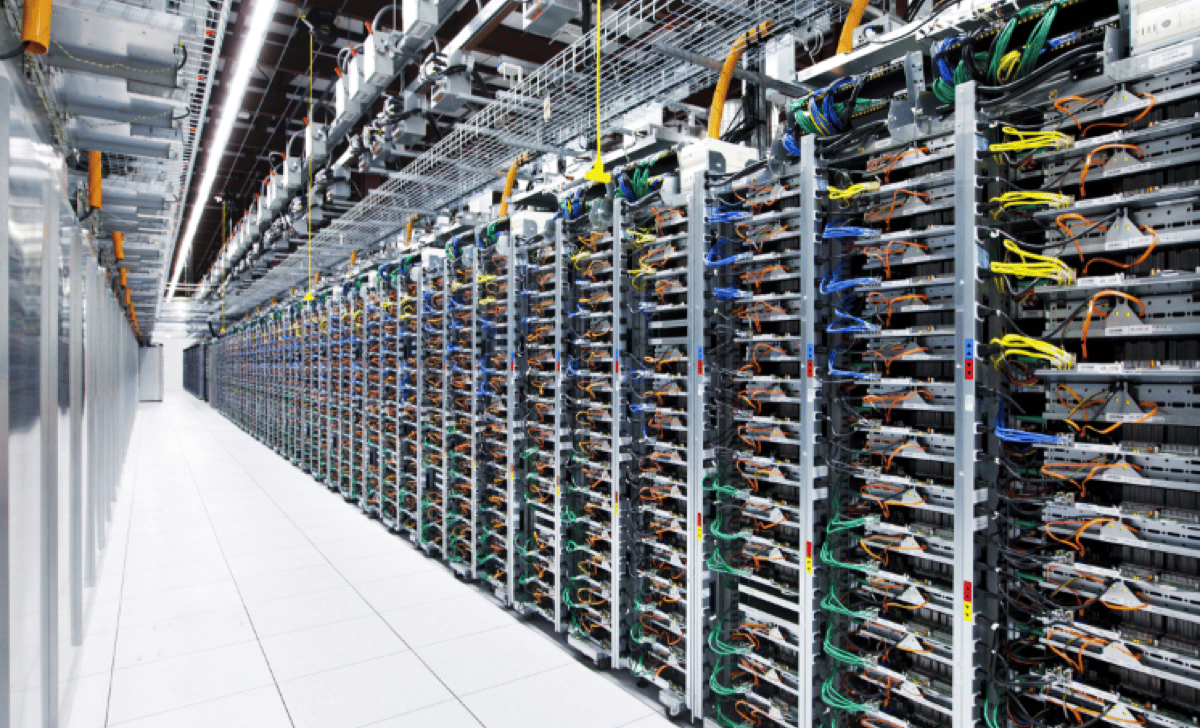 ### Common server types
Organizations run different servers for different functions. Each one is a potential target for attackers, so you need to know what they do and why they matter.
**What it does:** Hosts websites and web applications. When you visit a website, you're connecting to a web server.
**Why attackers target it:** Web servers are internet-facing, making them the most exposed target. Attackers exploit vulnerabilities like SQL injection, cross-site scripting, or outdated software to break in.
**Examples:** Apache, Nginx, Microsoft IIS
**What it does:** Stores and shares files within the organization. Employees access shared drives, documents, and resources through the file server.
**Why attackers target it:** File servers often contain sensitive business documents, intellectual property, contracts, and employee data. Ransomware frequently targets file servers to encrypt everything at once.
**Examples:** Windows File Server (SMB), Samba, NFS
**What it does:** Stores structured data - customer records, transaction histories, inventory, user accounts, and passwords.
**Why attackers target it:** Databases are the crown jewels. A breach here means stolen customer data, leaked passwords, and regulatory fines. This is where SQL injection attacks are aimed.
**Examples:** MySQL, PostgreSQL, Microsoft SQL Server, Oracle
**What it does:** Handles sending and receiving email for the organization.
**Why attackers target it:** Email is the #1 attack vector for phishing. Compromising an email server lets attackers read confidential communications, send phishing emails from legitimate accounts, and intercept password reset links.
**Examples:** Microsoft Exchange, Postfix, Google Workspace (cloud-based)
**What it does:** Handles **Authentication** (who are you?), **Authorization** (what can you access?), and **Accounting** (what did you do?).
**Why attackers target it:** If an attacker compromises the AAA server, they control who can access the entire network. They can create admin accounts, disable logging, and move freely through all systems.
**Examples:** RADIUS, TACACS+, Microsoft Active Directory
## IP addressing
Every device on a network needs an address so other devices can find it and communicate with it. That address is called an **IP address** (Internet Protocol address).
### What is an IP address?
An IP address is your device's unique identifier on a network. It works like a mailing address - without it, data doesn't know where to go.
An IPv4 address looks like this: `192.168.1.25`
It's made up of four numbers (called **octets**), each ranging from 0 to 255, separated by dots.
### Public vs private IP addresses
Not all IP addresses are the same. There are two types:
**Visible from the internet.** Your public IP is the address the outside world sees when your network communicates with the internet.
* Assigned by your Internet Service Provider (ISP)
* Unique across the entire internet
* Used for websites, email servers, and anything accessible from outside
You can check your public IP right now by searching "what is my IP" on Google.
**Only visible within your local network.** Private IPs are used for devices inside your home or office network - your laptop, phone, smart TV, and printer.
* Assigned by your router (via DHCP)
* Not unique globally - millions of home networks use the same private ranges
* Cannot be reached directly from the internet
### The house analogy
Think about your teammate Blair's house:
* The **street address** (e.g., 123 Main Street) is the **public IP** - it's how the postal service (the internet) finds the house from the outside.
* The **rooms inside** (kitchen, bedroom, living room) are the **private IPs** - they exist within the house, and people inside know how to find them, but someone standing on the street can't see them.
* The **front door** is the **router** - it's the single entry point that connects the inside to the outside.
Everyone in the neighborhood can see the street address, but only people inside the house know which room is which.
This is why you can't directly access someone's laptop just by knowing their home's public IP address. The router acts as a gatekeeper between the public internet and the private devices inside.
### DHCP - automatic IP assignment
**DHCP** (Dynamic Host Configuration Protocol) automatically assigns IP addresses to devices when they connect to a network. Without DHCP, you would have to manually configure an IP address on every device - every phone, laptop, smart speaker, and tablet.
How it works:
1. Your device connects to the Wi-Fi network
2. Your device broadcasts: "I need an IP address!"
3. The DHCP server (usually your router) responds: "Here, use `192.168.1.25`"
4. Your device uses that address until the lease expires, then requests a new one
### Common private IP ranges
The Internet Engineering Task Force (IETF) reserved three blocks of IP addresses for private use. These are the ranges you will see on internal networks:
| Range | Subnet mask | Number of addresses | Common use |
| --------------------------------- | ----------- | ------------------- | ------------------------------ |
| `10.0.0.0` - `10.255.255.255` | 255.0.0.0 | \~16.7 million | Large enterprise networks |
| `172.16.0.0` - `172.31.255.255` | 255.240.0.0 | \~1 million | Medium-sized organizations |
| `192.168.0.0` - `192.168.255.255` | 255.255.0.0 | \~65,000 | Home and small office networks |
If you open your terminal or command prompt and type `ipconfig` (Windows) or `ifconfig` (Mac/Linux), you will see your device's private IP address. It will almost certainly start with `192.168`, `10.`, or `172.16-31`.
## Defense in depth
**Defense in depth** is the strategy of layering multiple security controls so that if one fails, the next one catches the attacker. No single defense is perfect, so you stack them.
### The home analogy
Think about protecting your own home:
The first barrier. It stops casual intruders, but a determined attacker can pick a lock or kick the door in.
If someone gets past the door, the alarm triggers. Now you know there's a problem, and the clock starts ticking for the intruder.
Even if the alarm doesn't stop them, cameras capture evidence. You know who it was and what they did.
Not every room needs to be accessible. Your most valuable belongings are behind another lock.
Your most critical items - passports, cash, irreplaceable documents - are in a safe that requires a separate code or key.
Each layer adds **time** and **visibility** for defenders. An attacker who breaks through one layer still has to deal with the next. The more layers they face, the more likely they are to get caught or give up.
In network security, defense in depth looks like this:
| Layer | Control | Purpose |
| ----------- | --------------------- | ----------------------------------------------- |
| Perimeter | Firewall | Filter traffic entering and leaving the network |
| DMZ | IDS/IPS | Detect and block suspicious traffic |
| Network | Network segmentation | Limit lateral movement if an attacker gets in |
| Host | Antivirus, patching | Protect individual servers and workstations |
| Application | Input validation, WAF | Block application-layer attacks |
| Data | Encryption, backups | Protect data even if everything else fails |
## How a network attack flows
Understanding the path an attack takes helps you know where to place your defenses. Here's a typical flow:
```
Internet
↓
Firewall (filters traffic - can it get past the rules?)
↓
DMZ (hits public-facing servers - web server, email gateway)
↓
Internal Network (if the attacker pivots past the DMZ)
↓
Target Server (database, file server, AAA server)
```
At each step, the attacker needs to bypass a security control. Your job as a defender is to make every step as difficult as possible and ensure that if one layer is breached, the next one holds.
Attackers don't always start from the internet. A phishing email can give them a foothold inside the network, bypassing the firewall and DMZ entirely. This is why defense in depth includes controls at every layer - not just the perimeter.
## Exercise: Map your home network
Take five minutes and think about (or sketch) the network architecture of your own home:
What is your router? Is it provided by your ISP, or did you buy your own? This is the front door of your network.
How many devices are connected? Laptops, phones, smart TVs, game consoles, smart speakers, security cameras, smart thermostats - list them all.
Does your network have a public IP? (Yes - your ISP assigned one.) What private IP range does your router use? Check by looking at your device's network settings.
Does your router have a built-in firewall? Is your Wi-Fi password-protected? Do you have a guest network? These are all security controls you already use.
Are there devices with default passwords? Is your router firmware up to date? Could a neighbor connect to your Wi-Fi? These are the vulnerabilities in your home network.
If you find a security gap in your home network during this exercise, fix it. Change that default password, update that firmware, or set up a guest network for visitors. Cybersecurity starts at home.
## Key takeaways
* **Network architecture** is the blueprint of how devices and servers are connected - you can't defend what you don't understand.
* The **DMZ** is a buffer zone between the internet and your internal network, hosting public-facing services.
* **IP addresses** are how devices find each other - public IPs are visible from the internet, private IPs are only visible inside your network.
* **DHCP** automatically assigns IP addresses so you don't have to configure each device manually.
* **Defense in depth** layers multiple controls so that no single failure compromises the entire network.
* Every layer an attacker has to bypass gives defenders more time to detect and respond.
### Common server types
Organizations run different servers for different functions. Each one is a potential target for attackers, so you need to know what they do and why they matter.
**What it does:** Hosts websites and web applications. When you visit a website, you're connecting to a web server.
**Why attackers target it:** Web servers are internet-facing, making them the most exposed target. Attackers exploit vulnerabilities like SQL injection, cross-site scripting, or outdated software to break in.
**Examples:** Apache, Nginx, Microsoft IIS
**What it does:** Stores and shares files within the organization. Employees access shared drives, documents, and resources through the file server.
**Why attackers target it:** File servers often contain sensitive business documents, intellectual property, contracts, and employee data. Ransomware frequently targets file servers to encrypt everything at once.
**Examples:** Windows File Server (SMB), Samba, NFS
**What it does:** Stores structured data - customer records, transaction histories, inventory, user accounts, and passwords.
**Why attackers target it:** Databases are the crown jewels. A breach here means stolen customer data, leaked passwords, and regulatory fines. This is where SQL injection attacks are aimed.
**Examples:** MySQL, PostgreSQL, Microsoft SQL Server, Oracle
**What it does:** Handles sending and receiving email for the organization.
**Why attackers target it:** Email is the #1 attack vector for phishing. Compromising an email server lets attackers read confidential communications, send phishing emails from legitimate accounts, and intercept password reset links.
**Examples:** Microsoft Exchange, Postfix, Google Workspace (cloud-based)
**What it does:** Handles **Authentication** (who are you?), **Authorization** (what can you access?), and **Accounting** (what did you do?).
**Why attackers target it:** If an attacker compromises the AAA server, they control who can access the entire network. They can create admin accounts, disable logging, and move freely through all systems.
**Examples:** RADIUS, TACACS+, Microsoft Active Directory
## IP addressing
Every device on a network needs an address so other devices can find it and communicate with it. That address is called an **IP address** (Internet Protocol address).
### What is an IP address?
An IP address is your device's unique identifier on a network. It works like a mailing address - without it, data doesn't know where to go.
An IPv4 address looks like this: `192.168.1.25`
It's made up of four numbers (called **octets**), each ranging from 0 to 255, separated by dots.
### Public vs private IP addresses
Not all IP addresses are the same. There are two types:
**Visible from the internet.** Your public IP is the address the outside world sees when your network communicates with the internet.
* Assigned by your Internet Service Provider (ISP)
* Unique across the entire internet
* Used for websites, email servers, and anything accessible from outside
You can check your public IP right now by searching "what is my IP" on Google.
**Only visible within your local network.** Private IPs are used for devices inside your home or office network - your laptop, phone, smart TV, and printer.
* Assigned by your router (via DHCP)
* Not unique globally - millions of home networks use the same private ranges
* Cannot be reached directly from the internet
### The house analogy
Think about your teammate Blair's house:
* The **street address** (e.g., 123 Main Street) is the **public IP** - it's how the postal service (the internet) finds the house from the outside.
* The **rooms inside** (kitchen, bedroom, living room) are the **private IPs** - they exist within the house, and people inside know how to find them, but someone standing on the street can't see them.
* The **front door** is the **router** - it's the single entry point that connects the inside to the outside.
Everyone in the neighborhood can see the street address, but only people inside the house know which room is which.
This is why you can't directly access someone's laptop just by knowing their home's public IP address. The router acts as a gatekeeper between the public internet and the private devices inside.
### DHCP - automatic IP assignment
**DHCP** (Dynamic Host Configuration Protocol) automatically assigns IP addresses to devices when they connect to a network. Without DHCP, you would have to manually configure an IP address on every device - every phone, laptop, smart speaker, and tablet.
How it works:
1. Your device connects to the Wi-Fi network
2. Your device broadcasts: "I need an IP address!"
3. The DHCP server (usually your router) responds: "Here, use `192.168.1.25`"
4. Your device uses that address until the lease expires, then requests a new one
### Common private IP ranges
The Internet Engineering Task Force (IETF) reserved three blocks of IP addresses for private use. These are the ranges you will see on internal networks:
| Range | Subnet mask | Number of addresses | Common use |
| --------------------------------- | ----------- | ------------------- | ------------------------------ |
| `10.0.0.0` - `10.255.255.255` | 255.0.0.0 | \~16.7 million | Large enterprise networks |
| `172.16.0.0` - `172.31.255.255` | 255.240.0.0 | \~1 million | Medium-sized organizations |
| `192.168.0.0` - `192.168.255.255` | 255.255.0.0 | \~65,000 | Home and small office networks |
If you open your terminal or command prompt and type `ipconfig` (Windows) or `ifconfig` (Mac/Linux), you will see your device's private IP address. It will almost certainly start with `192.168`, `10.`, or `172.16-31`.
## Defense in depth
**Defense in depth** is the strategy of layering multiple security controls so that if one fails, the next one catches the attacker. No single defense is perfect, so you stack them.
### The home analogy
Think about protecting your own home:
The first barrier. It stops casual intruders, but a determined attacker can pick a lock or kick the door in.
If someone gets past the door, the alarm triggers. Now you know there's a problem, and the clock starts ticking for the intruder.
Even if the alarm doesn't stop them, cameras capture evidence. You know who it was and what they did.
Not every room needs to be accessible. Your most valuable belongings are behind another lock.
Your most critical items - passports, cash, irreplaceable documents - are in a safe that requires a separate code or key.
Each layer adds **time** and **visibility** for defenders. An attacker who breaks through one layer still has to deal with the next. The more layers they face, the more likely they are to get caught or give up.
In network security, defense in depth looks like this:
| Layer | Control | Purpose |
| ----------- | --------------------- | ----------------------------------------------- |
| Perimeter | Firewall | Filter traffic entering and leaving the network |
| DMZ | IDS/IPS | Detect and block suspicious traffic |
| Network | Network segmentation | Limit lateral movement if an attacker gets in |
| Host | Antivirus, patching | Protect individual servers and workstations |
| Application | Input validation, WAF | Block application-layer attacks |
| Data | Encryption, backups | Protect data even if everything else fails |
## How a network attack flows
Understanding the path an attack takes helps you know where to place your defenses. Here's a typical flow:
```
Internet
↓
Firewall (filters traffic - can it get past the rules?)
↓
DMZ (hits public-facing servers - web server, email gateway)
↓
Internal Network (if the attacker pivots past the DMZ)
↓
Target Server (database, file server, AAA server)
```
At each step, the attacker needs to bypass a security control. Your job as a defender is to make every step as difficult as possible and ensure that if one layer is breached, the next one holds.
Attackers don't always start from the internet. A phishing email can give them a foothold inside the network, bypassing the firewall and DMZ entirely. This is why defense in depth includes controls at every layer - not just the perimeter.
## Exercise: Map your home network
Take five minutes and think about (or sketch) the network architecture of your own home:
What is your router? Is it provided by your ISP, or did you buy your own? This is the front door of your network.
How many devices are connected? Laptops, phones, smart TVs, game consoles, smart speakers, security cameras, smart thermostats - list them all.
Does your network have a public IP? (Yes - your ISP assigned one.) What private IP range does your router use? Check by looking at your device's network settings.
Does your router have a built-in firewall? Is your Wi-Fi password-protected? Do you have a guest network? These are all security controls you already use.
Are there devices with default passwords? Is your router firmware up to date? Could a neighbor connect to your Wi-Fi? These are the vulnerabilities in your home network.
If you find a security gap in your home network during this exercise, fix it. Change that default password, update that firmware, or set up a guest network for visitors. Cybersecurity starts at home.
## Key takeaways
* **Network architecture** is the blueprint of how devices and servers are connected - you can't defend what you don't understand.
* The **DMZ** is a buffer zone between the internet and your internal network, hosting public-facing services.
* **IP addresses** are how devices find each other - public IPs are visible from the internet, private IPs are only visible inside your network.
* **DHCP** automatically assigns IP addresses so you don't have to configure each device manually.
* **Defense in depth** layers multiple controls so that no single failure compromises the entire network.
* Every layer an attacker has to bypass gives defenders more time to detect and respond.